

Picture the worst version of your morning: you reach for your email and it won’t let you in. Password changed. Then your Instagram is posting crypto scams, your PayPal fired off a payment you never made, and someone is politely emailing your clients from your address. You did nothing reckless. You just reused one decent password — and one website you forgot about got breached years ago.
Here’s the uncomfortable truth: a password, even a good one, is a single locked door. And attackers have gotten frighteningly good at copying keys — through leaks, phishing pages, and giant lists of stolen logins they test against every site at once.
Two-factor authentication (2FA) is the second lock. It’s the reason a stranger with your exact password still can’t get in. It’s free on almost every account you own, it takes about two minutes to switch on, and it’s the single highest-return security habit most people are still skipping.
We’ve run 2FA across our own DroidCrunch WordPress sites, Google Workspace, hosting dashboards, and password managers for years — including the annoying day one of us got locked out of an authenticator app and had to claw back in. So this isn’t theory. Below, in plain English: what 2FA actually is, the types ranked from weakest to strongest (yes, one popular method is quietly risky), how to turn it on, and the mistakes that lock people out of their own accounts.
📌 Key Takeaways
- What it is: Two-factor authentication asks for two different kinds of proof before letting you in — usually your password plus a code or tap on your phone.
- Why it matters: A stolen password alone becomes useless. Microsoft and Google both report it blocks the overwhelming majority of automated account attacks.
- Best method: Passkeys or a hardware key are strongest; an authenticator app is the sweet spot for most people; SMS is the weakest — but still far better than nothing.
- Do this today: Turn it on for your email first, then your password manager, bank, and WordPress admin. Save the backup codes somewhere safe.
What is two-factor authentication, in plain English?
Two-factor authentication (2FA) is a login security method that requires two separate pieces of evidence to prove you are who you say you are — typically something you know (your password) plus something you have (your phone). Instead of one gate, an account protected by 2FA has two, and they have to be unlocked by different means.
Think of an ATM. Your debit card alone won’t get you cash, and neither will your PIN alone — you need the card (something you have) and the PIN (something you know). Someone who shoulder-surfs your PIN still can’t drain your account without the physical card. That combination is exactly what 2FA brings to your online accounts.
In practice it usually looks like this: you type your username and password as normal, and then the site asks for a six-digit code from an app on your phone, a text message, or a quick tap on a notification. Only when both check out are you let in. In plain English, 2FA turns “knowing the password” into “knowing the password and holding your phone” — and that second condition is the part attackers on the other side of the world almost never satisfy.
ℹ️ In plain English: 2FA doesn’t replace your password — it backs it up. Even if your password leaks tomorrow, the account stays locked without the second factor sitting in your pocket.
Why a strong password isn’t enough anymore
Let’s be honest — most of us are not as careful as we think. We reuse passwords, tweak the same one with a “1” or a “!”, and hope for the best. Attackers count on it. When one site gets breached, those stolen email-and-password pairs get bundled into lists and tried automatically against hundreds of other sites — a tactic called credential stuffing. Your bank was never hacked; a forum you forgot about in 2019 was, and you used the same password.
The scale is the scary part. Billions of leaked credentials circulate in public dumps, and phishing kits can copy a login page so convincingly that even careful people hand over their passwords. A password is a secret, and secrets leak. The whole point of 2FA is that leaking the secret is no longer game over.
How much does that second factor help? Microsoft has said that turning on MFA blocks the large majority of automated account-compromise attacks, and Google’s security research found that simply adding an on-device prompt stopped 100% of automated bots and 99% of bulk phishing attempts in their tests. Our take: no single toggle you can flip in two minutes moves your security this far, this fast.
⚠️ Warning: If you reuse passwords, assume at least one is already floating in a breach dump. 2FA is what keeps that leaked password from turning into a stolen account. Pair it with a password manager so every login is both unique and second-locked.
How does two-factor authentication work?
The mechanics are simpler than the name suggests. Here’s the flow, step by step:
- You enter your password. This is factor one — something you know. So far, nothing new.
- The service asks for a second proof. Instead of logging you straight in, it pauses and requests factor two.
- You supply something you have. A rotating six-digit code from an authenticator app, a tap on a push notification, a texted code, or a physical security key you plug in or tap.
- Both factors are checked. Only when the password and the second factor match does the account open. Miss the second one and the correct password is worthless.
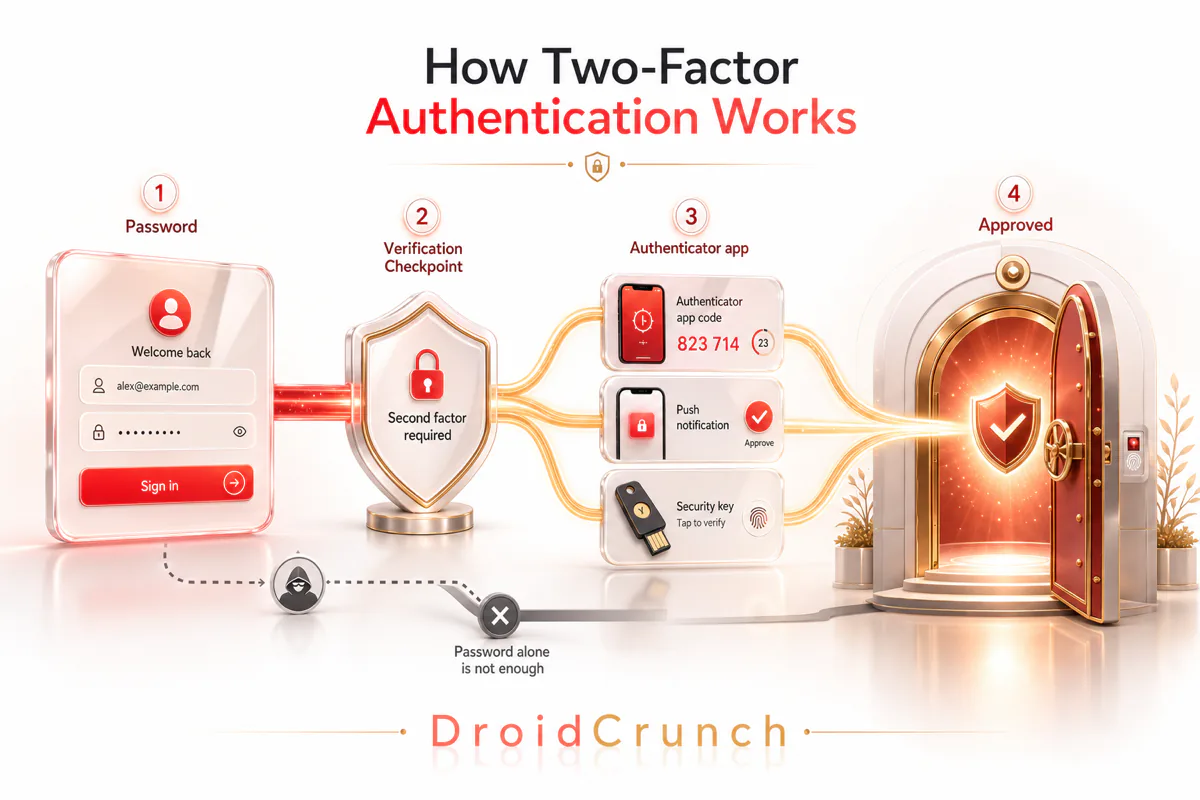
The clever bit is where the second factor comes from. With an authenticator app, your phone and the service share a secret setup key once (that QR code you scan). From then on, both sides independently generate the same time-based code every 30 seconds — no internet required on your phone, nothing sent over the air to intercept. The attacker would need the physical device in their hand at that exact moment. That’s a very different problem from guessing a password.
The three authentication factors (and why “different” matters)
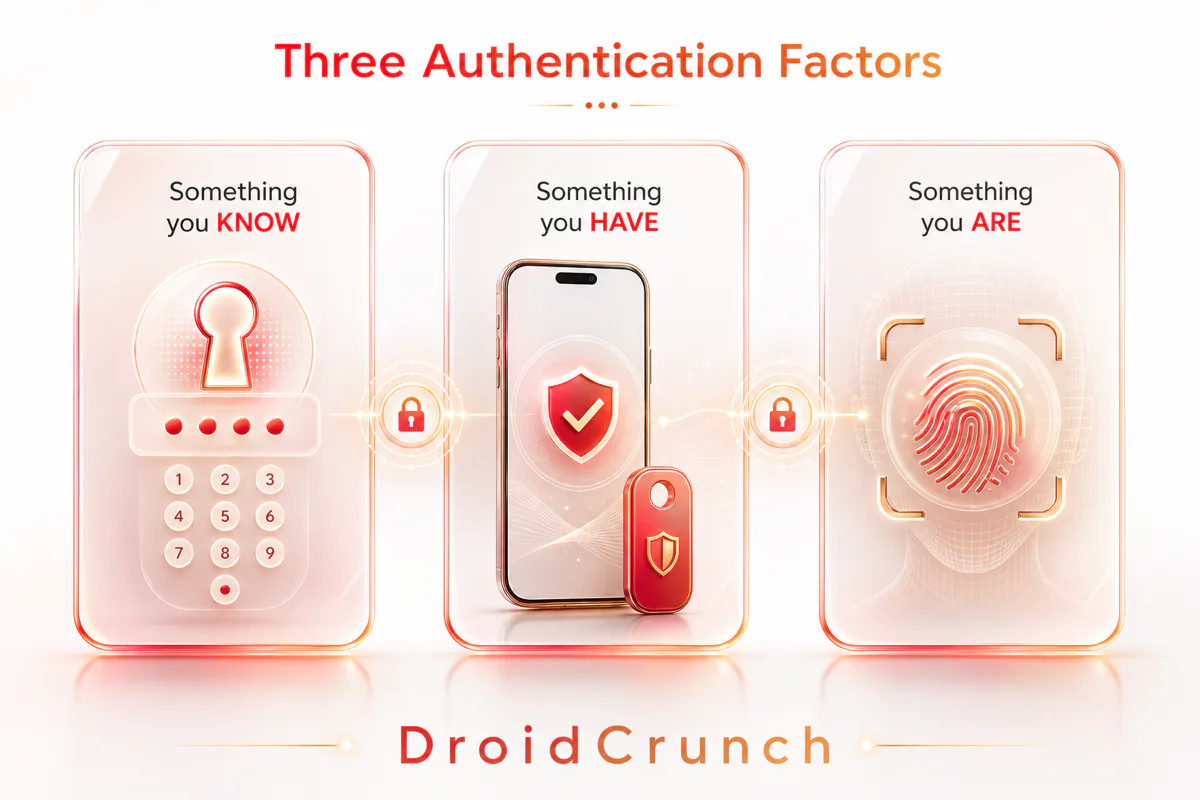
Security people group proof of identity into three categories. Real two-factor authentication combines two factors from different categories — that’s what makes it strong. Two passwords aren’t 2FA, because both are “something you know” and one leak exposes both.
| Factor | What it is | Everyday examples |
|---|---|---|
| Something you know | A secret stored in your head | Password, PIN, security question |
| Something you have | A physical thing in your possession | Your phone, an authenticator app, a hardware security key, a texted code |
| Something you are | A physical trait unique to you | Fingerprint, face scan, other biometrics |
When you unlock your banking app with a fingerprint after entering a PIN, that’s two factors from two categories — you know the PIN and you are the fingerprint. When a website asks for your password plus a code from your phone, that’s “know” plus “have.” Either combination is genuine 2FA. The category mix is the whole trick.
Types of 2FA, ranked from weakest to strongest
Not all second factors are equal. Here’s how the common methods actually stack up after using them daily — including the popular one we’d nudge you away from where you have a choice.
| Method | Security | Convenience | Best for |
|---|---|---|---|
| SMS / text code | Weak | High | Accounts with no better option; better than nothing |
| Email code | Weak–Medium | High | Low-stakes accounts; only if email itself is well secured |
| Authenticator app (TOTP) | Strong | Medium–High | Almost everyone — the practical sweet spot |
| Push notification | Strong | Very high | Everyday accounts where a one-tap approve is worth it |
| Hardware security key | Very strong | Medium | High-value accounts, admins, anyone phishing-targeted |
| Passkeys / biometrics | Very strong | Very high | The future default — use wherever it’s offered |
1. SMS text codes — the weakest, but still worth it
A code arrives by text; you type it in. It’s everywhere and needs no setup, which is why it’s the most common form of 2FA. The catch: text messages can be intercepted, and attackers can pull off a SIM-swap — tricking your carrier into moving your number to their SIM, so your codes ring on their phone. It happens most to high-value targets, but it happens.
Our take: if SMS is the only 2FA an account offers, absolutely turn it on — it still stops the vast majority of remote attacks. But the moment an authenticator-app option appears, switch to it. Best for: accounts with no app option. Not ideal for: your primary email, bank, or crypto.
2. Email codes — convenient, only as safe as the inbox
Some services email you a login code. It’s better than nothing, but there’s circular logic here: if an attacker is into your email, they receive the codes too. Email 2FA is fine for a throwaway forum login and a poor choice for anything that matters. Best for: low-stakes accounts. Watch out: never rely on it to protect the email account itself.
3. Authenticator apps (TOTP) — the sweet spot
Apps like Google Authenticator, Microsoft Authenticator, Authy, or the one built into most password managers generate a fresh six-digit code every 30 seconds. Nothing is sent over a network for an attacker to grab, and there’s no phone number to hijack. You scan a QR code once and you’re set. This is what we use for the majority of our accounts — the balance of strong security and everyday practicality is hard to beat.
✅ Real-world tip: Pick an authenticator that backs up its codes (Authy, or your password manager’s built-in TOTP). We learned this the hard way — a wiped phone with codes that lived only on that device means a painful round of account-recovery emails. Cloud-synced or exportable codes save you.
4. Push notifications — one tap, quietly strong
Instead of typing a code, you get a “Was this you?” notification and tap Approve. It’s fast and pleasant. The one risk is “MFA fatigue” — attackers who already have your password spam you with prompts hoping you tap yes out of reflex or annoyance. The fix is simple: never approve a login you didn’t start. Good implementations now also show a number you must match, which kills the blind-tap attack.
5. Hardware security keys — the gold standard for phishing
A physical key (YubiKey and similar) that you plug into USB or tap via NFC. Because the key cryptographically checks it’s talking to the real website, it’s essentially immune to phishing — even a perfect fake login page can’t harvest anything usable. The trade-offs are cost (roughly $25–$60) and the fact you need the key on you. Best for: admins, journalists, crypto holders, anyone specifically targeted. Not ideal for: people who lose small objects (buy two and register both).
6. Passkeys and biometrics — where this is all heading
Passkeys replace the password entirely with a cryptographic key stored on your device and unlocked by your fingerprint or face. There’s no password to phish, leak, or reuse, and the “two factors” (your device + your biometric) are baked in. Google, Apple, Microsoft, and a growing list of sites now support them. It’s genuinely the most secure and the most convenient option — our recommendation is to adopt passkeys anywhere they’re offered.
⭐ Quick verdict: For most people, an authenticator app is the right default — strong, free, and easy. Add a hardware key or passkey for your two or three most valuable accounts. Use SMS only when it’s the sole option.
Can two-factor authentication be hacked? An honest answer
Here’s what generic security blogs won’t say plainly: yes, 2FA can be defeated — it’s a very high wall, not a force field. Being clear about the gaps is how you actually stay safe.
- SIM swapping targets SMS codes by hijacking your phone number. Beaten by using an app or key instead of texts.
- Real-time phishing tricks you into entering your password and your code on a fake page, then relays them instantly. Beaten by hardware keys and passkeys, which verify the real site for you.
- MFA fatigue spams approval prompts hoping you cave. Beaten by never approving a request you didn’t trigger, and by number-matching prompts.
- Session hijacking / malware steals an already-logged-in session. Beaten by keeping devices clean and logging out of what you don’t use.
Notice the pattern: the attacks that beat 2FA are targeted and labour-intensive, aimed at specific high-value people. The automated, spray-the-internet attacks that hit everyone else? 2FA stops those cold. For 99% of us, that’s the entire game — you don’t have to be unbeatable, just not the easy target. And every step up the ladder (SMS → app → key/passkey) closes another door.
How to set up two-factor authentication (the right order)
You don’t need to armour every account tonight. Protect the ones that can unlock the others first. Here’s the order we tell friends and clients to follow:
- Your primary email first. It’s the master key — password resets for everything else land here. Lock it with an authenticator app, not SMS.
- Your password manager. It guards every other login, so it earns your strongest factor — an app or hardware key.
- Banking, PayPal, and anything with money. Then crypto, if you hold any — that’s hardware-key territory.
- Your key platforms. WordPress admin, hosting, domain registrar, Google/Microsoft account, and your main social profiles.
- Everything else, over time. Each account usually hides the toggle under Settings → Security → Two-Factor / Two-Step Verification.
The generic setup on almost any site is the same three steps: open Security settings, choose Authenticator app, and scan the QR code with your app. Enter the six-digit code it shows to confirm the link — then, crucially, save the backup codes it gives you. That last step is the one everyone skips and later regrets.
Two-factor authentication for WordPress: our practical setup
If you run a WordPress site, your /wp-admin login is a bullseye. Bots hammer login pages with stolen credentials around the clock, and a compromised admin account means your site can be defaced, stuffed with spam links, or held ransom. WordPress doesn’t ship with 2FA built in, but adding it is a five-minute job.
When we harden a client site, we add 2FA through a security plugin rather than a standalone one, so login protection, firewall, and malware scanning live in one place. Most reputable WordPress security suites include a two-factor module — we cover the options in our roundup of the best WordPress security plugins. Set it to require an authenticator-app code for every admin and editor, not just yourself.
💡 Expert take: Before you enforce 2FA for all users on a live WordPress site, take a fresh backup and confirm your own recovery method works. We’ve seen site owners enable it, mistype the setup, and lock themselves out of their own dashboard. Keep a current backup so a fumbled rollout is a five-minute fix, not a crisis.
2FA vs MFA vs two-step verification: the terms, decoded
These get used interchangeably and it causes needless confusion. Quick decoder:
- 2FA (two-factor authentication): exactly two factors from two different categories. Password + phone code.
- MFA (multi-factor authentication): the umbrella term — two or more factors. All 2FA is MFA; MFA can also mean three factors (password + fingerprint + key).
- 2SV (two-step verification): two steps that may or may not be different categories. Google uses this label; in everyday use it’s treated the same as 2FA.
For practical purposes, if a service offers “two-step verification,” “2FA,” or “MFA,” switch it on — the label matters far less than the fact that you’ve added a second lock. If you want the formal definitions, the Wikipedia entry on multi-factor authentication and the U.S. CISA guidance on MFA are solid, vendor-neutral references.
Common 2FA mistakes that lock people out (or leave them exposed)
- Not saving backup codes. Lose or wipe your phone with no backup codes and you’re at the mercy of slow account-recovery. Print them or store them in your password manager the day you set up 2FA.
- Putting 2FA codes in the same app as your passwords with no backup. Convenient, but if that vault is your only copy and you lose access, you lose both. Keep recovery codes separately.
- Using SMS for your most important accounts. Fine as a fallback, risky as the primary lock on email or banking. Upgrade to an app.
- Approving prompts you didn’t start. An unexpected “Approve login?” is a red flag, not a formality. Deny it and change your password.
- Only protecting yourself on a team. One admin without 2FA is the door everyone else’s security ignores. Enforce it for every user with access.
Our take: is two-factor authentication worth the hassle?
Yes — emphatically, and it’s not close. The “hassle” is a few extra seconds at login, and only occasionally, since most services remember trusted devices for weeks. Weigh that against the alternative: the frantic, unpaid afternoon of recovering a hijacked email, warning your contacts, and unwinding fraudulent charges. We’ve watched people lose businesses’ worth of access to an account that a free toggle would have saved.
The honest caveat: 2FA is one layer, not a magic shield. It works best alongside unique passwords (use a password manager), a healthy suspicion of login pages you arrived at via a link, and current backups. But if you do only one new security thing this month, make it this. Nothing else is as cheap, as fast, or as effective.
Frequently Asked Questions
Is two-factor authentication really necessary if I already have a strong password?
Yes. A strong password still leaks in data breaches, phishing, and malware, and attackers test stolen passwords across many sites automatically. Two-factor authentication adds a second lock so a leaked password alone cannot open your account, which is why security teams consider it essential even with good passwords.
What is the safest type of two-factor authentication?
Passkeys and hardware security keys are the safest because they resist phishing entirely. For everyday use, an authenticator app is the best balance of strong protection and convenience. SMS text codes are the weakest form and should be a fallback, not your main method for important accounts.
Is SMS two-factor authentication safe to use?
SMS 2FA is far safer than no second factor, but it is the weakest option because texts can be intercepted and phone numbers can be stolen through SIM-swap scams. Use it when nothing better is offered, and switch to an authenticator app for email, banking, and other high-value accounts.
What happens if I lose my phone with my authenticator app on it?
You use the backup codes the service gave you when you set up 2FA, or a synced backup of your authenticator, to log in and re-enroll a new device. This is why saving backup codes and choosing an app that backs up its codes matters so much. Without either, you rely on slower account recovery.
Does two-factor authentication cost money?
No. On virtually every major service, 2FA using SMS, an authenticator app, or a passkey is completely free. The only optional cost is a hardware security key, which is a one-time purchase of roughly 25 to 60 dollars for the strongest protection on your most valuable accounts.
What is the difference between 2FA, MFA, and two-step verification?
MFA (multi-factor authentication) is the umbrella term for using two or more factors. 2FA is MFA with exactly two factors from different categories. Two-step verification is Google’s label for a similar two-step process. In practice they mean the same thing to you: turn it on wherever it is offered.
Can two-factor authentication be hacked or bypassed?
It can be defeated by targeted attacks like SIM-swapping, real-time phishing, and MFA-fatigue prompts, but not by the automated attacks that hit most people. Using an authenticator app or a hardware key instead of SMS closes almost all of these gaps, making you a far harder target.
How do I add two-factor authentication to my WordPress site?
WordPress has no built-in 2FA, so you add it with a security plugin that includes a two-factor module. Enable it, require an authenticator-app code for every admin and editor, and take a fresh backup first so a setup mistake cannot lock you out of your own dashboard.
The bottom line
Two-factor authentication is the rare security upgrade that’s free, fast, and genuinely effective. If you want the simplest strong setup, put an authenticator app on your email, password manager, bank, and WordPress admin — that covers the accounts that matter for most people. If you’re an admin, a creator with a big following, or you hold crypto, add a hardware key or passkey on top for the handful of accounts you truly can’t afford to lose.
One warning before you go: the day you switch on 2FA, save your backup codes somewhere you’ll still have them if your phone dies. That single step is what separates “locked down” from “locked out.” Then start with your email today — it’s the master key, and it’s the two minutes that protects everything else.
Want to go one layer deeper? A password manager makes 2FA effortless by storing unique passwords and your authenticator codes together — see our tested picks in the best password management tools, our hands-on NordPass review, and if you’re deciding whether privacy tools are worth paying for, is it worth paying for a VPN?