

You’re walking the team through a process and it lands as a wall of text nobody reads. Or you open a clunky editor and three boxes eat an afternoon.
The right flow chart software fixes both in about ten minutes. The wrong one makes you fight the arrows.
We’ve built process maps, org charts and UML diagrams in every tool below. Here’s what each is genuinely good at, what it costs, and where the free plan runs out. If the diagram is really a project plan in disguise, our project management tools roundup is the better shelf.
The short answer
Lucidchart is the one to buy if diagramming is part of your job. Auto-layout, proper shape libraries, and a canvas that behaves. Miro wins when the diagram is really a workshop with five people on it. Canva is the fastest route to one presentable chart, free. Visio still makes sense inside a Microsoft 365 estate and nowhere else.
Quick verdict
- Best overall Lucidchart, from $9/user/mo
- Best for teams Miro, from $8/member/mo
- Fastest for one chart Canva, free
- Best for IT and enterprise Microsoft Visio, from $5/user/mo
- Prices checked on each vendor pricing page in July 2026
- Free-plan limits spelled out, not buried
- Picks split by job, not by affiliate payout
- Every free tier here caps documents or boards, so plan for the upgrade
Lucidchart if flowcharts are part of the job. Canva if you need one chart by lunchtime. Miro if the diagram is really a meeting.
| Feature | ||||
|---|---|---|---|---|
| Free plan | Yes | Yes | Yes | No |
| Entry paid price | $9/user/mo | $8/member/mo | $15/mo Pro | $5/user/mo(winner for this row) |
| Free plan limit | 3 editable documents | 3 editable boards | Generous, watermark-free | None |
| Real-time co-editing | Yes | Yes | Yes | Yes |
| Auto-layout and smart connectors | Yes(winner for this row) | Yes | No | Yes |
| UML, network and BPMN shape sets | Yes | No | No | Yes |
| Offline desktop app | No | No | No | Yes(winner for this row) |
| Ease of use for a first-timer |
We may earn a commission when you buy through links on this page. This does not affect our reviews.
How we judged them. We scored each tool on the same five things: auto-layout behaviour, the shape sets included, free-plan ceilings, export quality and price over a year. We use Miro and Lucidchart regularly on client work. The rest is based on trial accounts, current documentation and the vendors’ own pricing pages, checked in July 2026. Prices in this category move often, so confirm before you buy.
Best flow chart software and diagram tools in 2026
Lucidchart, the one most people should buy

Lucidchart is a diagramming tool that behaves like a diagramming tool. Connectors snap where you expect, shapes stay aligned, and the swimlane and UML libraries are real rather than decorative. Insert a step in the middle of a finished chart and it re-tidies itself instead of leaving you dragging twelve arrows, which is the thing you notice at 11pm.
The free plan is where people get burned. Three editable documents, sixty objects each. That’s a trial, not a tier.
Key features
- Smart connectors and auto-layout that actually tidy a messy branch
- Full shape sets for UML, BPMN, network topology and org charts
- Data linking, so a chart can pull live values from a sheet
- Comments, chat and version history for review cycles
- Integrations with Google Workspace, Microsoft 365, Slack, Confluence and Jira
Pricing: free plan with 3 editable documents. Individual around $9/mo, Team $9 per user per month with a three-user minimum, Enterprise on request.
Best for: anyone who builds diagrams more than twice a month.
Not ideal for: one-off charts. The free tier is too small and the paid tier is overkill.
Miro when the diagram is really a meeting

Miro is an infinite whiteboard first and a flowchart tool second, and that ordering matters. Drop eight people on a board and it stays fast. Sticky notes, voting, timers and a diagram in the same space is a workshop, not a document.
For a clean, printable process map it’s the wrong shape of tool. The output tends to look like what it is: a whiteboard photo. Torn between the two big boards? Our Miro vs Figma comparison weighs them side by side.
Key features
- Infinite canvas with genuinely smooth multi-user editing
- Huge template library covering retros, user journeys and process maps
- Facilitation kit: timers, voting, private mode, presentation frames
- AI diagram generation from a text prompt on paid plans
Pricing: free plan capped at 3 editable boards. Starter $8 per member per month billed annually, Business $20, Enterprise from 30 seats.
Best for: remote teams thinking out loud together.
Not ideal for: a formal diagram that has to go in a document or an audit pack.
Canva for one good-looking chart by lunchtime
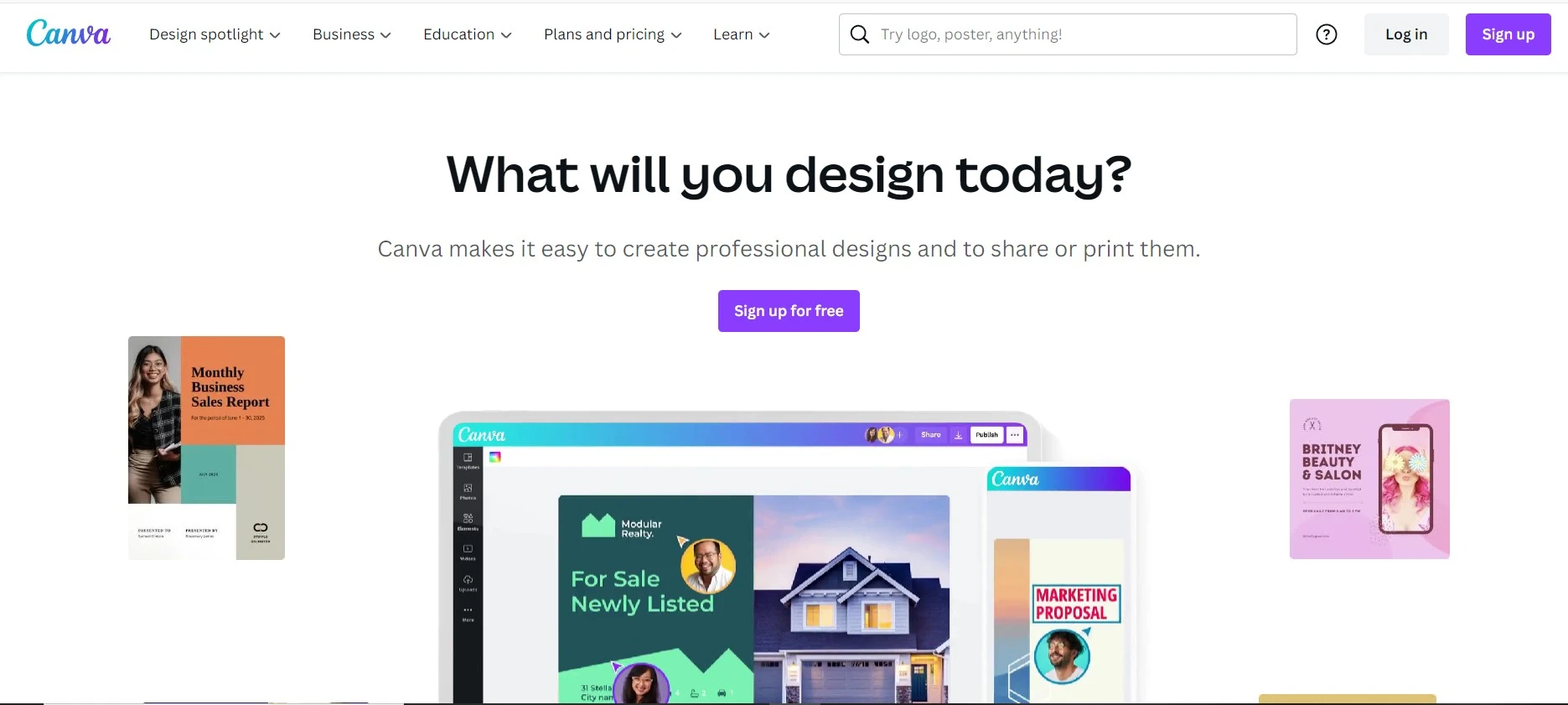
Canva isn’t diagramming software and doesn’t pretend to be. What it has is a flowchart template that looks designed, drag-and-drop that a total beginner understands in ninety seconds, and export straight into a deck. For a simple linear process going in front of a client, that’s the whole job.
Add branches and it falls over. There’s no auto-layout and no smart connectors, so every arrow is a manual drag, and moving one box means fixing five lines. If Canva’s limits bite, our list of Canva alternatives covers the next step up.
Key features
- Designer-made flowchart, org chart and timeline templates
- Drag-and-drop editor with no learning curve worth mentioning
- Brand kit, so the chart matches everything else you publish
- Real-time commenting and one-click export to PDF, PNG or slides
Pricing: free tier is generous and watermark-free. Canva Pro and Canva for Teams add brand kits and admin controls; check the current per-seat rate on Canva’s pricing page.
Best for: presentable, mostly linear diagrams for a deck or a blog post.
Not ideal for: anything with decision branches, swimlanes or more than about twenty nodes.
FigJam if your team already lives in Figma
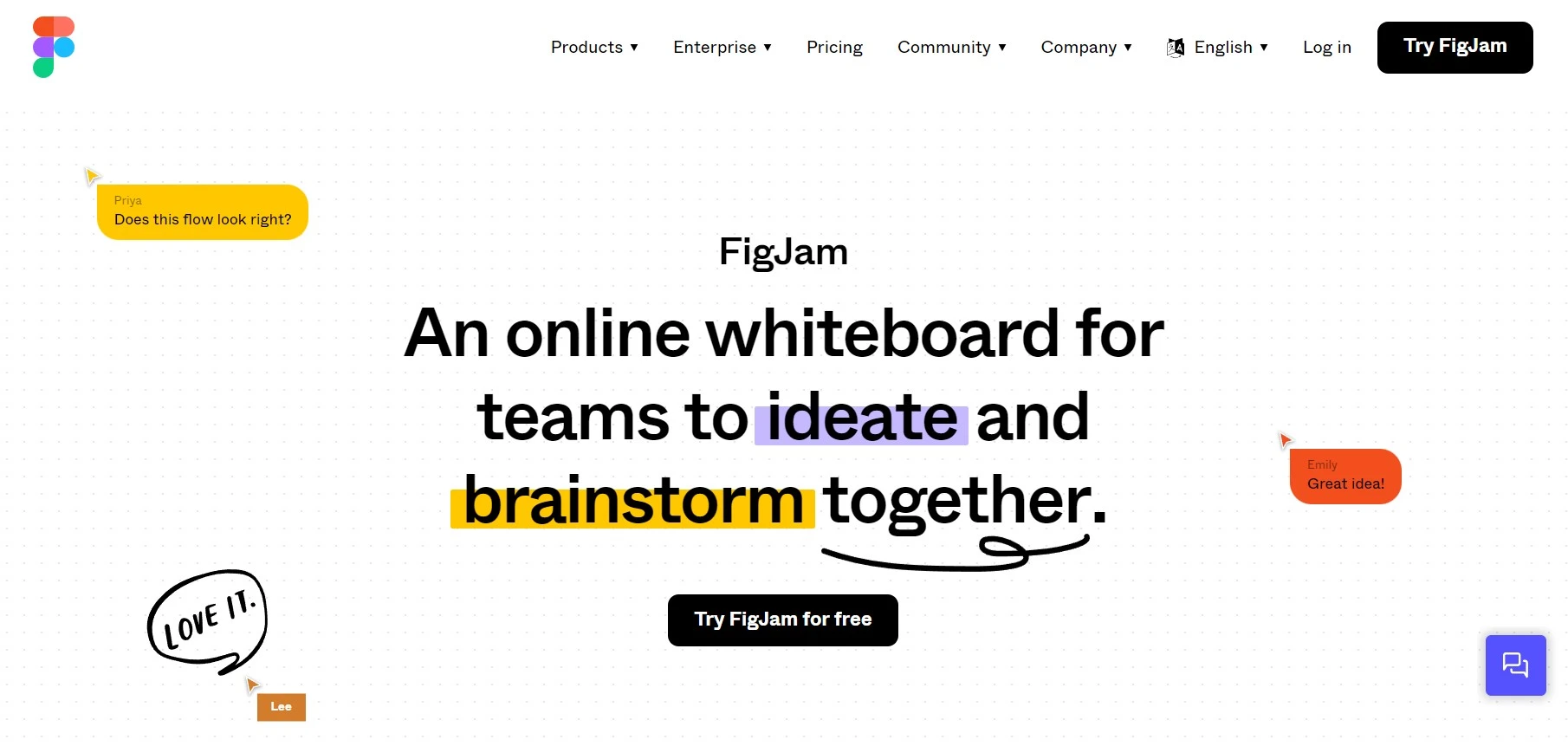
FigJam is Figma’s whiteboard, and it’s the obvious pick for product and design teams who are already in Figma all day. Flow diagrams sit next to the actual screens they describe, which saves the usual copy-paste-into-a-doc dance.
You can’t buy FigJam on its own any more; it comes bundled with a Figma seat. Fine if you were paying for Figma anyway, poor value if you weren’t.
Key features
- Live multiplayer editing with cursor chat and stamps
- Flowchart shapes with connectors that follow the box when you move it
- Sits in the same file tree as your design files and prototypes
- Plugins and widgets for voting, diagram import and code snippets
Pricing: Starter is free with unlimited drafts. Professional is $16 per full seat per month, Organization $55, Enterprise $90. FigJam is included rather than sold separately.
Best for: product and design teams already paying for Figma.
Not ideal for: anyone buying a diagramming tool from scratch. You’d pay for a design suite you won’t open.
Microsoft Visio for the Microsoft 365 estate
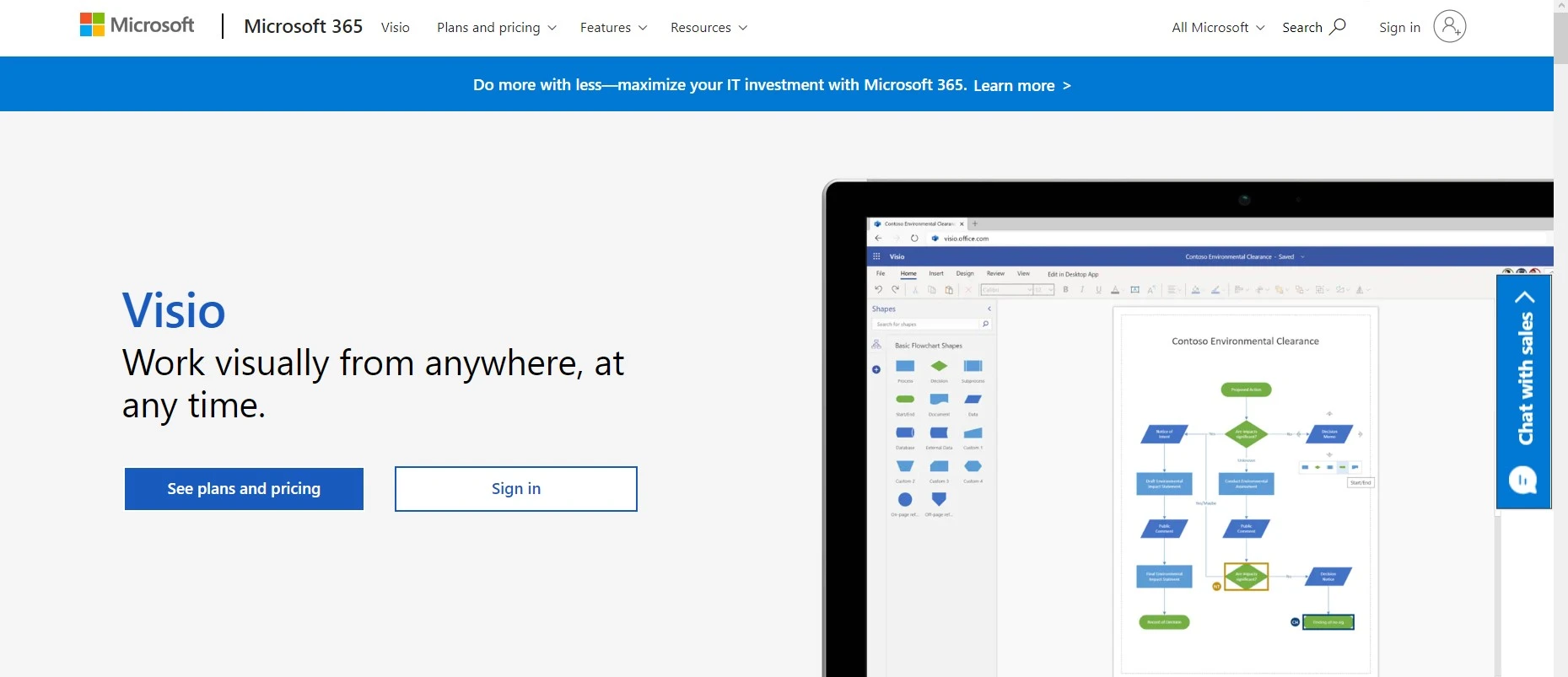
Visio has been the corporate default since 1992 and it shows, in both senses. The stencil libraries for network topology, floor plans and engineering drawings are deeper than anything else here, and IT teams often have no choice because the existing .vsdx archive has to open.
It’s also the least pleasant to learn, and the web app is noticeably weaker than the desktop one. Buy it because your organisation runs on Microsoft 365, not because you liked the demo.
Key features
- Deepest stencil library for network, engineering and facility diagrams
- Desktop app on Plan 2, so you can work offline
- Data-linked shapes driven by Excel, Power BI and Azure
- Native .vsdx compatibility that no competitor matches fully
Pricing: Visio Plan 1 is $5 per user per month, Plan 2 is $15 per user per month with the desktop app, both on annual subscriptions. Basic diagram viewing and editing is already bundled with commercial Microsoft 365 plans.
Best for: IT, engineering and facilities teams inside a Microsoft shop.
Not ideal for: small teams and freelancers. The learning curve costs more than the licence.
SmartDraw, the Visio alternative that opens Visio files
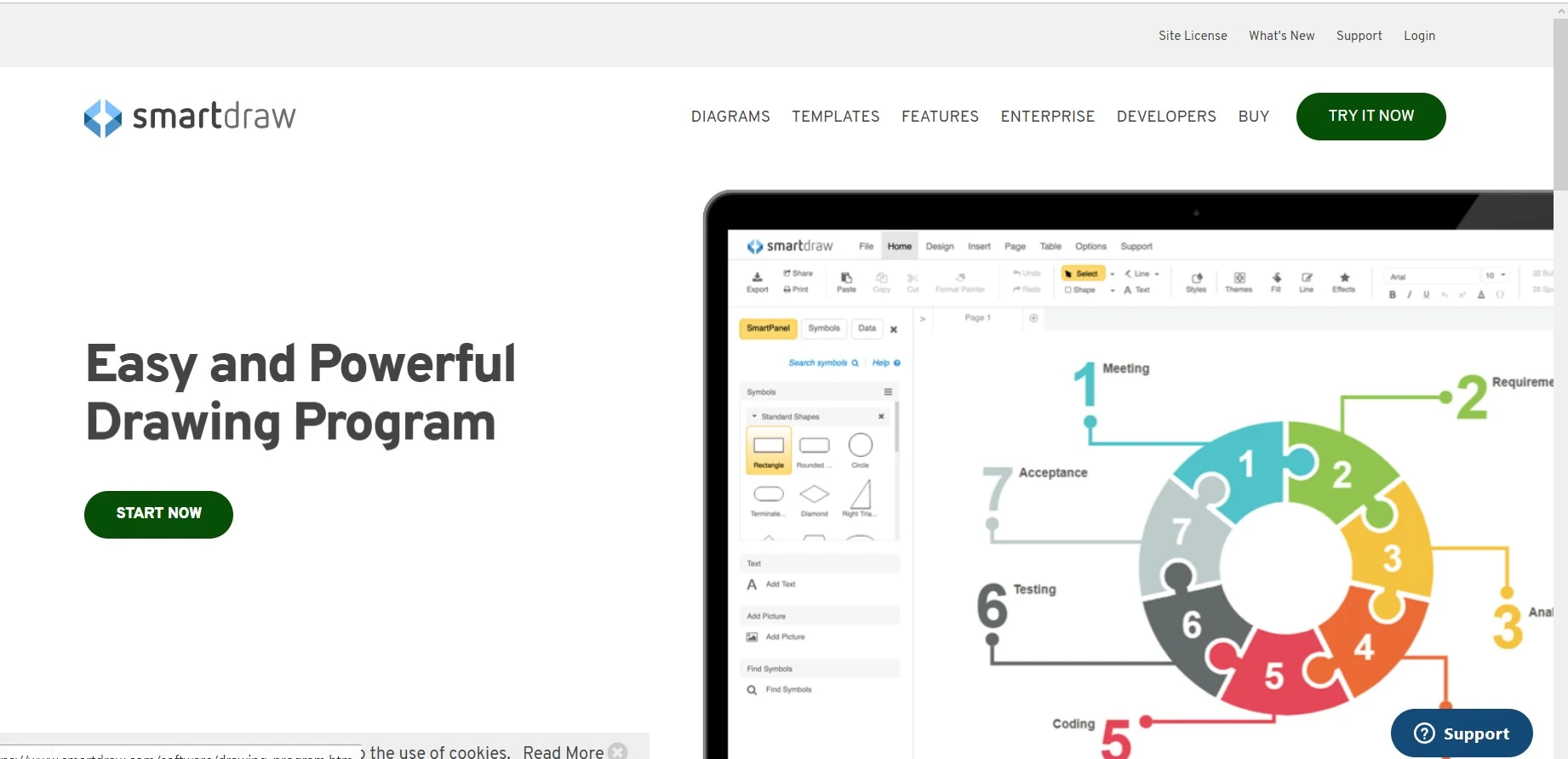
SmartDraw’s pitch is specific: Visio-grade breadth, gentler interface, imports and exports .vsdx. If you’re migrating off Visio but still need the network diagrams and floor plans, this is the shortest path. Its automated formatting is the best on the list at keeping a growing chart tidy without manual nudging.
The catch sits in the Team plan’s three-user minimum, and the headline price is an introductory rate for new customers that steps up later. Read the renewal terms.
Key features
- Automated formatting that re-tidies the whole diagram as it grows
- Visio import and export, plus CAD-style floor plan tools
- Thousands of templates across flowcharts, mind maps and org charts
- Integrations with Google Drive, OneDrive, Confluence and Jira
Pricing: Individual from $9.95 per month billed annually as an introductory rate, $10.95 after. Team from $8.95 per user per month with a three-user minimum. Enterprise on request.
Best for: teams leaving Visio who still need its file formats.
Not ideal for: solo users after a free option. There isn’t one, only a trial.
EdrawMax for template hoarders
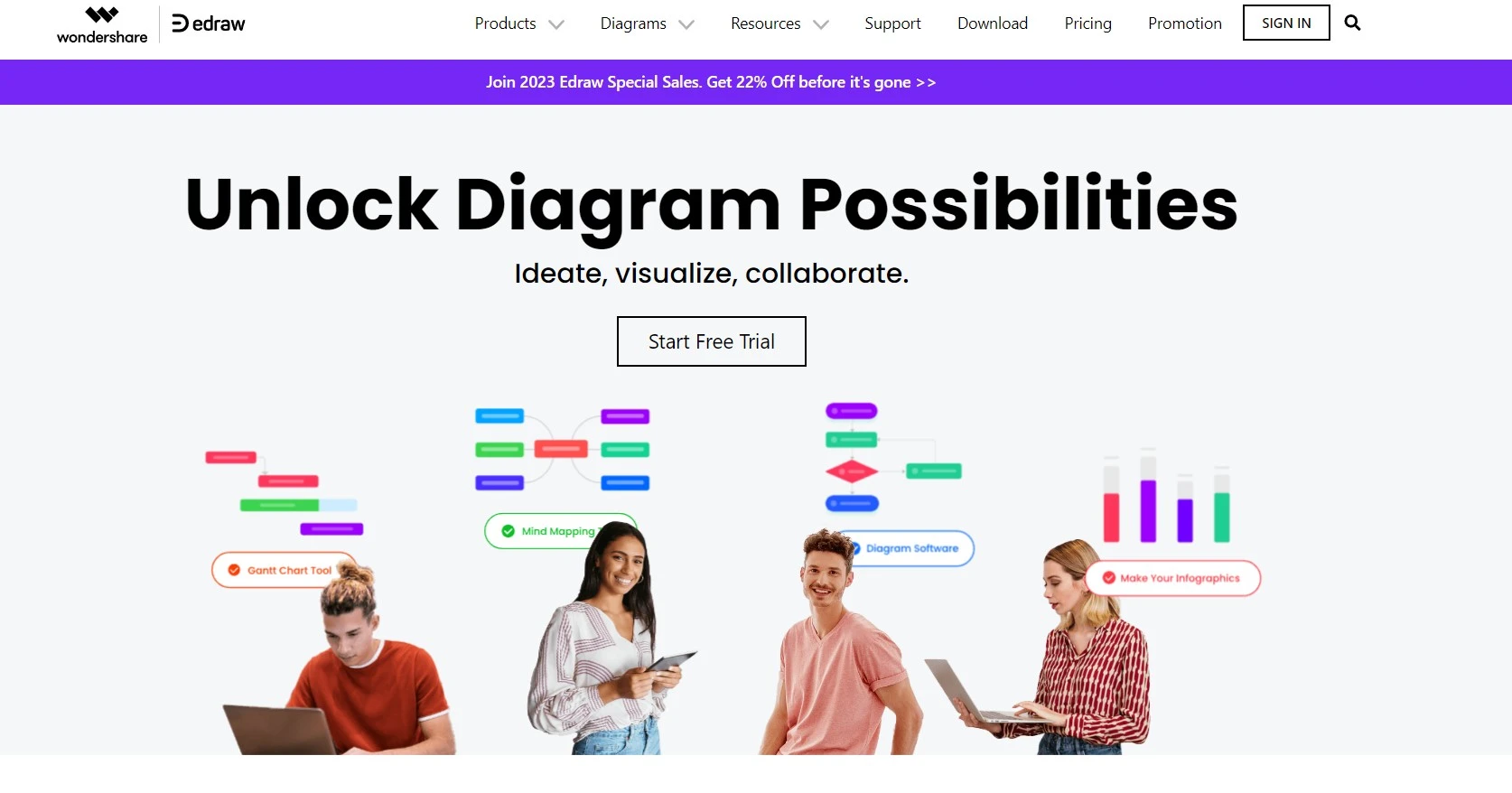
EdrawMax wins on sheer library size. Over 12,000 symbols and thousands of templates covering diagram types the web tools ignore entirely, from P&ID schematics to seating plans. It’s also the only serious tool here still selling a lifetime licence, which matters if you hate subscriptions.
The interface is a Windows-era ribbon and collaboration is an afterthought. This is a single-player tool that happens to have a cloud sync button.
Key features
- Over 12,000 pre-made symbols and one of the widest template libraries anywhere
- Handles diagram types most rivals skip, including electrical and floor plans
- Imports and exports Visio files, PDF, SVG, Office formats
- Runs on Windows, macOS, Linux and the browser
Pricing: free trial with export restrictions. Individual subscription around $99 a year, lifetime licence around $199, with bundles and business perpetual licences priced higher. Check current EdrawMax pricing before you buy, because Wondershare discounts it constantly.
Best for: engineers and consultants who need unusual diagram types and hate rent.
Not ideal for: teams that need live co-editing.
Zen Flowchart when you want nothing but boxes and arrows
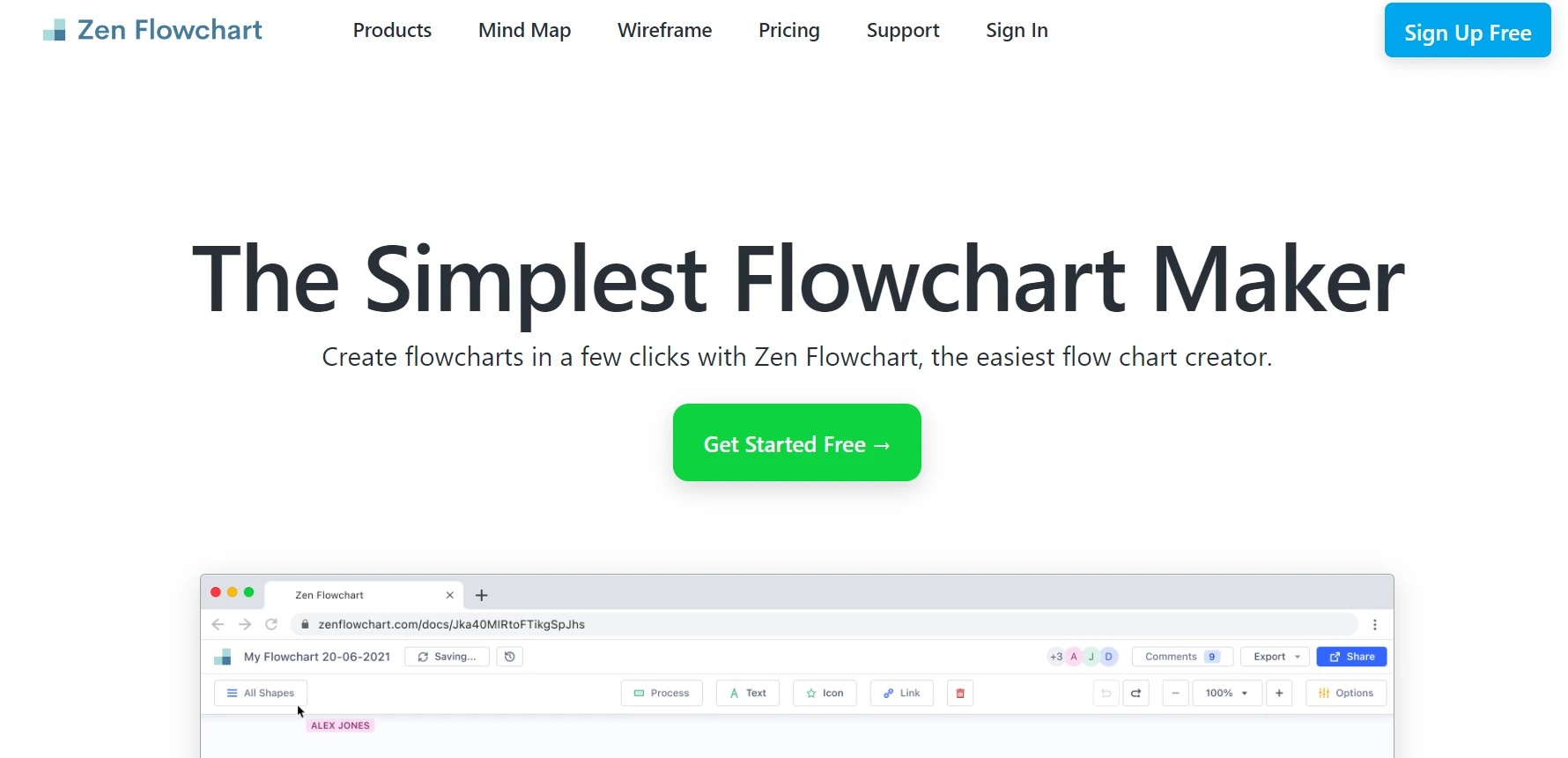
Zen Flowchart does one thing. You click a node, it adds the next one, the layout arranges itself. No shape libraries, no canvas wrangling, no decisions about styling. For a quick decision tree or a simple SOP, it’s the fastest tool on this page.
One caution: Zen no longer publishes a public pricing page, and upgrade prices surface inside the app. For a five-minute flowchart that’s fine. We wouldn’t build a process library on it.
Key features
- One-click node creation with automatic layout
- Export to PDF, SVG and PNG
- Shareable public links and real-time collaboration
- Syncs with Google Drive and Dropbox
Pricing: free tier, with paid upgrades offered in-app rather than on a public pricing page. Confirm the current rate before you commit.
Best for: simple linear flows and decision trees, in a hurry.
Not ideal for: anything needing swimlanes, custom shapes or a paper trail on pricing.
draw.io, the free one nobody markets
Worth knowing about even though it never buys ads. draw.io, now diagrams.net, is free with no seat limits, saves straight to Google Drive or a local file, and covers UML, network and BPMN properly. It’s plainer than everything above and collaboration is basic. If budget is the constraint and you can live without polish, start here and stop reading.
What to check before you pay
Flowcharts aren’t new. The first one was presented to the ASME in 1921, and the shapes have barely changed since. What changes is how much the software fights you, so five things decide it.
- Auto-layout. Does the tool re-tidy the chart when you insert a step in the middle, or do you drag twelve arrows by hand? This single feature is the gap between Lucidchart and Canva.
- Free-plan ceiling. Three documents on Lucidchart, three boards on Miro. Know the number before you build your fourth chart, not after.
- The shape sets you actually need. UML, BPMN, network topology and swimlanes are not universal. Canva and Zen have none of them.
- Export quality. SVG matters more than you think. PNG exports go blurry the moment somebody drops the chart into a slide and scales it up.
- Getting your work out. Check the export formats on day one. A diagram locked in a tool you’ve stopped paying for is a diagram you no longer own.
Frequently asked questions
What is the best free flowchart tool?
For most people, Lucidchart, Miro, and Canva offer the strongest free plans. Lucidchart is great for classic flowcharts, Miro shines for team whiteboarding, and Canva is the easiest if you just want a clean diagram fast. draw.io (now diagrams.net) is also completely free if you do not mind a plainer interface.
Is Lucidchart worth it?
If you build diagrams often and work with a team, yes. Lucidchart earns its price through polished templates, real-time collaboration, and integrations with Google Workspace, Microsoft Office, and Slack. If you only make the odd flowchart, the free tier or a lighter tool like Zen Flowchart will do the job.
How do these flowchart tools compare to draw.io?
draw.io (diagrams.net) is free, open, and handy for quick technical diagrams, but it is lighter on templates, polish, and collaboration. Paid tools like Lucidchart, Miro, and Visio add smoother sharing, richer template libraries, and tighter integrations. Pick draw.io to save money, or a paid tool when teamwork and presentation really matter.
Can you collaborate on flowcharts in real time?
Yes. Miro, Figma (FigJam), Lucidchart, and Canva all let several people edit the same board at once, drop comments, and watch changes appear live. That makes them a solid fit for remote teams mapping out a process together.
Do flowchart tools integrate with Google and Microsoft Office?
Most do. Lucidchart and Miro connect with Google Workspace, Microsoft Office, and Slack, while Visio ties in closely with the wider Microsoft 365 suite. Check the integrations list before you commit if a specific app is part of your daily workflow.
Which flowchart tool is best for beginners?
Canva and Zen Flowchart are the friendliest starting points. Both lean on simple drag-and-drop editors and ready-made templates, so you can build a clean flowchart in minutes with no learning curve. Edraw is another beginner-friendly pick thanks to its huge template library.
Can you export flowcharts to PDF or PNG?
Yes. Nearly every tool here exports to PDF and PNG, and many add SVG for lossless scaling. Zen Flowchart, Lucidchart, and SmartDraw all support these formats, so you can drop your diagram into a doc, a slide deck, or a website with no fuss.
Our verdict
If diagramming is part of your week, buy Lucidchart and stop shopping. If the diagram is really a workshop, Miro earns its seat price. Need one clean chart for a deck this afternoon? Canva, free, done. Inside a Microsoft 365 estate, Microsoft Visio Plan 1 at $5 a user is the pragmatic answer, and on zero budget draw.io beats every free tier here on limits alone.
One warning. Every free plan in this category caps documents or boards, so check that number before you build anything you care about.
Next step: take your ugliest existing process, rebuild it in your top two diagram tools tonight, and keep whichever one you finished first. If you’re assembling a wider kit, our roundup of the best tools for web designers pairs well with this list.