

You know the moment. You hop on an important call, your face lands on the shared screen, and there you are: grainy, washed-out, and lit like a ransom note by that built-in laptop webcam. Everyone else looks fine. You look like you are buffering. On the calls that actually decide things, that fuzzy little sensor above your screen is quietly making you look unprofessional.
A good external webcam fixes that in about thirty seconds of plugging in: crisp detail, natural skin tones, and real low-light handling so you stay sharp even when your room is not. Below are the seven webcams I would happily put in front of my own face for meetings, streaming, and recording. I looked at how each one handles focus, framing, and bad lighting, then ranked them so you can skip the guesswork and just look good on camera in 2026.
2026 is bringing a wave of exciting new products for professionals looking to upgrade their webcams for high-quality recording. From models with high-resolution 4K recording to low-light sensors and auto-focus lenses, these professional webcams offer the best quality and value for money.
They all come with added features such as adjustable tripods, advanced noise-canceling microphones, and USB connectivity, making them perfect for use in studios, live streams, and other professional recording settings.
Whether you’re looking for an all-in-one streaming setup, you’re a seasoned videographer or just starting out or an economical choice for a home office, our list of the top webcams for high-quality recording will provide you with the perfect choice.
7 Best Professional Webcams for Video Conferencing in 2026
Insta360
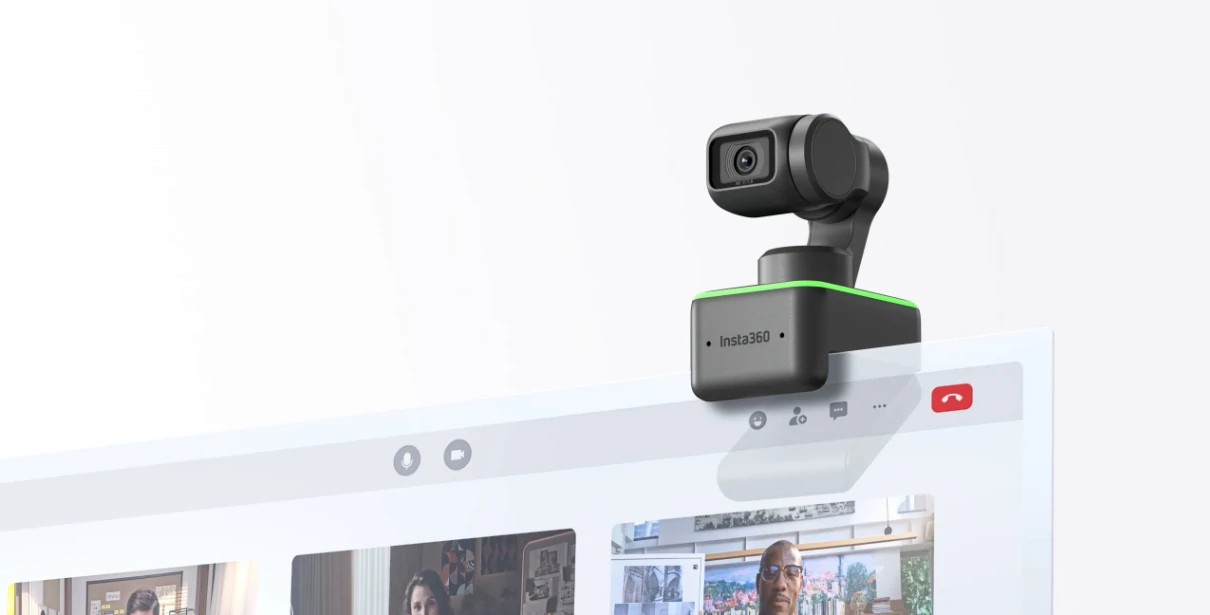
The Insta360 connection provides some of the greatest image quality I’ve ever seen from a webcam right away. The image is crisp and detailed, and the colors are accurate. Furthermore, Insta360’s Link Controller provides a wealth of options, allowing you to fine-tune the image to your desire.
In regular mode, the camera catches a lot of dynamic range, and in HDR mode, it can control exceptionally bright highlights while keeping natural-looking contrast levels on faces. Whether it’s due to the Link’s huge 1/2in sensor, clever processing, or a mix of the two, the camera works well in low-light situations. In my dimly lit home office, switching between my MacBook Pro’s built-in camera (Intel 16in, 2019) and the Link displays a near night and day difference, which isn’t unexpected given the laptop’s camera only takes 720p. The Link’s three-axis gimbal and face-tracking technology are its main selling points.
When you open the Link Controller software, you can switch between dedicated modes for face tracking, overhead, desk view, and whiteboard views, as well as a portrait orientation choice for streamers. The face-tracking feature works really well, immediately latching onto your face and following you around the room when you walk behind your desk or across the room. You can adjust the tracking speed to fit your presentation, and the digital zoom can be configured to keep a steady head, half-body, or full-body crop.
I’ve yet to come across whiteboard mode on any other tracking webcam. Place the accompanying four sticky markers around the corners of a whiteboard – or any rectangular item and the camera will rapidly lock on and leap to it. The Link zooms in to fill the frame with the designated item and even corrects the perspective so that the camera seems to be precisely in front of the board. This is a clever idea that might be very useful for professors or team leaders who are in charge of streaming classes.
Best for: streamers and presenters who roam — the three-axis gimbal and face-tracking keep you centered even when you step away from the desk.
Logitech Brio
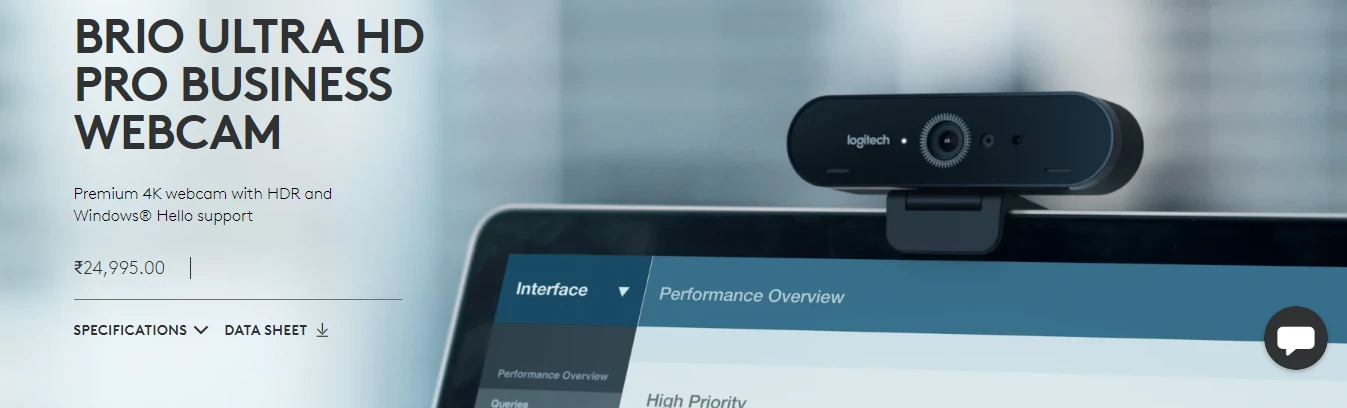
The Brio, Logitech’s greatest webcam, seeks to be uncompromising in all aspects. The Brio is seemingly well-made, with a flush glass face and a strong plastic casing, it looks like quality hardware and has a wonderful substantial weight to it.
The Brio includes HDR compatibility and a feature called RightLight 3 from Logitech to guarantee that you’re always shown at your best. RightLight 3 optimizes image quality by adjusting brightness, contrast, and color settings for each given lighting scenario. Because of these, the Brio’s low-light performance is exceptional; even in a room lighted simply by a desk lamp, it maintains a high level of clarity without blowing out exposure and saturation. That’s especially pleasing on a webcam, where low-light performance is frequently lacking.
An infrared sensor is paired with the primary camera sensor. It works in tandem with the primary sensor to provide facial authentication, such as Windows Hello. Even in less-than-ideal lighting circumstances, the function performs admirably. To take full benefit of the Brio, you must be streaming on a 4K platform. Most VoIP apps, including Discord, Skype, and Google Hangouts, adhere to the “good enough” approach, limiting broadcast resolution to 1080p or below.
YouTube is the only prominent streaming network that officially supports 4K streaming. The reason for this is clear: 4K streaming isn’t yet widespread, owing to both server efficiency and consumer bandwidth constraints. Even if you’re not broadcasting in 4K, the better picture quality of the Brio’s sensor might help your stream (or the ability to stream at 1080p, 60 fps).
Best for: professionals who want genuine 4K plus Windows Hello face sign-in in one premium, well-built package.
HP 950 4k
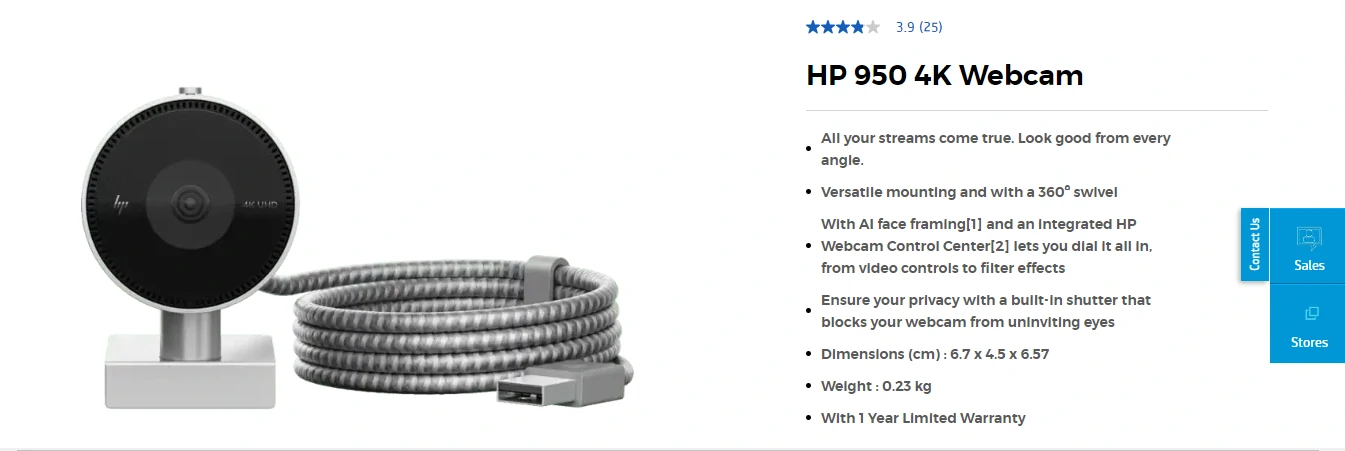
appeared nice from all angles: Use this live webcam to show the real you. You may choose between 1080p and 4K resolution. Capture more with a 103o field of view. You’ll never have to worry about your backdrop taking over the show with this webcam’s AI face-framing technology, which follows you and ensures you’re always in focus. Adapt to the action AI face framing keeps your face in focus at all times.
The incredibly integrated HP Webcam Control Center allows you to fine-tune everything, from video settings to filter effects. Furthermore, the illumination automatically adapts. You’re all set to go. Choose your configuration. You may choose your streaming arrangement thanks to the versatile mounting.
Furthermore, keystone correction concentrates materials for viewing or scanning. When you want to, share a Built-in privacy shutter that prevents access to your webcam from uninviting eyes. Options for mounting Without tools, use universal mounting clips to put the camera wherever it works best, including an LCD screen, a notebook, a tablet, and a tripod.
Best for: home-office multitaskers who switch devices — the AI face-framing and tool-free mounts adapt to almost any setup.
Wyrestorm FOCUS 210
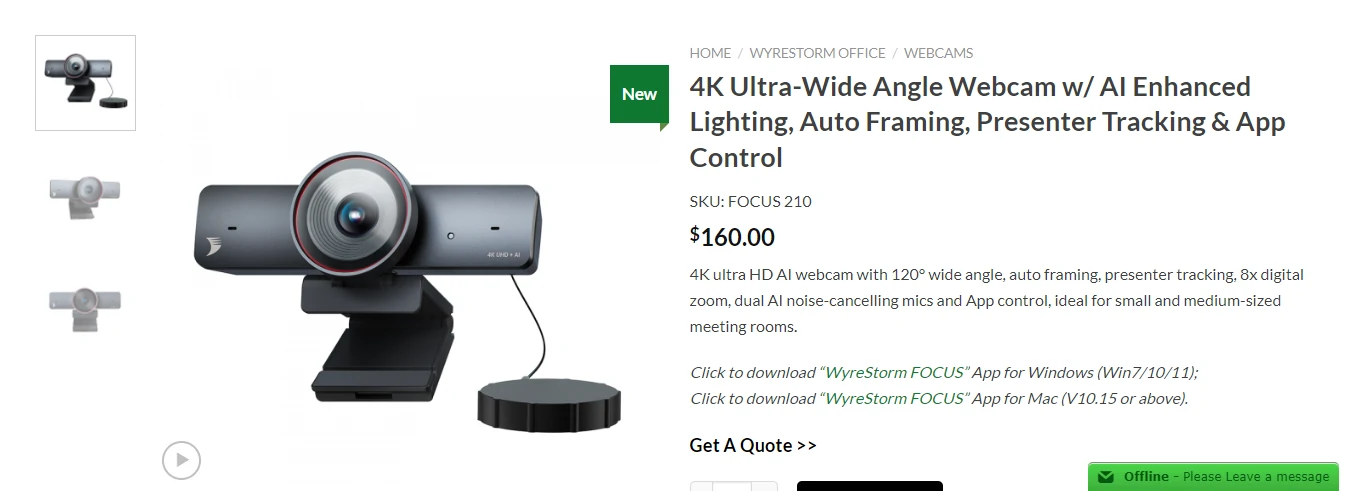
The camera is one of the most significant parts of a webcam, so we’ll start there. The WyreStorm FOCUS 210 Webcam comes with a 120-degree wide-angle lens and an 8x digital zoom. Digital zoom isn’t often a wonderful function, but when paired with the built-in auto framing and presenter tracking, it comes in helpful here. The FOCUS 210 can shoot 4K video at 30 frames per second (FPS).
Do you want smooth movements and are ready to forego resolution? If so, you can select 60 frames per second at 1080p or 90 frames per second at 720p. When it comes to webcams, the processing is just as important as the lens itself. To that purpose, the FOCUS 210 has AI backlight adaptation and low light compensation, which, when combined with a wide dynamic range (WDR), ensures your visibility in any light. AI is used in more than just video processing with the WyreStorm FOCUS 210.
It also employs AI and a pair of microphones to automatically remove background noise, ensuring that whoever is on the other end of the webcam can always hear you. This camera includes software for both Windows and Mac. It allows you to customize videos and colors, and once you have your footage, a tool like VEED.io makes editing and captioning painless. It also has a distinctively analog feature that we’d like to see in more webcams, a built-in lens cover to preserve both the glass and your privacy.
Best for: meeting rooms and group calls — the 120-degree lens, auto-framing, and dual-mic noise removal are built for more than one face on screen.
J5Create US HD
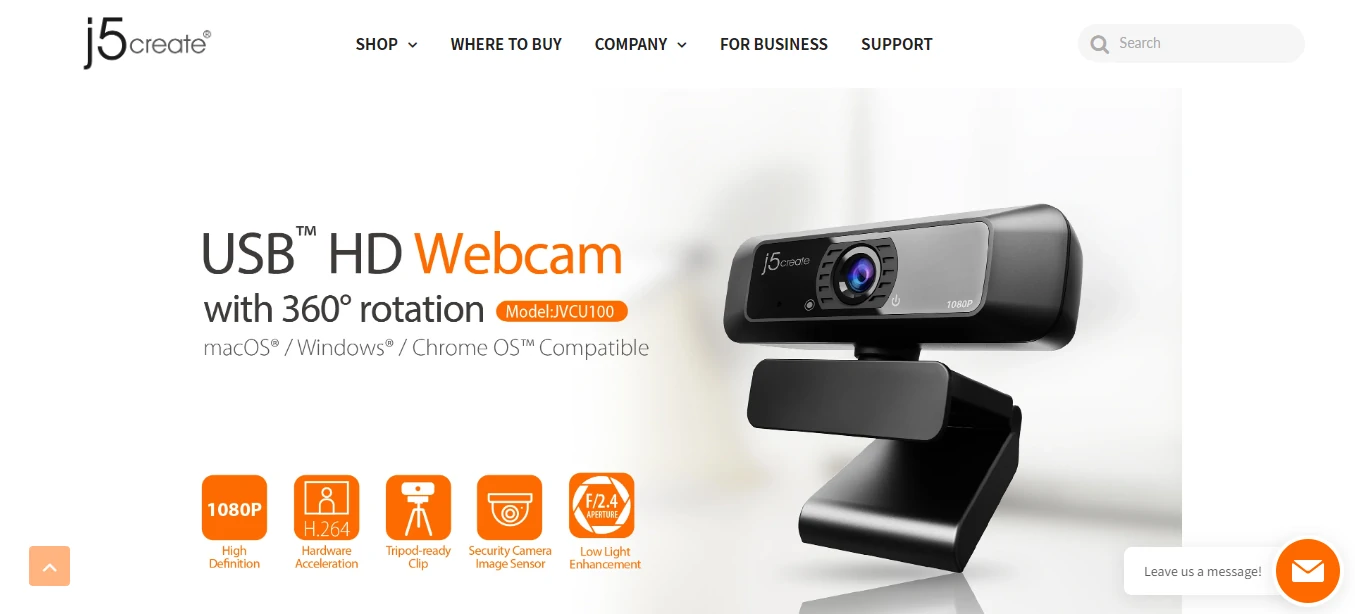
The USBTM HD Webcam has 360° rotation and Full HD 1080p resolution for crisp and detailed photos. It’s ideal for everyday usage, with a high-fidelity microphone to eliminate external noise and increased light sensitivity that automatically adjusts to varied lighting situations.
Furthermore, it has an 80° field of vision and can be swiveled 360° for optimum versatility. This USBTM HD Webcam is easy to use and compatible with popular programs such as Zoom, Skype, Microsoft TeamsTM, and Google MeetTM. The webcam is compatible with Windows, macOS, and Chrome OSTM, making it ideal for use at home or in the office.
1080P at 30 frames per second (Frames Per Second) J5Create USB HD camera captures all the minute nuances of movements, emotions, and more with high definition 1080p video quality.
1080P Full HD Video Conferencing Takes your video/conference conversations to the next level with the H.264 | MPEG-4 AVC HD webcam (Advanced Video Coding). H.264 video compression delivers Blu-RayTM-quality video at much lower bit rates, saving substantial disc space when filming films.
F/2.4 aperture lens and security camera image sensor with greater light sensitivity allow you to catch more light and higher definition photos, making it suitable for superior low light capture and blurless movement.
Opal C1
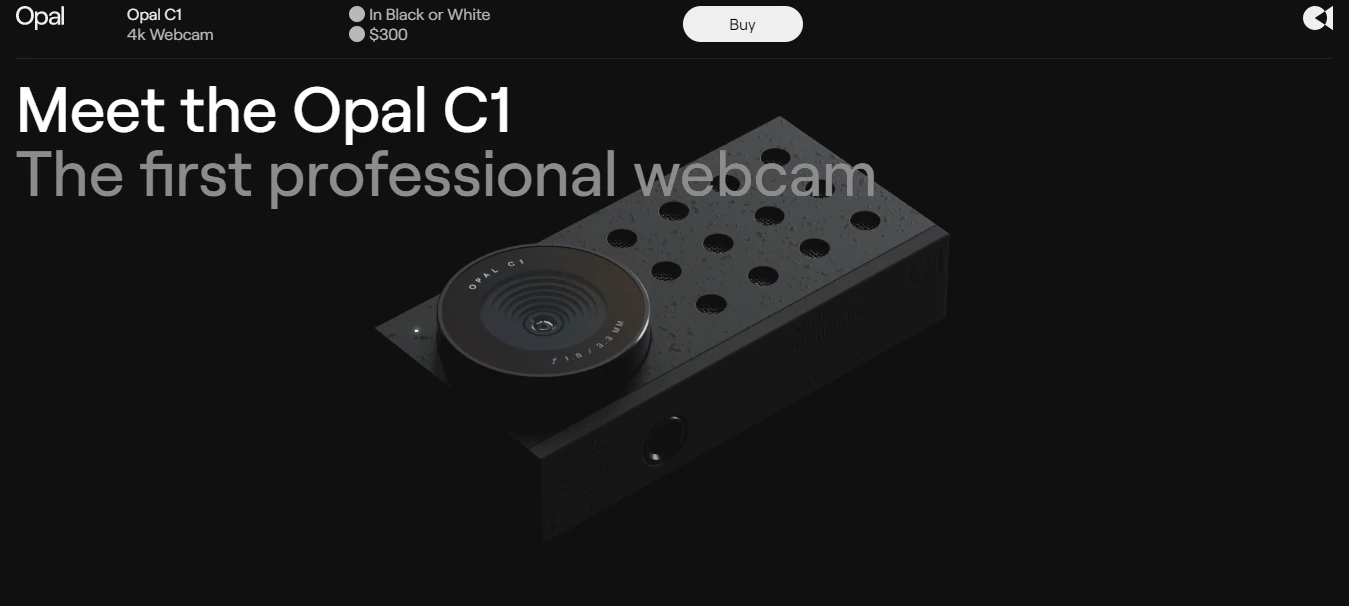
Kenny Sweet, the designer of the charming but mistaken Google Clips camera, among many other popular tech items, created the C1. That ID comes through here, but it nearly appears to be something Essential made up.
The C1 is available in white or black, and its paint finish is matte with glossy speckles that only appear in specific lighting. I don’t want to gush too much, but it’s beautiful. The C1 contains an indicator light that indicates whether the camera is active. The webcam’s grille also houses stereo microphones, with an additional noise-canceling microphone on the back. My voice is equally as clear as it is through my MacBook Pro’s built-in microphone, but it has a little more resonance and depth through the C1.
While I was recording a sample, some home building next door began, and while its noise cancellation effects weren’t outstanding, it was capable of picking up my voice among the din. The backside resembles a heatsink for an M.2 SSD inside your custom PC, and it is primarily utilized for heat dissipation (in addition to looking rad). Its USB-C port is likewise located here.
Opal’s camera comes with a strong mount that can be attached to a display or a MacBook lid, but the webcam itself can be attached to any 1/2-20 tripod mount. The Sony IMX378 sensor (used in Google’s first Pixel smartphone introduced in 2016) is capable of shooting up to 4K resolution at 30 frames per second behind an f/1.8 lens in the C1. Because Opal claims that 4K can crash videoconferencing programs, it presently defaults to 1080p at 30 frames per second. The higher quality is available as an option, allowing owners to use it for streaming or recording if desired. I was originally disappointed that the C1 couldn’t record at 60 frames per second, but it seemed to perform better in video conversations than other cameras I had on hand, such as Elgato’s $199.99 Facecam.
Best for: Mac users chasing the most cinematic image on this list, with a design tidy enough to earn its spot on the desk.
Dell Ultrasharp
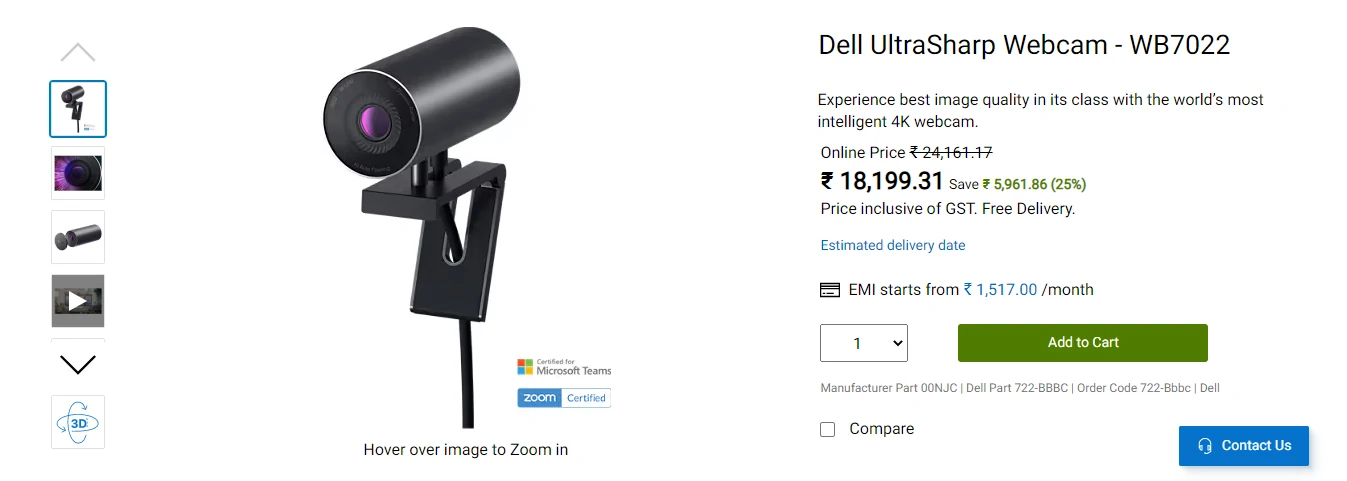
The Dell UltraSharp Webcam is $200 and is available from Amazon and Dell. Webcam prices fluctuate — check the current price before buying. There are no alternatives or other setups available. There’s little doubt that Dell is making an effort with the UltraSharp. Dell would nail the looks, feel, quality, and feature list if you could create the ultimate webcam. Dell used magnets once more, since the supplied privacy cover just adheres to the front glass, preventing the camera from recording anything.
When not in use, Dell allows you to slap it to the back of the camera (again using magnets) so you don’t misplace it. Dell once again strikes the perfect notes with the camera. A large 8.3MP camera, Windows Hello, HDR, and a Sony sensor webcam. Windows Hello works well, and Dell’s ExpressSign-In (aka presence recognition) works wonderfully to turn on your PC and log you in without you having to do anything. Similarly, it may automatically lock your PC while you walk away. When you attach the camera to your PC, the program (Dell Peripheral Manager) is immediately loaded.
There’s no need to look for an app on the internet. Dell Peripheral Manager is easy to use and guides you through the first setup process. You may then choose the default option or one of the presets such as smooth, vivid, or warm. You can also create your own profiles where you can choose the field of view (65, 78, or 90 degrees), focus, zoom, HDR, white balance, sharpness, contrast, and other settings.
Frequently asked questions
What webcam resolution do I actually need?
For video calls, 1080p is the sweet spot. Zoom, Google Meet, and Microsoft Teams usually cap your outgoing feed at 720p or 1080p, so a solid 1080p sensor already puts you ahead of every built-in laptop camera. Reach higher only if you record or stream, where the extra detail actually survives.
Is 1080p or 4K better for a webcam?
4K captures more detail and lets you crop or zoom without turning mushy, but most conferencing apps downscale it to 1080p anyway. If you mainly take meetings, 1080p is plenty. If you record tutorials, stream, or want future headroom, 4K earns its price.
What is the best budget webcam?
The Logitech Brio and the Insta360 Link give you the most polished image for the money on this list. A clean 1080p cam with good low-light handling beats a cheap 4K cam with a tiny sensor almost every time, so buy on sensor quality, not the number on the box.
Do webcams need special lighting?
No webcam replaces good light. Even a budget 720p cam looks close to HD with a window or a soft lamp in front of you, while the priciest sensor falls flat in a dark room. Face your light source, avoid bright windows behind you, and your footage improves instantly.
Webcam vs DSLR: which should I use?
A DSLR or mirrorless camera wins on pure image quality and depth, but it needs a capture card, charging, and constant setup. A webcam plugs in over USB and just works. For daily calls and streaming, a good webcam is the practical pick; save the big camera for produced video.
Do these webcams work on both Mac and Windows?
Yes. Every pick here is USB plug-and-play on both macOS and Windows, and most also run on Chrome OS. Windows-only extras like Windows Hello face sign-in are the main exception, since features such as those on the Dell UltraSharp and Logitech Brio lean on Windows.
Is autofocus worth it on a webcam?
Yes, if you move around or hold objects up to the camera. Autofocus keeps your face sharp when you lean in or present something. If you sit still at a fixed distance, a good fixed-focus cam is fine, but autofocus removes one more thing to worry about on camera.
Conclusion
Any of these webcams will get you off that grainy laptop sensor and looking sharp on the calls that matter. From value picks like the Logitech Brio and the Insta360 to higher-end models like the HP 950 4k and the Wyrestorm FOCUS 210, each one earns its place for a different reason. The right choice comes down to your setup and how you plan to use it — pick the camera whose strengths match your calls, and you will never dread the shared screen again.
This year is set to be a great year for high-quality video recordings, and with the Professional Webcams listed above, you have a range of options that suit any budget. Each of these cameras has its own unique advantages that make them the perfect choice for recording projects of any size. All of these cameras also feature advanced features such as background removal, auto-focus, and noise reduction, making them perfect for capturing every moment. With these Professional Webcams, you’ll be able to capture high-quality recordings with ease. And when you need to capture your screen instead of your face, see our Loom screen recording review.