

You fire off a “quick question” on Slack, and forty minutes later you are still typing paragraphs, cropping screenshots, and praying the other person reads it the way you meant it. Loom flips that whole ritual. You hit record, walk through whatever is on your screen while talking like a normal human, and drop a link — the other person watches when it suits them. No meeting invite, no calendar Tetris, no thread that never dies.
That is the async-video pitch, and Loom is the tool most people picture when they hear it. For this review we put it through real work — recording, sharing, editing, and the free-plan limits you will actually bump into — so you can tell whether it earns a place in your day or just adds another tab. Here is what Loom gets right, where it nags, and who it is genuinely for in 2026.

Remote work is the norm now, especially in tech, so quickly sharing your screen with a teammate, a support agent, or a designer matters more than ever. And when a topic really does need everyone live, our roundup of the best online meeting management software helps you run that call without the sprawl. In customer support, the screen recording software is highly beneficial as one can share the problem with the respective software in detail with the support staff.
It is obvious that anyone can record a screen with OBS or any open-source screen recorder and share it with the concerned person. However, it is cloud storage, instant link sharing, collaboration, third-party integrations, cross-platform support, browser extension, and engagement insights that make Loom a preferred option for screen recording in business.
With Loom, you can easily capture your screen and let people watch your recordings directly in their browsers. It also makes it easy to share recordings with colleagues or customers — all without having to download any files.
Loom allows you to record the screen in desired resolution with a camera, annotations, and branding. Its ease of use makes it stand out from its competitors.
Let’s see what Loom puts on the table for us as customers.
Loom Overview
By recording your camera and screen and streaming it live to another device. Loom has made it possible for someone to view the same as what you’re considering. The Loom recording interface is usually point-and-click. To generate the content, you simply need to click the “Record a Video” button on the main UI page.
It allows you to edit your video by making the desired changes using the browser or the Loom. The users can point and click the areas for removal and cleanup of repeatedly repeating and watching the material. Likewise, the users can include calls-to-action (CTAs) at regular intervals or during the highlighted areas, which is greatly helpful for anyone making videos for sales.
Loom Features
1. Recording on the Screen
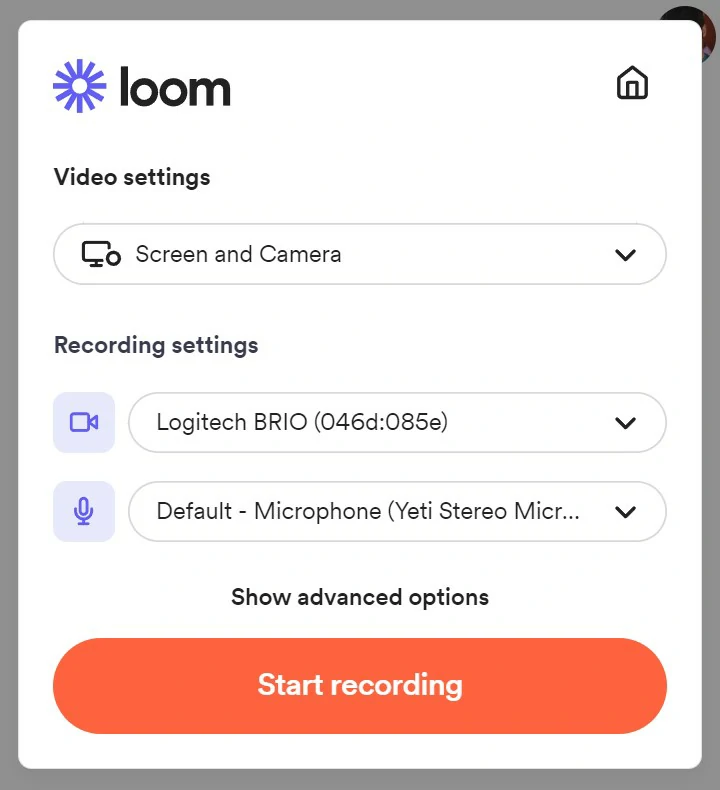
Loom makes it possible for anyone to record a video. It lets you record your screen without first going through two or three different apps. Once you have clicked the “Record” button and selected the recording mode in its program, the Loom program starts the recording with nothing lost. Regardless of the display’s resolution, you are guaranteed a high-quality recording.
2. Sharing and Publication
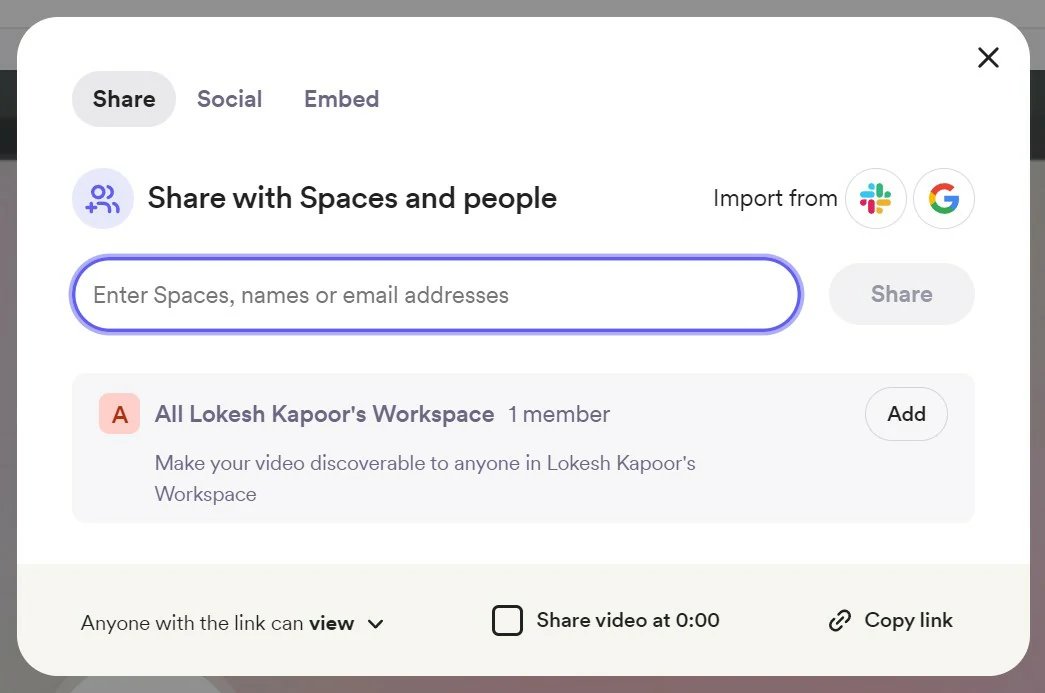
You can share the Loom videos with your team via the Team Library if you belong to a workgroup. And you can also send the videos to anyone outside of your workgroup by using social media or email. Other than that, you can also make your Loom videos available to the public on platforms like Facebook and Twitter by using widgets provided by these services.
3. Editing
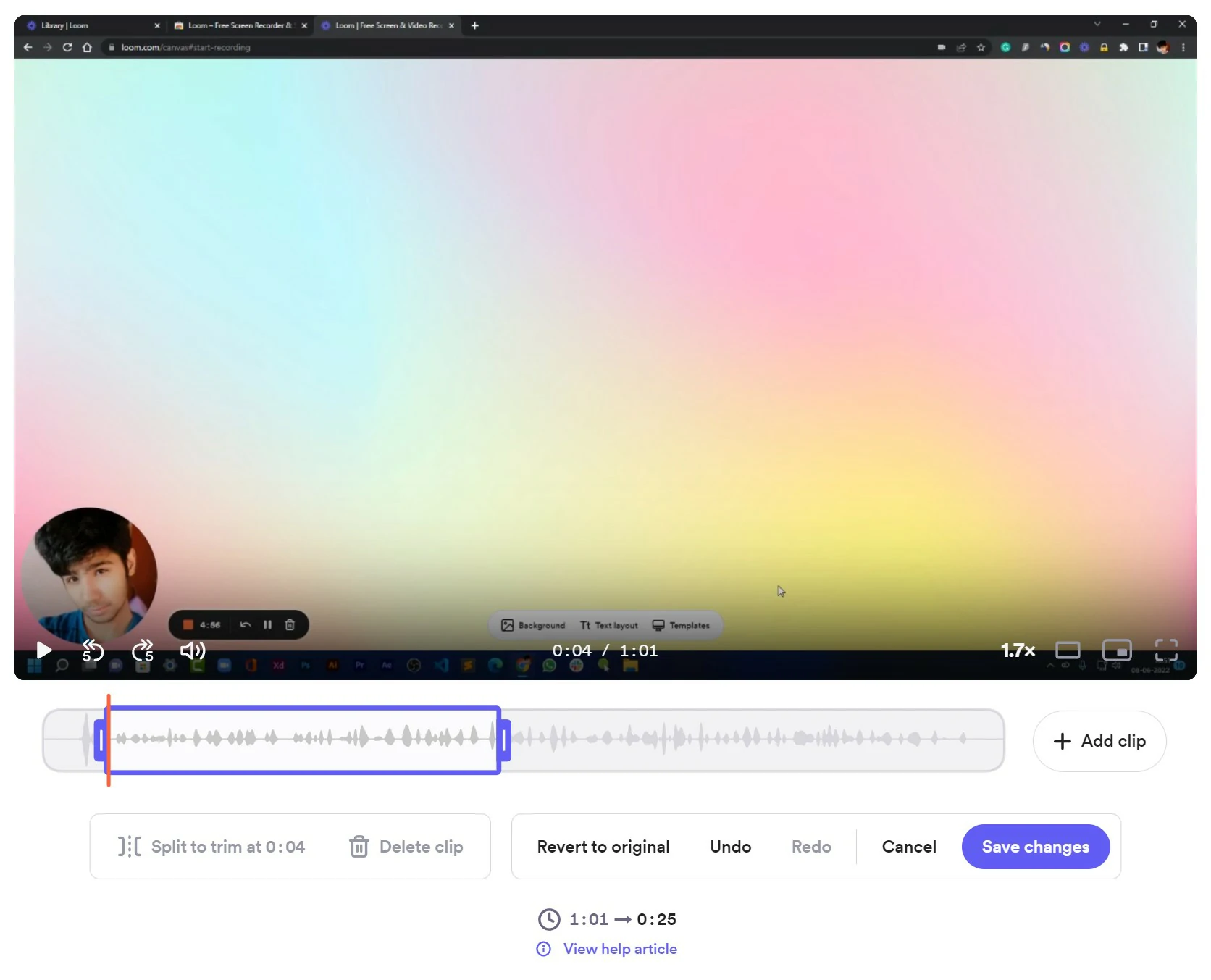
Loom allows you to edit videos in the Loom app or your browser. You can trim your video, add buttons or links, and removes us and uhs out to the additional resources. The process of editing is very simple and quick.
4. Multi-Platform Availability
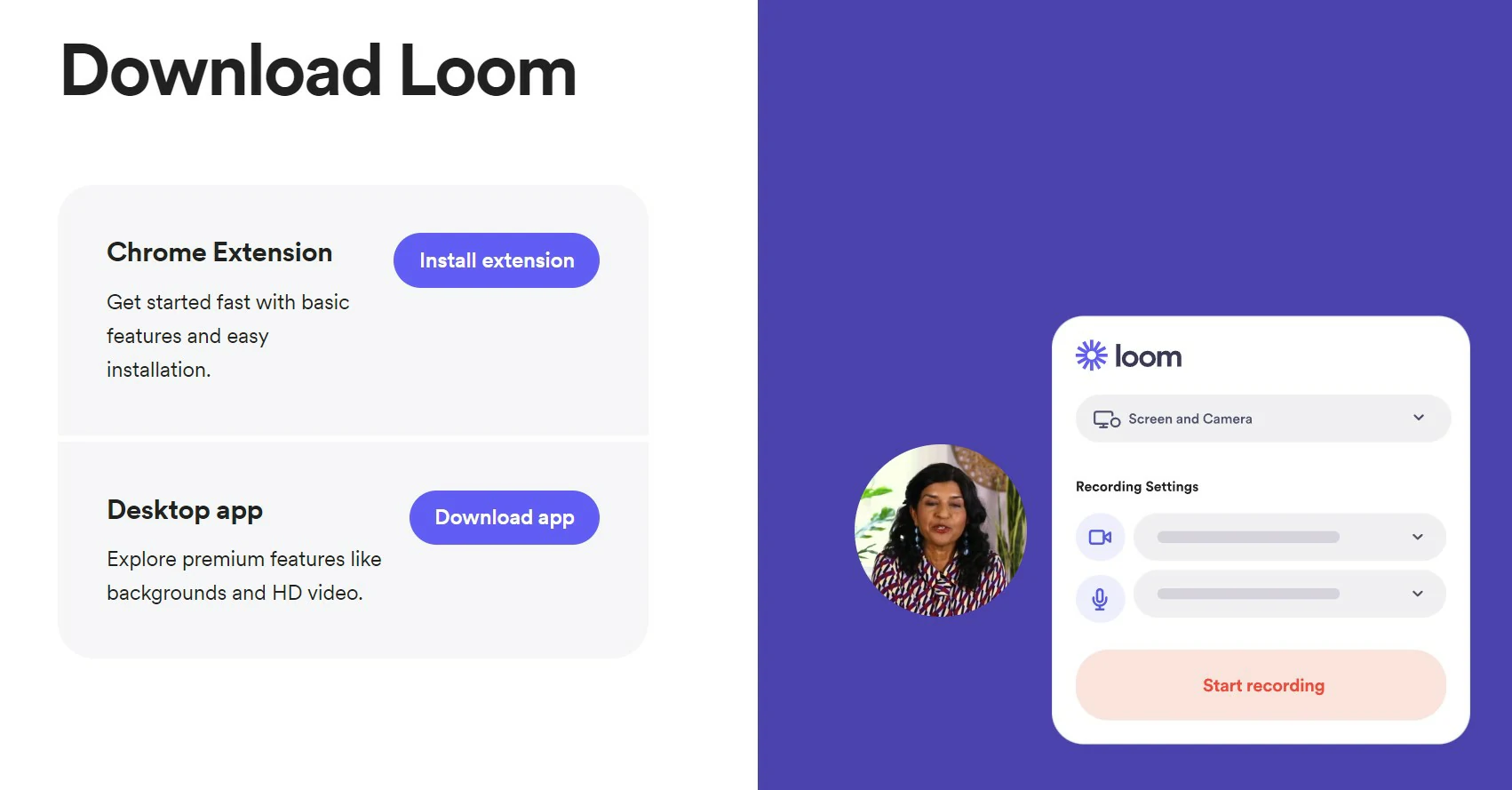
The Loom software can be downloaded for Mac OS and Windows as a desktop app and Google Chrome as an extension, allowing the users to record and share videos while staying on the browser. Loom is also available on Android and iOS.
5. Stats and Reporting
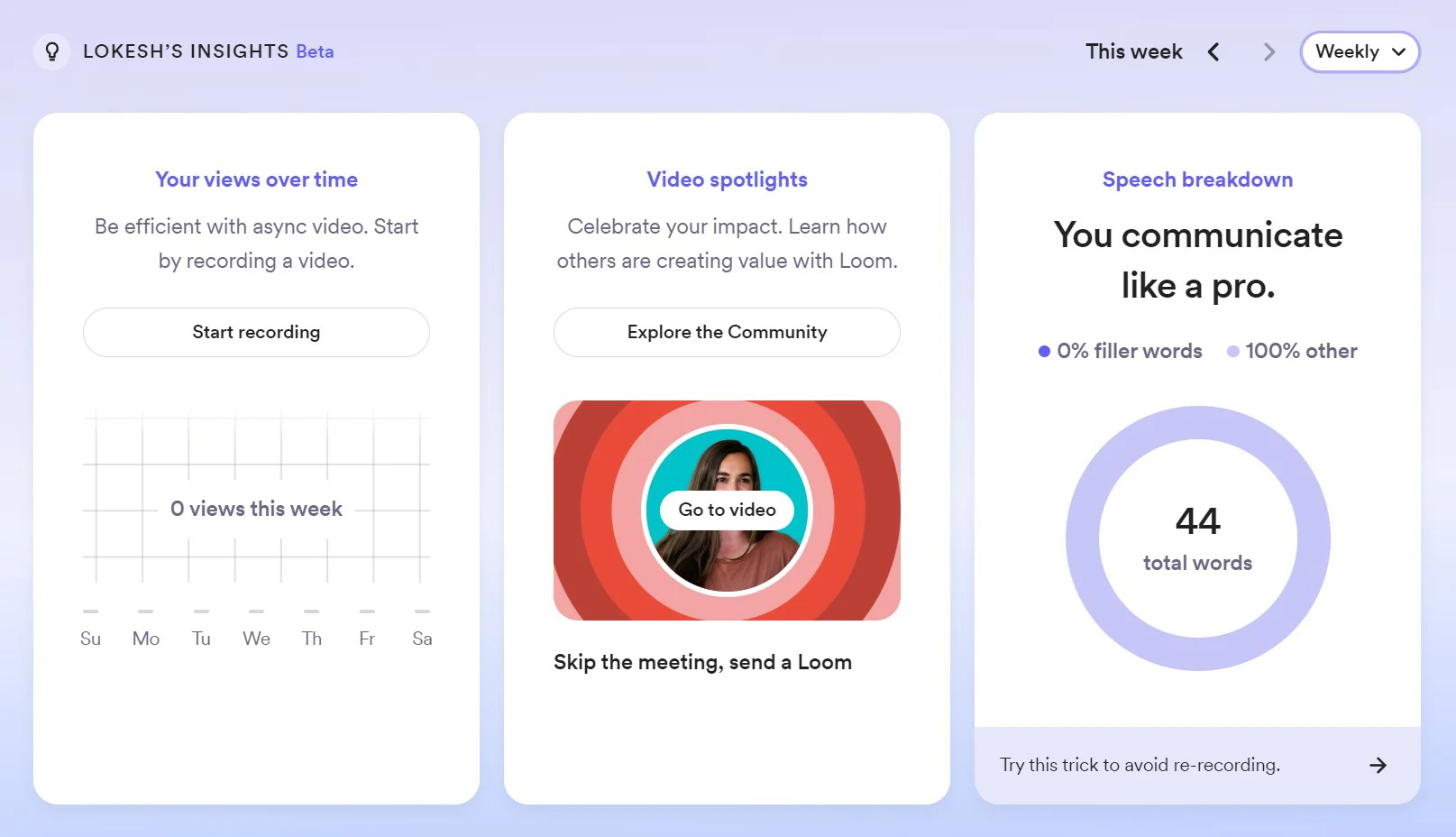
Apart from video engagements, you can also see an overall insight into your videos. You can see this report for the desired timeframe whether monthly or weekly. This report can help you measure the performance of your videos and decide which strategies should be implemented further.
6. Correct the Video Transcriptions
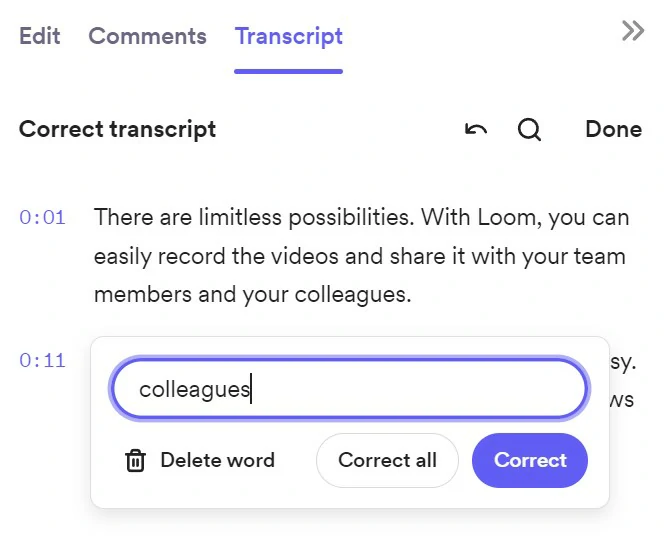
Loom allows you to correct the transcription of your videos. So, if you have any nonfluencies in your videos, you can easily delete them to show on CC. You can also correct the words that are mispronounced or misinterpreted by the Loom app.
7. Keyboard Shortcuts
You are provided with a bunch of shortcuts to speed up your work when you are using the Loom.
For example, you can –
- Press the “S” key to change the playback speed of the video,
- Press the “C” key to leave a comment,
- Press the “A” key to toggle CC(closed captions),
- Press the “7” key to find more reactions for comments,
- Press the “T” key to toggle the sidebar,
- Press the “/” key to split the video at the current play head while on the editing page.
8. Integrations
LoomSDK is a very lightweight development kit. It provides the developers with the tools needed for creating intuitive asynchronous video experiences for the users in just a few lines of code.
With LoomSDK by your side, you can create live-action video experiences that grab your audience’s attention and keep them coming back for more. LoomSDK features integrations with existing frameworks, creative tools, and real-time analytics.
How to use Loom?
To use the Loom Desktop application, follow these simple steps-
- Step 1- Download the Loom application on your PC.
- Step 2- Launch Loom Application. Screen+ Camera will record both your screen and your computer’s camera.
- Step 3- Select the mode and how much screen has to be recorded.
- Step 4- Customize the recording. Select the microphone and camera that you wish to use.
- Step 5- Start the recording by pressing the “Start Recording” option.
- Step 6- Stop or Share the recording. And once you are done recording, click on the “Stop Recording” button.
To use Loom Chrome Extension, follow these simple steps-
- Step 1- Install the Loom Extension. And follow the prompts to enable your camera and microphone access.
- Step 2- Enable Loom Extension. After adding the augmentation, simply complete your establishment by joining or signing in.
- Step 3- Start the Recording by clicking on the Loom Icon. A pop-up window will appear from where you can choose if you wish to use your screen and webcam or either of them alone.
- Step 4- Adjust the recording settings and press the “Start Recording” button.
- Step 5- After recording, you get a tab with a share link. Share your video by grabbing the link.
Loom Pricing
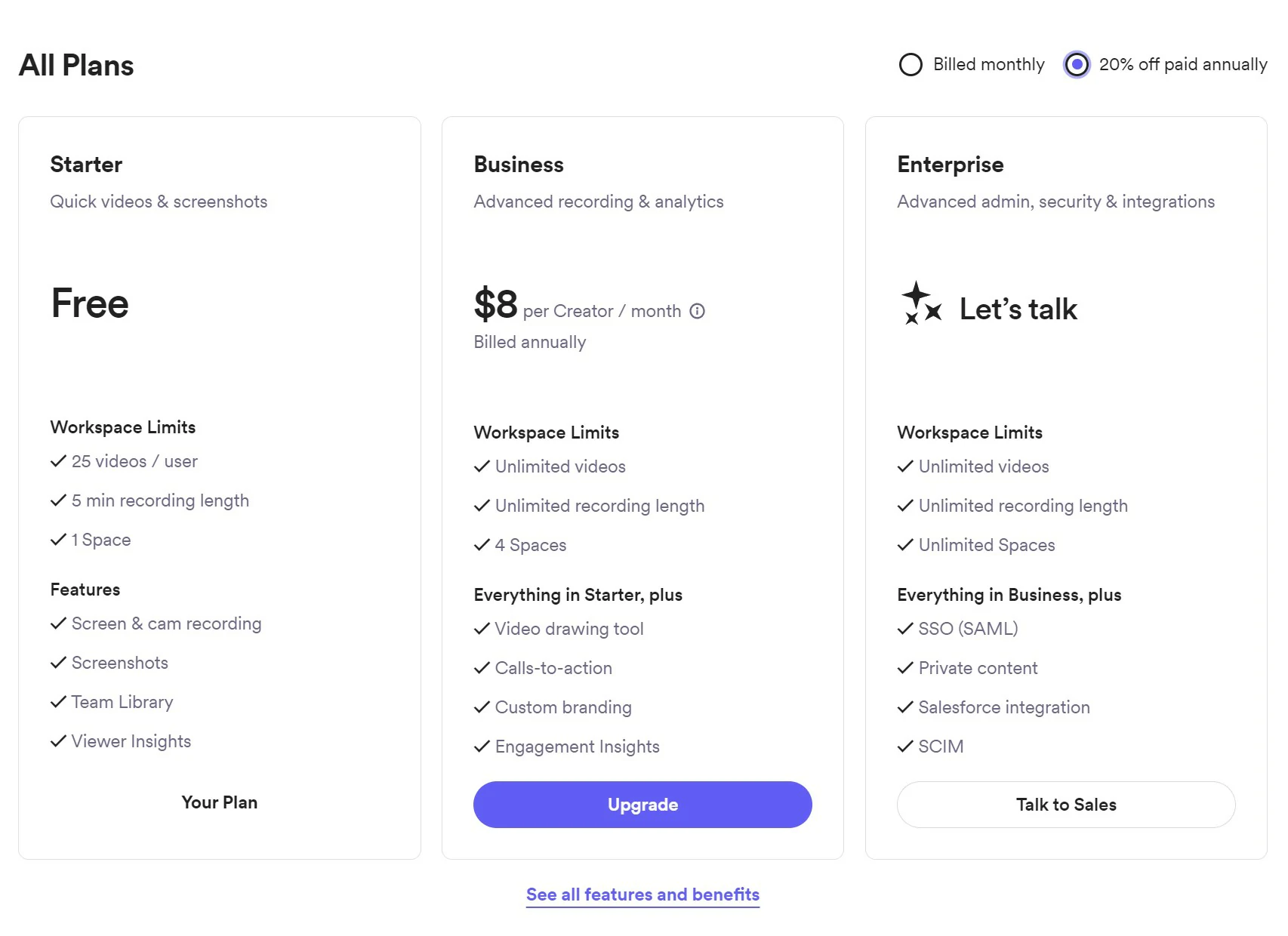
Loom offers three plans. You can choose the pricing package that is best for you. Loom’s plans and free-tier limits change — check current pricing on loom.com.
Starter package- Free of cost
Key features are- viewer feedback, editing in real-time, cam bubble and screen recording, editing in real-time, and workplace for groups. Limited to 25 videos.
Business package- $8 annually
Includes Starter plan features plus, filler words should be removed, observations on participation, individualized branding, transcriptions, and closed captions.
Enterprise package- Contact Loom
Those who wish to gain advanced access to unlimited videos, unlimited creators, security, advanced admin, and unlimited recording length. Its features include- advanced content encryption, SCIM, integration and salesforce, SCIM, and SSO (SAML).
Loom Alternatives
No doubt, Loom is easy to use but unlimited to functionalities. That sometimes makes it not the best solution for high-resolution video recording. In such situations, other software that allows the recording of high-resolution videos and offers you amazing editing features is the solution. These screen recorder applications serve as a great alternative to Loom. If polished editing matters more to you than one-click sharing, our VEED.io review digs into a browser-based tool that leans much harder into editing.
Some of the best alternatives to Loom are-
- Awesome Screenshot
- CloudApp
- Vimeo
- SendSpark
- ScreenRec
- Vmaker
Frequently asked questions
Is Loom free to use?
Yes. Loom has a free Starter plan that covers screen and cam recording, viewer reactions, and a shareable link for every video. The catch is caps — a limited number of videos and a per-video length limit — so it is fine for light, occasional use but you will feel the ceiling if recording becomes a daily habit.
Is Loom worth it in 2026?
If you send a lot of “let me explain” messages, yes. A two-minute Loom usually beats a wall of text and skips a whole meeting, and the paid plans remove the length cap while adding transcripts, filler-word removal, and viewer insights. If you only record a screen once in a while, the free plan is plenty and you can skip the upgrade.
How is Loom different from Zoom or Vidyard?
Zoom is built for live, scheduled calls where everyone shows up at once. Loom is async — you record whenever, and viewers watch whenever. Vidyard plays in the same async-video space and leans more toward sales teams, while Loom stays broad and dead simple. If your goal is fewer live meetings, Loom is the closer fit.
What is the recording length limit on the free plan?
Loom caps each free-plan recording at a few minutes per video, which keeps you punchy but stings on longer walkthroughs. Paid plans lift the cap so you can record as long as you need. On the free tier you can sometimes extend the limit by referring friends to Loom.
Is Loom safe and private?
Loom videos are private by default and shared through a link you control, and you can add password protection, set who can view, or restrict access to your workspace. Business and Enterprise tiers add extras like SSO, SCIM, and advanced content encryption. Treat every share link like a key — anyone who has it can watch unless you lock the video down.
Can viewers comment on a Loom video?
Yes. Viewers can leave time-stamped comments and emoji reactions right on the video, so feedback lands on the exact moment it refers to instead of getting lost in a separate thread. It is one of the reasons Loom works well for reviews, feedback, and back-and-forth without a call.
Does Loom work on mobile?
Yes. Loom has apps for both Android and iOS alongside its desktop apps for Windows and macOS and its Chrome extension. You can record, share, and watch videos from your phone, though the desktop and browser versions give you the fullest recording and editing controls.
What makes Loom Stand out?
Loom has a substantial knowledge base. The videos are generated with high-quality output. Its help center contains instructions on how to use the software. There is also some information on the website and the blog that is updated regularly, along with some new features added.
The company has a development roadmap available online for those interested in learning a little more about Loom, including releases, future add-ons, and prospective new products. Loam is available for multiple platforms allowing users to record and share videos freely without leaving the browser.
Loom Pros and Cons
Pros
- You are free to record the entire screen or just a section of the screen.
- You can easily save your videos in MP4 format.
- It lets you know if someone has viewed your video.
- Loom includes a free version.
- Very simple to use. Allows you to start the recording with just a single click.
- It offers unlimited storage. Along with provisions for the easy organization of folders.
Cons
- The free version of Loom doesn’t allow you to record videos of more than 5 minutes. However, this time limit can be increased by referring a friend to Loom.
- The video recording of the entire screen is sometimes of low quality.
Over to you: Whether it is worth using the Loom
Loom is not a very complicated application; it comes with its share of features. The software allows you to record even the audio and add an annotation to your screen recording files. You can provide additional context for your screen recordings and take notes as you go.
Loom is not only the most popular or powerful screen recorder software available in the app store, but it also does provide a reliable foundation for collaboration. That is supposed to be easy to use and understandable, even for novices.
Best for: remote teams, customer support, and educators who want fast async video instead of another meeting or a wall of text.
Not ideal for: heavy timeline editing or long-form video production — if polished, multi-track edits are the priority, a dedicated editor will serve you better.
The Review
Loom
The Loom application allows you to record high-quality videos with ease. It has a simple and intuitive user interface that makes it easy to capture, edit and share your videos with just a few clicks. With the Loom app, you can easily create professional-looking videos in no time. It also allows you to correct the transcription, change the thumbnail, trim or split, and comment on the videos.
PROS
- You are free to record the entire screen or just a section of the screen.
- You can easily save your videos in MP4 format.
- It lets you know if someone has viewed your video.
- Loom includes a free version.
- Very simple to use. Allows you to start the recording with just a single click.
- It offers unlimited storage. Along with provisions for the easy organization of folders.
- Application Interface is really clean and sophisticated
CONS
- The free version of Loom doesn’t allow you to record videos of more than 5 minutes. However, this time limit can be increased by referring a friend to Loom.
- The video recording of the entire screen is sometimes of low quality.