

You install a productivity extension, feel efficient for a week, then forget it is even there — still running, still reading every page you open. Most Chrome extension lists skip that part.
This one does not. Below are the extensions that actually earn their spot in your toolbar, what each one costs, who should skip it, and how to check what you have already handed access to.
The quick verdict
If you install only one thing today, make it a password manager, and make it Bitwarden — free, open source, and it syncs everywhere without a paywall. If that is already sorted, OneTab is the fastest cure for a browser drowning in tabs, and Lightshot saves the most minutes per day for anyone who screenshots constantly.
Chrome extensions for productivity at a glance
| Extension | Best for | Price | Watch out for |
|---|---|---|---|
| Lightshot | Screenshots you need to share fast | Free | Uploads sit on a public host |
| Bitwarden | Passwords, for almost everyone | Free; Premium around $10/year | Family sharing is basic |
| LastPass | Existing users with a large vault | Free tier is one device type only | 2022 breach of encrypted vault backups |
| uBlock Origin Lite | Faster, cleaner pages | Free | Less configurable than the old version |
| OneTab | Tab overload | Free | Lists stay on one device |
| Google Keep | Two-click capture | Free | Not built for long-form notes |
| Grammarly | Anyone who writes in a browser | Free; Premium paid | Your text is processed on its servers |
| Dark Reader | Reading after dark | Free | Alters colours, so no design QA |
| Toggl Track | Billing and estimating | Free plan; paid team tiers | Teams can read tracking as surveillance |
How we evaluated these
These picks are based on publicly documented pricing, the permissions each extension requests in its store listing, and the developer track record — including how each one has handled security incidents and free-tier changes.
What we did not do: run formal speed or memory benchmarks, or test enterprise deployment. Pricing and permissions change often, so confirm current figures on the developer’s own page before you pay.
The best Chrome extensions for productivity
Lightshot — the fastest way to capture, annotate and share a link
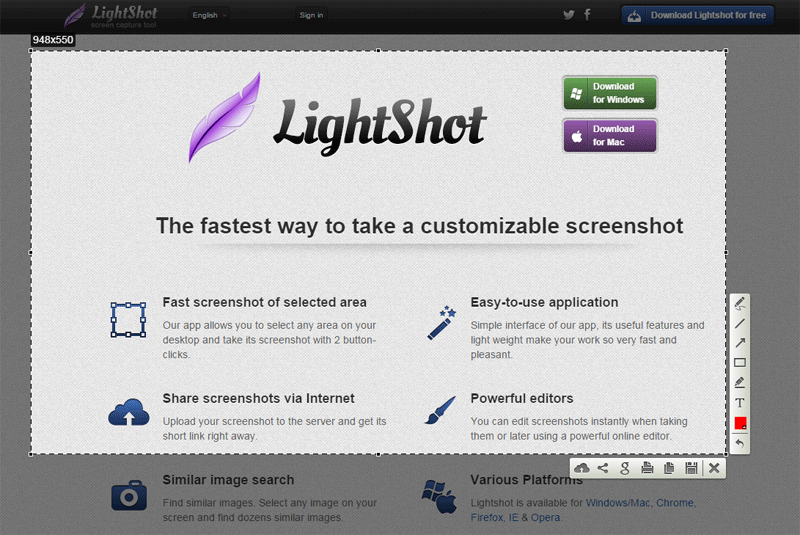
Chrome’s built-in capture tools are fine until you need to draw an arrow on something and hand a colleague a URL five seconds later. Lightshot does that in one keystroke, which is why it has outlasted most of its rivals on this list.
- Select-area capture with a keyboard shortcut
- Arrows, text, highlighter and shapes before you save
- Save locally or upload for an instantly shareable link
Price: Free.
Best for: support staff, writers, and anyone who explains things to colleagues in chat all day.
Not ideal for: anything confidential. Uploaded captures land on a public host and those links have historically been guessable, so save locally when the screenshot contains customer data, invoices or credentials.
Bitwarden — the password manager we would hand to anyone
A password manager is the highest-return extension on this page, and it is not close. Bitwarden is the one we recommend because the free plan is not crippled: unlimited passwords, unlimited synced devices, no nagging.
- Autofill and capture across sites, with a strong password generator
- Passkey storage alongside traditional logins
- Open source, with published third-party security audits
Price: Free plan covers most people; Premium is around $10 a year — check current pricing before you subscribe.
Best for: everyone, and especially anyone still reusing one password with a number stuck on the end.
Not ideal for: people who want a polished family-sharing setup out of the box; 1Password is smoother there.
LastPass — still capable, but no longer our default
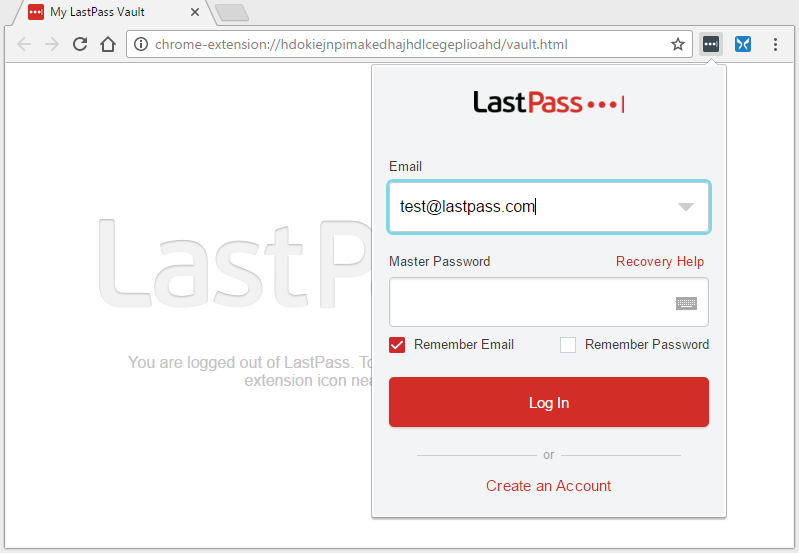
LastPass popularised browser-based password management and the extension itself still works well. Two things changed our recommendation: in 2021 the free tier was cut to a single device type — mobile or computer, not both — and in 2022 the company disclosed a breach in which attackers obtained encrypted customer vault backups.
- Reliable autofill, secure notes and shared folders
- Security dashboard that flags reused and weak passwords
Price: Free tier limited to one device type; Premium and Families are paid — check current pricing.
Best for: existing users with a large vault who do not want a migration project this month.
Not ideal for: new users. Start with Bitwarden or 1Password. If you are staying, rotate your important passwords and make sure your master password is long and unique.
uBlock Origin Lite — fewer scripts, faster pages
Blocking ads and trackers is a productivity tool as much as a privacy one; fewer scripts means pages that actually finish loading. One important change to know about: Chrome’s move to Manifest V3 retired the classic uBlock Origin, and the replacement, uBlock Origin Lite, relies on Chrome’s declarative rules. It is lighter, but less configurable.
- Community filter lists, updated continuously
- Per-site toggles so you can whitelist sites you want to support
- Free and open source, with no paid allowlist scheme
Price: Free.
Best for: research-heavy work where you open dozens of unfamiliar sites a day.
Not ideal for: people who relied on deep custom filtering rules; that level of control now lives in Firefox rather than Chrome.
OneTab — the one-click cure for sixty open tabs
Tabs are where good intentions go to pile up. OneTab collapses every open tab into a single readable list, which frees memory immediately and turns your chaos into something you can actually triage.
- Collapse all tabs to a list with one click
- Restore individually or all at once
- Name and lock groups so a session survives a restart
Price: Free.
Best for: researchers, students, and anyone who uses tabs as a to-do list.
Not ideal for: people who need cross-device sync, since OneTab lists stay local by default.
Google Keep — capture a thought before you lose it
Keep is not the most powerful notes app; it is the fastest. The extension clips the page you are on, with your note attached, in two clicks, and it is waiting on your phone before you have closed the tab.
- Save the current page URL with a note or highlight
- Labels and colour coding for quick retrieval
- Reminders and checklists that sync to Android, iOS and the web
Price: Free with a Google account.
Best for: fast capture, reading lists and errands.
Not ideal for: long documents, linked notes, or anything you would rather keep outside Google’s ecosystem. Notion’s web clipper or Obsidian suit that better.
Grammarly — a second pair of eyes on everything you type
If your job involves writing in a browser, Grammarly catches the tired-brain mistakes that slip past you at five o’clock. The free tier is genuinely useful on its own; the paid tier mostly adds tone adjustment and rewriting.
- Grammar and spelling checks across most text fields on the web
- Tone detection before you send something sharper than intended
Price: Free plan; Premium is a monthly or annual subscription — check current pricing.
Best for: non-native English writers and anyone sending a lot of client-facing text.
Not ideal for: confidential drafting. It processes what you type on its own servers and requests broad page access, so check your employer’s policy first.
Dark Reader — for the hours after sunset
Not a productivity tool in the obvious sense, but eye strain ends working sessions early, and most documentation is still glaring white. Dark Reader builds a dark theme for sites that never shipped one.
- Per-site dark mode with brightness, contrast and sepia sliders
- Allowlist for sites it handles badly
- Scheduling, so it switches on at sunset automatically
Price: Free, donation supported.
Best for: late shifts and long stretches of reading technical docs.
Not ideal for: colour-critical work. Turn it off before you review a design or check a photo.
Toggl Track — find out where the day actually went
Almost everyone is wrong about how long their tasks take, and a week of honest tracking is uncomfortable but useful. Toggl’s extension is the least annoying way to do it, because the timer appears inside the tools you already use.
- One-click timer buttons inside project tools and calendars
- Idle detection so you do not bill lunch by accident
- Projects, tags and clients for clean reporting
Price: Free plan for individuals and small teams; paid tiers add billing and admin controls — check current pricing.
Best for: freelancers billing hourly and anyone writing an estimate they will later have to defend.
Not ideal for: teams who would experience it as surveillance. Track yourself before you track anyone else.
Before you install anything: read the permission prompt
Every extension on this page asks for something. The line that should slow you down is Read and change all your data on the websites you visit. It means precisely what it says: the extension can see the contents of every page you open, including your bank, your webmail and your company’s internal tools.
That is not automatically sinister; an ad blocker or password manager genuinely needs page access to work. The risk is what happens later. Extensions get sold. A small, well-reviewed tool changes hands, the new owner pushes an update through the same automatic channel, and something that used to convert currencies starts injecting affiliate links. It has happened more than once, and store reviews rarely catch up in time.
Four habits keep this manageable:
- Audit every few months. Open chrome://extensions and remove anything you cannot remember installing or have not used in a month.
- Restrict site access. Under each extension’s Details page, change Site access from on all sites to on click, or to a specific list. Most tools keep working.
- Judge the developer, not the star rating. Ratings are easy to inflate. Look for a real website, a readable privacy policy and a support channel that answers.
- Use a separate Chrome profile for sensitive work. Profiles have their own extension sets, so banking and admin in a clean profile costs you nothing.
Fewer extensions, each doing more, is almost always the better trade.
Two picks we are retiring from this list
Official Quora Extension — a reading habit, not a productivity gain
It puts Quora’s answers a click away, which is exactly the problem: it is a feed, and feeds are where focus goes to die. If you use Quora for research, a bookmark does the same job without the nudge to browse.
Musixmatch Lyrics for YouTube — fun, but not work
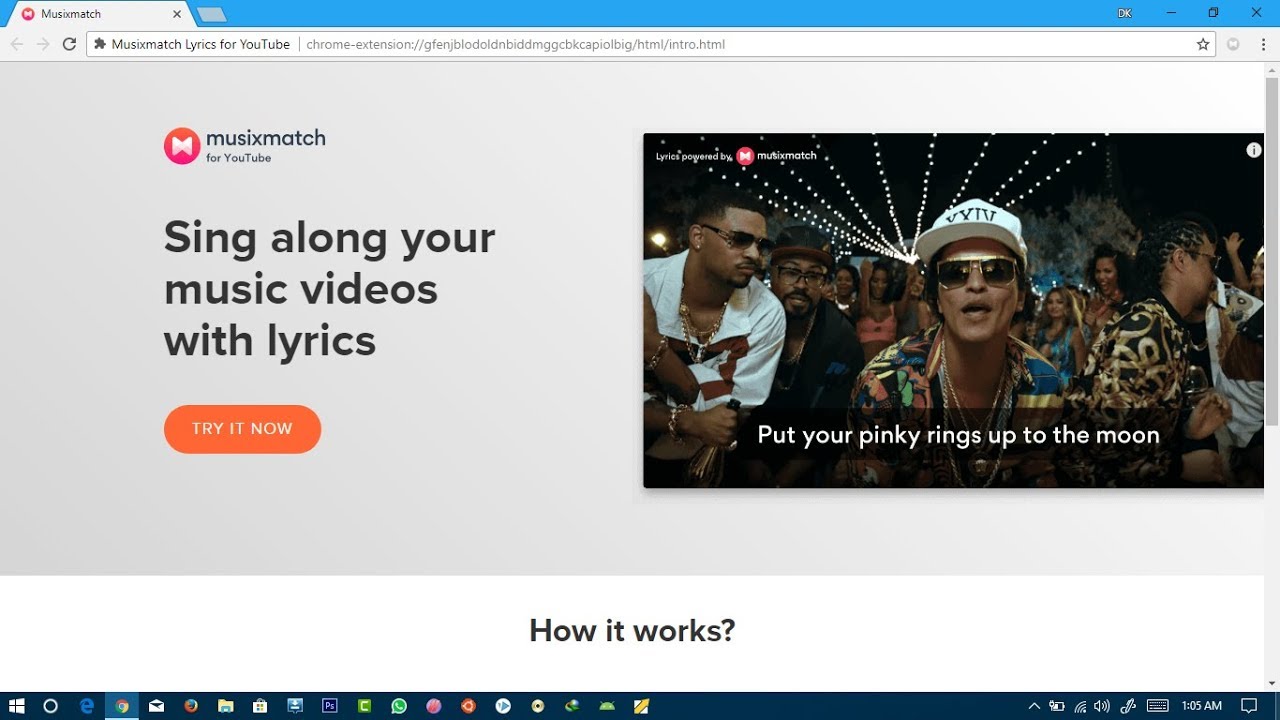
It overlays time-synced lyrics on YouTube music videos and does it well. But it is entertainment, and it needs access to YouTube pages to work. Keep it if you enjoy it — just not as a productivity pick.
Frequently Asked Questions
Are the best Chrome extensions for productivity actually free?
Most of the ones here are genuinely free, not trials. Bitwarden, OneTab, Google Keep, Dark Reader, Lightshot and uBlock Origin Lite cost nothing for personal use. Grammarly and Toggl Track have real free plans plus optional paid tiers.
How many Chrome extensions is too many?
There is no hard limit, but past roughly five or six you are usually adding risk rather than output. Each one can read your pages and each one is a candidate for being sold to a new owner. Keep the ones you use weekly and drop the rest.
Do Chrome extensions slow down my browser?
Some do, especially ones that run scripts on every page load. Content blockers often make browsing faster overall because they stop trackers from loading. If Chrome feels sluggish, disable extensions one at a time and watch which one is responsible.
Bitwarden or LastPass: which password manager should I pick?
For a new user, Bitwarden. Its free plan syncs across unlimited devices and the code is open to audit. LastPass restricted its free tier to one device type in 2021 and disclosed a breach involving encrypted vault backups in 2022, which is a fair reason to start elsewhere.
Is it safe to let an extension read all my data on every site?
It is a real risk you should take deliberately. A password manager or ad blocker needs that access to work. For everything else, open the extension details page and switch site access to on click, so it only runs when you ask it to.
What happened to uBlock Origin in Chrome?
Chrome moved to the Manifest V3 extension platform, which retired the original uBlock Origin. The supported version is now uBlock Origin Lite, which uses Chrome declarative rules. It blocks well but offers less custom filtering than the version many people used for years.
Can I use these Chrome extensions on my phone?
Chrome on Android and iOS does not support desktop extensions. The workaround is to use the companion mobile apps instead, since Bitwarden, Google Keep, Grammarly and Toggl Track all have them and sync with the desktop extension.
Which one should you install first?
- If you have no password manager: Bitwarden, today. Nothing else here comes close on return for the effort.
- If your browser has forty tabs open right now: OneTab, then Google Keep for the things you were keeping those tabs for.
- If you write for a living: Grammarly plus Lightshot, and nothing else until those two are habits.
- If you bill by the hour: Toggl Track, and give it a full week before you judge what it tells you.
- If pages feel slow and cluttered: uBlock Origin Lite, then Dark Reader if you work after dark.
One warning before you go on an installing spree: every extension you add is another piece of code with a view of your browsing, and the gain from your eighth extension is usually smaller than the risk it brings. Install three, live with them for a fortnight, and only then consider a fourth.
Your next step takes about a minute. Open chrome://extensions and remove everything you do not recognise. Then, if you want similar tools on your phone, read this next: