

Open any slow WordPress site and check the network tab. Nine times out of ten it isn’t the theme or the plugins. It’s a 3MB hero photo straight off someone’s phone.
The right image optimization tools fix that in an afternoon and keep fixing it forever. On this site they cut total page weight by more than half.
Below: what each tool actually costs, which ones we run, and where the free tiers stop. Pair it with a decent SEO plugin and your Core Web Vitals stop being an argument.
The short answer
ShortPixel is the one we’d install on almost any WordPress site: generous free tier, credits that never expire, and it converts to WebP and AVIF without drama. Imagify is the pick if you already run WP Rocket, because the two share an account. TinyPNG is the fastest way to squash a handful of files by hand. ImageKit is what you graduate to when a plugin isn’t enough.
Quick verdict
- Best overall for WordPress ShortPixel
- Best value subscription Imagify, $4.99/mo billed yearly
- Best free web tool TinyPNG
- Best image CDN ImageKit.io, free tier then $9/mo
- Quotas and prices checked on vendor pricing pages in July 2026
- Separates compressors, plugins and image CDNs, which do different jobs
- Names the tools we actually run on this site
- Compression quotas are measured in images, credits or megabytes depending on the vendor, so direct price comparison is messy
Install ShortPixel, set it to lossy WebP, bulk-optimise once and forget it. Reach for an image CDN only when your library or traffic outgrows a plugin.
| Feature | ||||
|---|---|---|---|---|
| Free tier | 100 credits a month | 20MB a month | Free web tool, 500 API calls | 20GB bandwidth, 3GB storage(winner for this row) |
| Entry paid price | $3.99/mo or one-time credits(winner for this row) | $4.99/mo billed yearly | $39/yr Pro | $9/mo Lite |
| Credits that never expire | Yes(winner for this row) | No | No | No |
| WordPress plugin | Yes | Yes | Yes | Yes |
| WebP and AVIF output | Yes | Yes | Yes | Yes |
| Resizes and crops on the fly | No | No | No | Yes(winner for this row) |
| Built-in CDN delivery | Yes | No | No | Yes |
| Bulk-optimises an existing library | Yes | Yes | Yes | No |
We may earn a commission when you buy through links on this page. This does not affect our reviews.
How we judged them. We compared quota models, output formats, whether originals are backed up, how each handles transparency and EXIF data, and the real cost of optimising a normal WordPress library. We run bunny.net on this site and have used ShortPixel, Imagify and TinyPNG on live projects. The rest is based on documentation and vendor pricing pages, checked in July 2026.
Compressor, plugin or image CDN: three different jobs
Most roundups mix these up, which is why people buy the wrong thing.
Web compressors like TinyPNG and Optimizilla are drag-and-drop. You compress files by hand before uploading. Free, simple, and useless at scale.
Plugins like ShortPixel and Imagify sit inside WordPress, compress every upload automatically and can work through your existing library in the background. This is what 90 percent of sites need.
Image CDNs like ImageKit and Bunny store one original and generate every size, format and crop on request, from the URL. They cost more and they solve problems a plugin can’t, including responsive delivery to phones on bad connections. If your hosting setup already includes a CDN, start there before adding another subscription.
Best image optimization tools and plugins in 2026
ShortPixel, the one to install first
ShortPixel gets the default recommendation for one reason above the rest: you can buy credits that never expire. Optimise 10,000 images this month, nothing next month, and you’ve lost nothing. Every rival bills a monthly quota that evaporates whether you use it or not.
The plugin handles WebP and AVIF conversion, keeps a backup of every original, and its bulk optimiser chews through an existing library without timing out. Lossy mode at the default setting is where you want it: big savings on screenshots and flat graphics, nothing a reader will spot.
The interface is functional rather than pretty, and the credit maths takes a minute to understand: each generated thumbnail size counts as a credit, so a site with eight registered sizes burns credits eight times faster than you’d expect.
Key features
- One-time credit packs that never expire, alongside monthly plans
- Lossy, glossy and lossless modes, plus WebP and AVIF conversion
- Automatic backup of originals before anything is touched
- Bulk optimiser for existing libraries, plus a separate Adaptive Images CDN
- Also compresses PDFs, which almost nothing else here does
Pricing: free plan with 100 credits a month. Monthly subscriptions start around $3.99, and one-time packs run from roughly $9.99 for 10,000 credits up to $49.99 for 100,000. Those one-time credits never expire.
Best for: any WordPress site, especially ones that publish in bursts.
Not ideal for: people who want a set-and-forget monthly bill and never think about credits.
Imagify if you already run WP Rocket
Imagify comes from WP Media, the team behind WP Rocket, and that’s the whole argument. Same account, same dashboard, and the two plugins don’t fight each other over WebP delivery the way mismatched tools sometimes do. Setup is three clicks and a compression level.
The free tier is the tightest here. Twenty megabytes a month is roughly 200 images, and a single unresized DSLR photo can eat a fifth of it. Paid plans are cheap enough that this barely matters, but know it going in.
Key features
- Normal, Aggressive and Ultra compression levels with a visual comparison tool
- WebP and AVIF conversion with automatic delivery rules
- Bulk optimisation and automatic resizing of oversized uploads
- Shares an account with WP Rocket, which saves a lot of fiddling
Pricing: free Starter plan with 20MB a month, around 200 images. Growth is $5.99 a month, or $4.99 billed yearly, for 500MB. Infinite is $11.99 a month, or $9.99 yearly, with no quota.
Best for: WP Rocket users and anyone who wants unlimited optimisation for under $10.
Not ideal for: sticking to the free tier. You’ll hit the 20MB wall in a week.
TinyPNG for compressing a handful of files by hand
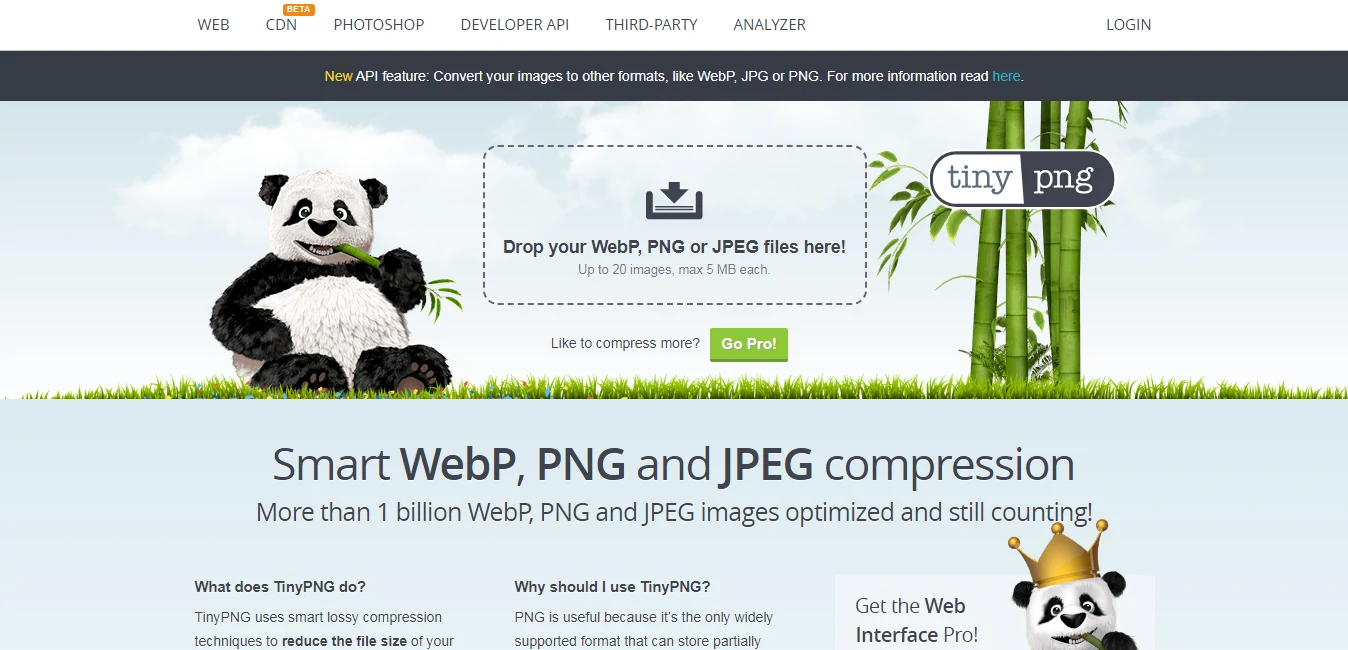
TinyPNG has been the default answer for a decade because it’s fast, free and the results are consistently good. Drag files onto the page, download the results, done. Its selective-palette compression is particularly strong on flat-colour PNGs and screenshots, which is why it stays in our bookmarks bar.
Two things people get wrong. The old marketing line about 15 percent savings undersells it badly; screenshots and flat graphics routinely drop 60 to 70 percent. And the free web tool is deliberately limited, so the WordPress plugin and API run on a separate quota.
Key features
- Browser drag-and-drop with no account for occasional use
- Handles PNG transparency better than most competitors
- Supports AVIF, WebP, JPEG and PNG through the Tinify API
- Official WordPress plugin, Photoshop plugin and CLI clients
Pricing: the web tool is free with per-batch limits. Web subscriptions run $39 a year for Pro and $149 a year for Ultra. The API gives you 500 free compressions a month, then charges per compression from $0.009, dropping to $0.002 above 10,000.
Best for: compressing images before you upload them, and PNG-heavy work.
Not ideal for: automating a 20,000-image library. The per-compression billing adds up.
ImageKit.io when a plugin stops being enough

ImageKit is a real image CDN, not a compressor with a CDN bolted on. You store one original and every variant is generated from the URL: width, crop, focus point, format, quality, overlays. Change the URL, get a different image. For a site with a lot of layouts, that’s transformative.
The free tier is the most generous on this page at 20GB of bandwidth a month, which covers a lot of blogs outright. The cost model is bandwidth-based, so a viral post costs you money in a way a plugin never would. Worth knowing before you switch.
Key features
- URL-based resizing, cropping, smart cropping and format conversion
- Automatic WebP and AVIF with per-browser fallback
- Built-in digital asset management with 3GB free storage
- Plugs into an existing S3 bucket or web server rather than forcing a migration
Pricing: Forever Free with 20GB monthly bandwidth and 3GB storage. Lite is $9 a month plus usage, Pro is $89 a month plus usage, Enterprise is quoted.
Best for: developers, image-heavy publishers and anyone serving many crops of the same photo.
Not ideal for: a small blog. You’d be adding complexity to solve a problem you don’t have.
Bunny Optimizer if your CDN is already Bunny

We serve this site through bunny.net, so this one is genuinely first-hand. Optimizer is an add-on to the CDN rather than a standalone product: flip it on, and images are resized, compressed and converted to WebP at the edge, with CSS and JavaScript minification included in the same switch.
The pricing is refreshingly blunt. $9.50 per month per website, unlimited optimisation, with CDN bandwidth billed separately. If you’re not already on Bunny, this is not a reason to move. If you are, it’s the cheapest win available to you.
Key features
- Edge-side image optimisation with automatic WebP conversion
- URL-based resizing, cropping and quality parameters
- CSS and JavaScript minification bundled in
- Flat per-site price with no per-image quota to track
Pricing: $9.50 a month per website for unlimited optimisation. CDN bandwidth is charged separately on Bunny’s usual rates.
Best for: sites already delivering through bunny.net.
Not ideal for: anyone who wants image optimisation without also running a CDN.
Kraken.io for API and bulk work

Kraken has been around since 2013 and is still going, which in this category counts for something. Its strength is the API and the way it handles bulk jobs from cloud storage: point it at an S3 bucket, get optimised files back. The web interface is a secondary product.
To correct something that circulates about Kraken constantly: it is not free with unlimited storage. You get 100MB of testing quota to try it, and after that every plan is a monthly quota you either use or lose.
Key features
- Full-featured optimisation API with lossy and lossless modes
- Direct integration with S3, Azure, Rackspace and SoftLayer storage
- WordPress plugin and Magento extension on every paid plan
- Intelligent resizing and automatic EXIF stripping
Pricing: free account with 100MB of testing quota. Micro $5 a month for 500MB, Basic $9 for 2GB, Advanced $19 for 5GB, Premium $39 for 15GB, Enterprise $79 for 60GB.
Best for: developers automating optimisation outside WordPress.
Not ideal for: a blogger who just wants a plugin. ShortPixel is cheaper and easier.
ImageRecycle for pay-once quota
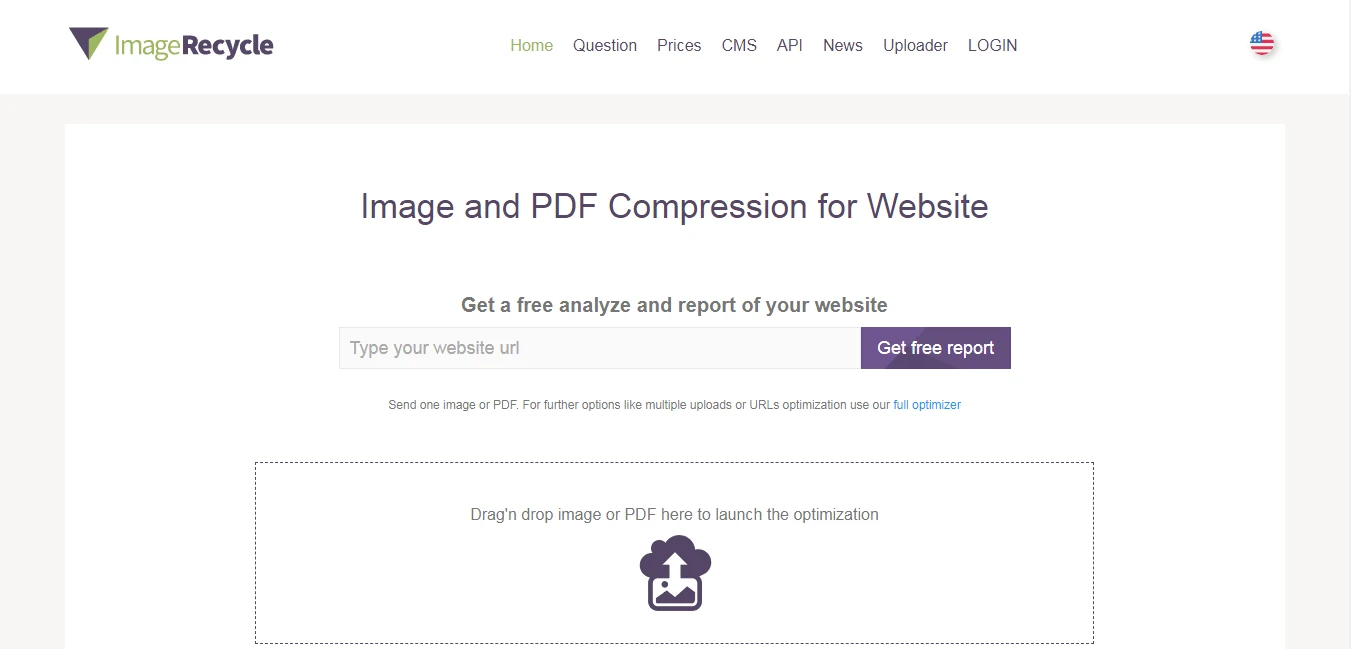
ImageRecycle sells quota outright rather than by the month, which suits agencies handing over a finished site. It also compresses PDFs, and its CMS extensions cover WordPress, Joomla, Magento and Shopify, which is unusually broad.
Be clear about what it isn’t. It’s a compressor, not a photo editor. Claims floating around the web that it removes backgrounds, reduces noise or sharpens images are simply wrong, and we’ve corrected that in this update.
Key features
- One-time quota packs instead of a monthly subscription
- Image and PDF compression from the same balance
- Extensions for WordPress, Joomla, Magento, Shopify and an API
- Keeps a restore point so you can revert an optimisation
Pricing: quota-based one-time packs plus subscription options, with a free trial allowance. Check the current tiers on their pricing page, since the packs change.
Best for: agencies and one-off site cleanups on non-WordPress platforms.
Not ideal for: sites publishing daily, where a subscription works out cheaper.
Compressor.io, iLoveIMG and Optimizilla: the free browser three
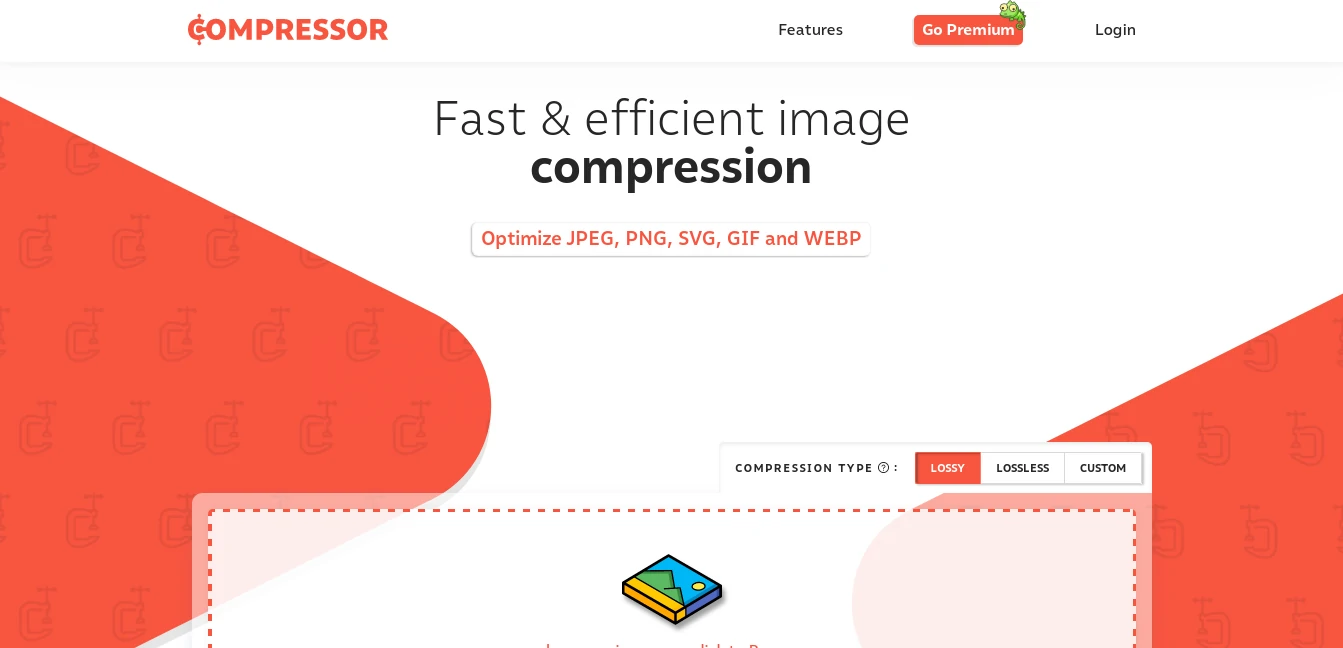
These do the same job with different personalities, and all three are free. Handy alongside an image gallery plugin, where a single unoptimised gallery can outweigh the rest of the page.
Compressor.io gives you a lossy or lossless choice and a slider, supports JPEG, PNG, GIF, SVG and WebP, and shows a before-and-after view you can drag. Best of the three for judging quality before you commit.
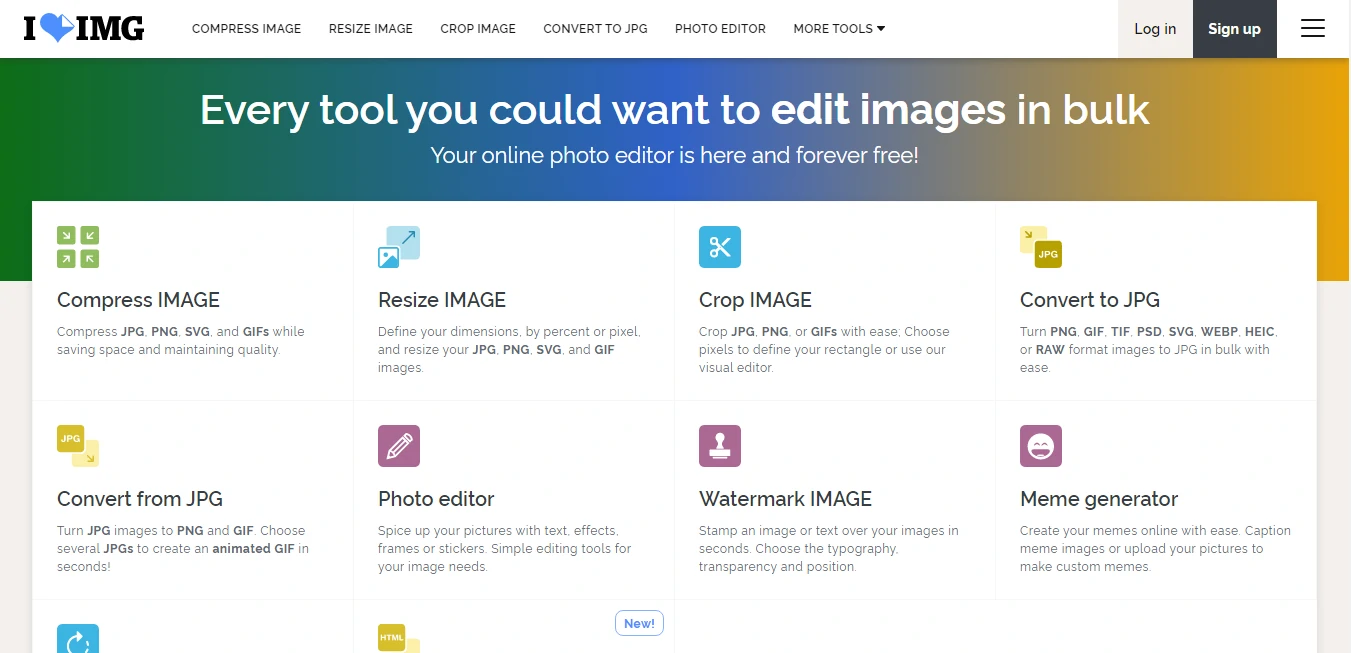
iLoveIMG is the batch workhorse. Compress, resize, crop, convert to WebP and watermark up to a large number of files at once, with Google Drive and Dropbox import built in. It’s the one to reach for when you have 60 images and no patience.

Optimizilla is the fussy one, in a good way. Up to 20 files at a time, each with its own quality slider and live preview, so you can push a screenshot to 40 percent quality while leaving a product photo at 85. Nothing else free gives you that per-image control.
Best for: occasional manual work and one-off jobs.
Not ideal for: a live site. None of these touch images already in your media library.
JPEG Optimizer, the one you can skip
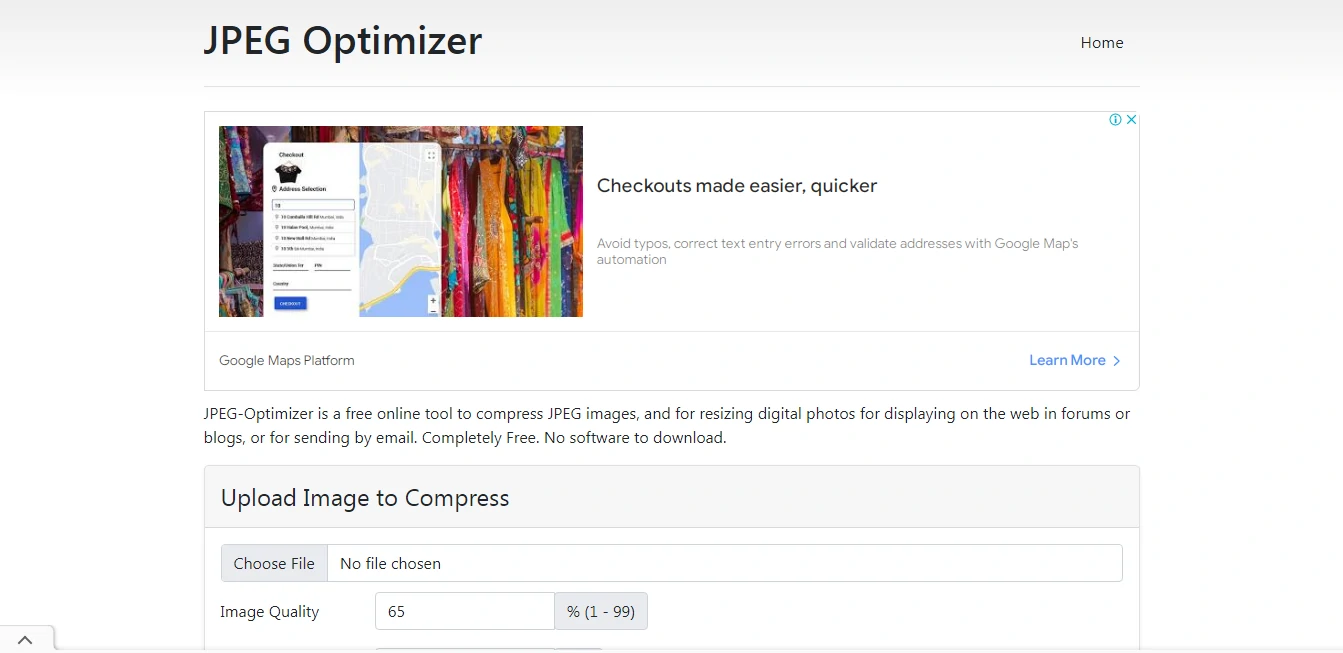
Honest assessment: JPEG Optimizer is a single-file JPEG compressor with a resize box, and the interface hasn’t meaningfully changed in years. It works. It also does less than TinyPNG or Optimizilla, offers no WebP or AVIF output, and handles one image at a time.
We’re leaving it here because people still search for it, not because we’d choose it. If you need to shrink one JPEG on a locked-down work computer, fine. Otherwise use Optimizilla.
Pricing: free.
Best for: a single JPEG, nothing more.
Not ideal for: anything else on this page.
Mistakes that waste most of the saving
- Compressing without resizing. A 4000px photo shown in an 800px column is wasting bytes no compressor can recover. Resize first, compress second.
- Optimising the same image twice. Running an already-compressed JPEG through a second lossy pass adds artefacts and saves almost nothing.
- Turning off backups to save credits. Keep originals until you’ve checked a full page of output. Undoing a bad bulk run without them means re-sourcing every file.
- Starting from bloated stock files. Downloading the 6000px version from a stock image site and uploading it untouched is the single most common cause of a heavy media library.
- Ignoring generated images. Anything you make in an AI image generator comes out as a large PNG by default. Convert to WebP before it ever reaches your media library.
Frequently asked questions
Does image optimization actually improve Core Web Vitals?
Yes, and Largest Contentful Paint is usually where you see it. On most blogs the LCP element is the featured image, so cutting it from 400KB to 60KB and serving WebP moves that number more than any caching tweak. It does nothing for Cumulative Layout Shift, which is fixed by setting width and height attributes, not by compression.
Is WebP or AVIF the better format now?
AVIF files are typically 20 to 30 percent smaller than WebP at the same quality, and browser support is no longer the problem it was. WebP is still the safer default because encoding is far faster and every tool supports it. Use a tool that serves AVIF with a WebP fallback and let the browser decide.
Will compressing images make them look worse?
At sensible settings, not in any way a visitor will notice. Lossy compression at around 80 percent quality typically cuts file size by 60 to 80 percent with no visible difference on a screen. Photography portfolios and product shots with fine texture are the exception, and those should be checked by eye rather than trusted to a slider.
Should I use a plugin or an image CDN?
A plugin if your library is a few thousand images and traffic is normal. It compresses once on upload and costs almost nothing. An image CDN if you serve many sizes, have global traffic, or need cropping and resizing generated from the URL. ImageKit and Bunny do things no plugin can, and they cost more because of it.
Can I undo compression if I do not like the result?
Only if the tool kept your originals. ShortPixel and Imagify both offer to back up the original file before optimising, and you should leave that setting on until you are happy with the output. Tools that overwrite the original with no backup give you one shot, so test on a handful of images first.
How much can image optimization actually save?
On a typical WordPress blog we see total page weight drop 40 to 70 percent from images alone, because most sites upload straight off a phone or a stock site with no resizing. The biggest single win is usually dimension, not compression: a 4000px photo displayed in a 800px column is wasting most of its bytes before any tool touches it.
Do these tools optimise images that are already on my site?
Most do. ShortPixel, Imagify and TinyPNG all have a bulk-optimise button that works through your existing media library in the background. Image CDNs like ImageKit work the other way, optimising on delivery, so your stored originals never change. Back up before you run a bulk job on a live site.
Our verdict
Install ShortPixel, set it to lossy with WebP conversion, run the bulk optimiser once and stop thinking about it. Already paying for WP Rocket? Take Imagify instead and save yourself an account. For compressing files by hand before upload, TinyPNG is still unbeaten. When a plugin genuinely isn’t enough, ImageKit or Bunny Optimizer is the step up, and neither is a step you take lightly.
One warning. Back up your media library before any bulk optimisation run. We’ve seen a badly configured plugin flatten transparency across a few hundred logos, and there is no undo without originals.
Next step, ten minutes: open your slowest page in PageSpeed Insights, note the LCP figure, then run one image optimization pass on that page’s images and measure again. That number tells you whether any of this is worth paying for on your site.