

You’ve got the footage. What you don’t have is a free weekend to learn Premiere Pro.
That’s the pitch behind Movavi Video Editor: drag, drop, done. Pick the wrong plan, though, and you’ll export a watermarked 60-second clip or pay for effects you never use.
For this Movavi Video Editor review, we edited with Movavi hands-on, then re-checked every feature and price against version 26.
Whether this easy video editor is worth paying for comes down to one line on the store page most reviews skip.
Some links in this review are affiliate links. If you buy through them, DroidCrunch may earn a commission at no extra cost to you, and it never changes our verdict. Our affiliate disclosure explains how it works.
Quick verdict: is Movavi Video Editor right for you?
Movavi Video Editor is one of the gentlest paid editors on Windows and Mac. It’s built so a first-timer can cut, caption and export without a tutorial marathon.
Version 26 added the tools creators actually asked for. Think AI subtitles you can translate, one-click silence removal and auto-cropping that turns wide clips into Shorts. For most people, the yearly plan is the one to buy.
Best for: beginners, YouTubers, teachers and small businesses who want polished videos fast, on a yearly or one-off budget.
Not ideal for: editors who need pro colour grading and audio post-production, or anyone happy with a free tool like Clipchamp or DaVinci Resolve.
The full score, pros and cons are in the review box on this page.
Movavi Video Editor at a glance
- Product
- Movavi Video Editor (version 26)
- Official website
- movavi.com
- Category
- Beginner-friendly desktop video editor
- Our rating
- Starting price
- $21.95/month or $69.95/year (US) (checked Sep 2026)
- Free plan
- No 7-day trial with watermark and 60-second exports
- Platforms
- Windows 10/11 (64-bit), macOS
- Standout features
- AI auto subtitles, silence removal, auto-crop for Shorts, motion tracking
- Best for
- Beginners and creators who want results without a learning curve
- Money-back guarantee
- 14 days
- Latest version
- 26.24.1 (September 16, 2026)
- Alternatives
- Filmora, Clipchamp, DaVinci Resolve
We may earn a commission when you buy through links on this page. This does not affect our reviews.
What’s changed since our 2023 review?
Quite a lot. Since 2023, Movavi has rebuilt its timeline and added AI subtitles, silence removal, subtitle translation, auto-tracked cropping and word-by-word captions.
Our first review covered version 23. The editor you download today is version 26.24.1, released on September 16, 2026. Movavi’s release notes show a new build every few weeks.
Most of those builds are small fixes. These are the ones that change how the editor feels day to day:

- AI auto subtitles (version 25, October 2024) turn your speech into synced captions. They recognise 13 languages and, since December 2025, translate into English, Hindi, Spanish, Korean, Portuguese and Russian.
- Silence removal (July 2025) cuts pauses automatically, or lets you set the pause length and volume threshold yourself.
- Auto-tracked cropping (March 2026) follows the speaker while it reframes a wide clip as a vertical one. A May update made it switch the project’s aspect ratio in the same pass.
- Word-by-word captions (May 2026) light up each word as it’s spoken, the karaoke style you see on most Shorts.
- Quick video denoise (March 2026) smooths grain in low-light and phone footage without smearing faces.
Smaller changes add up too. Exports are up to 67% smaller at good quality, and there’s a new AV1 preset. You also get speed control up to 100x, SRT caption export and trimming by dragging a clip’s edge.
What a changelog can’t tell you is how version 26 behaves on your machine. So here’s exactly what we did and didn’t check.
How we tested (and what we didn’t)
Short version: hands-on first, then a fresh round of homework.
For our original review, we edited with Movavi ourselves, and the screenshots in this article come from that session. They show the 2023 interface. Version 24 redesigned the timeline, so yours will look a little different.
For this update, we went back to primary sources on September 28, 2026. That meant Movavi’s release notes, its US and India stores, the trial limitations page and the official system requirements. We checked Filmora, Clipchamp and DaVinci Resolve on their own sites the same day.
What we didn’t do: re-benchmark export speed or subtitle accuracy on version 26. Any render time we quoted would be made up, so we haven’t quoted one.
The features that actually save you time
Movavi’s feature list is long, and most of it is standard. These are the tools that change how long an edit takes, in the order you’ll reach for them.
A timeline you can learn in one sitting
The layout will feel familiar if you’ve touched any editor. Media and effects sit on the left, the preview player on the right and the timeline across the bottom. Since mid-2025, the sidebar buttons carry text labels, so you’re not guessing what an icon does.
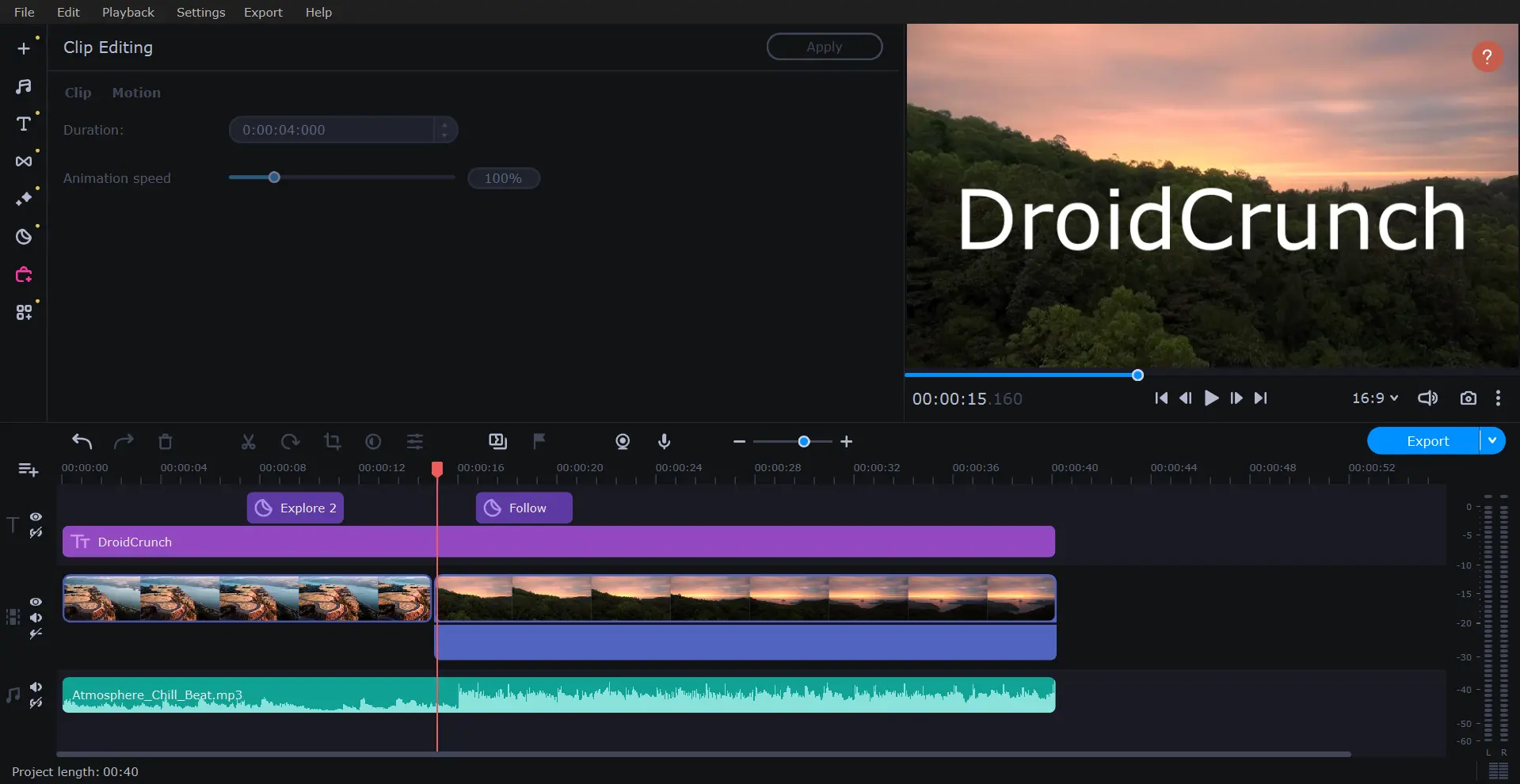
Trimming got quicker too. You can pick just the part of a clip you need before it reaches the timeline. Then hover over an edge and drag to cut. The blade tool handles frame-precise splits.
Our take: if you’ve never edited before, this is the least intimidating timeline in its price range.
Subtitles that write and translate themselves
Auto subtitles are the feature we’d pay for. Movavi transcribes your speech, syncs the captions and lets you fix misheard words before you style them.
You get 30+ ready-made caption styles, word-by-word highlighting and SRT export for YouTube’s own caption track. Translation now covers six languages, including Hindi, which matters if you publish for Indian audiences.
Plan to proofread, though. Speech-to-text still trips over names, jargon and strong accents in every captioning tool we’ve tested, so budget a few minutes per video.
One-click silence removal for talking-head videos
Recording yourself? Silence removal finds the pauses and cuts them for you. Run it on the defaults, or set the minimum pause length and volume threshold yourself.
It’s the quickest way to tighten a rambling take. Check the result on tutorials, though: a quiet stretch might be you clicking through a menu that viewers need to see.
Auto-crop for Shorts and Reels
Auto-crop is what makes Movavi a real short-form tool. It tracks the main subject, whether that’s a person, a product or a pet. Then it reframes a horizontal clip as a vertical one, with no keyframing.
Pair it with word-by-word captions and you can repurpose one long video into several Shorts without leaving the app.
Motion tracking, background removal and effects
AI motion tracking pins a title, sticker or blur to a moving object. It’s handy for hiding a number plate or labelling a product as it moves.
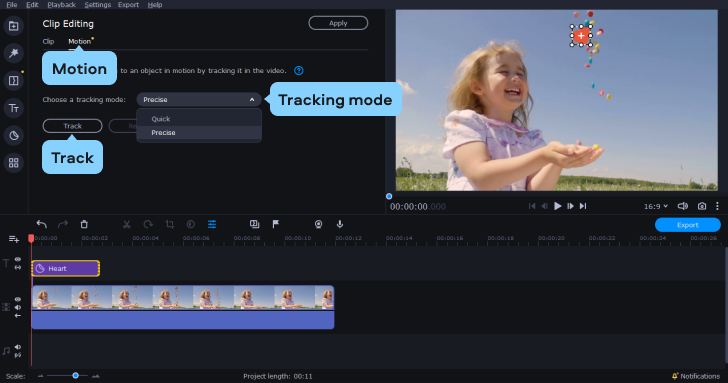
AI background removal swaps a backdrop without a green screen. For clean edges on client work, a real green screen and the chroma key tool are still the safer bet.
The effects library is huge, with 10,000+ items across Movavi’s store. Most of the best packs sit behind a separate Movavi Effects subscription, though. We’ll come back to that in the catch section.
Colour, denoise and audio clean-up
Colour tools cover the basics well: automatic correction, manual sliders and LUTs with an intensity slider. There are also 40+ adjustable looks, from light leaks to film dust and VHS.
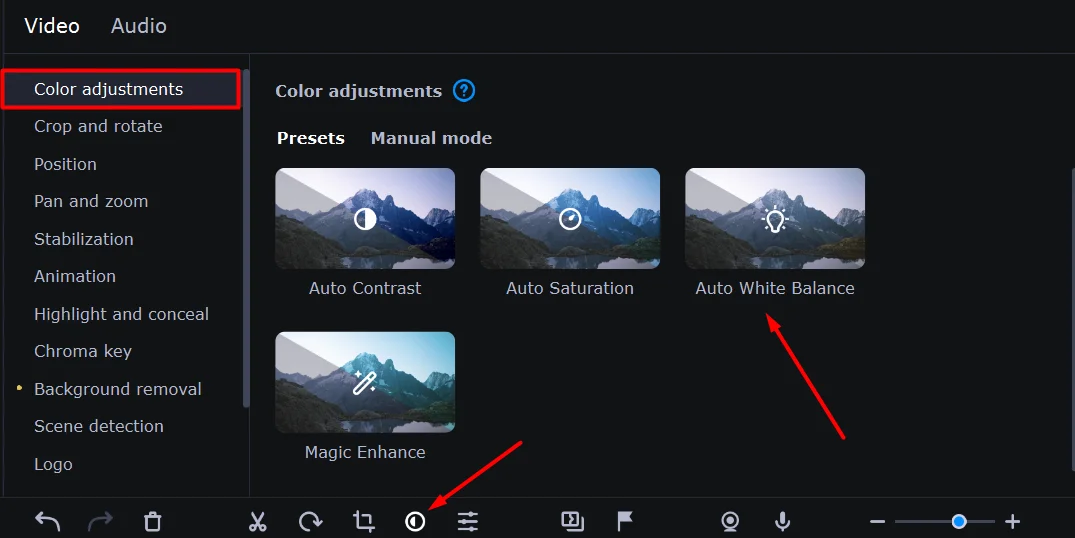
New in March 2026, Denoise smooths grain in low-light phone footage. On the audio side, AI noise removal handles wind and traffic hum, and beat detection helps you cut to music.
What you won’t find is node-based grading or the deep colour and audio controls pros rely on. If that’s your world, DaVinci Resolve is free and goes much further.
Exporting and uploading
Export covers MP4, MOV, AVI and the other common formats, up to 4K. An AV1 preset gives you smaller files at the same quality, and you can upload straight to YouTube from the editor.
Trial exports carry a Trial watermark and stop at 60 seconds. Test your workflow on a short clip before you commit to a long project.
How to edit your first video in Movavi
The quickest route from raw footage to a captioned upload
-
Step 1 of 6
Install the trial and set your format
Download Movavi Video Editor from the official site and open it. Choose your aspect ratio under the player: 16:9 for YouTube, 9:16 for Shorts and Reels.
-
Step 2 of 6
Add and pre-trim your clips
Click Add Files, then select just the part of each clip you need before it lands on the timeline. Long recordings won’t clog your project.
-
Step 3 of 6
Cut the dead air
Run Silence removal on talking-head footage, then hover over a clip’s edge and drag to trim anything it missed.
-
Step 4 of 6
Generate subtitles
Open auto subtitles, let the AI transcribe your speech and fix any misheard words. Pick one of the 30+ styles and turn on word-by-word highlighting for Shorts.
-
Step 5 of 6
Polish colour and sound
Add a LUT and adjust its intensity, drag Denoise onto grainy clips, and run AI noise removal on noisy audio.
-
Step 6 of 6
Export or upload
Export MP4 up to 4K, choose AV1 for smaller files, or upload straight to YouTube. Using Movavi’s built-in music? Mention Movavi in the video description.
What does Movavi actually cost?
Movavi Video Editor costs $21.95 a month or $69.95 a year in the US. Video Suite, which adds a media converter and screen recorder, costs $99.95 a year.
Movavi Video Editor plans and prices
US store prices including VAT, checked September 28, 2026
- Included: All editing and AI tools
- Included: No watermark, no length cap
- Included: Updates while subscribed
- Not included: 3 bonus effects packs
- Not included: Media converter and screen recorder
- Included: All editing and AI tools
- Included: No watermark, no length cap
- Included: Updates while subscribed
- Included: 3 bonus effects packs
- Not included: Media converter and screen recorder
- Included: All editing and AI tools
- Included: No watermark, no length cap
- Included: Updates while subscribed
- Included: 3 bonus effects packs
- Included: Media converter and screen recorder
Every plan has a 14-day money-back guarantee. Lifetime licences are also sold; see the section below for what they include.
We may earn a commission when you buy through links on this page. This does not affect our reviews.
Our pick is Video Editor Plus on the yearly plan. At $69.95, it costs about the same as three months on the monthly plan and adds three effects packs.
Pay monthly only for a one-off project you’ll finish in a few weeks. And buy the Suite only if you’ll really use the converter and screen recorder.
Lifetime licences and India pricing
Prefer to pay once? Movavi also sells lifetime licences.
On the India store, Video Editor was ₹2,699 and Video Editor Plus was ₹3,199 on sale when we checked on September 28, 2026. Prices vary by country, so check yours before you buy.
Every plan comes with a 14-day money-back guarantee if you hit a problem Movavi’s support can’t fix. Payments go through 2Checkout, and your activation key arrives by email, usually within 15 minutes.
Here’s the catch: three things to check before you pay
Movavi’s store has three details that change what you pay or what you get. None of them is hidden, but they’re easy to miss when you’re one click from buying.

- The Movavi Effects checkbox. Each plan card offers “Movavi Effects full access”. It’s unticked by default, but ticking it starts a 7-day trial that renews at $49.95 a month. Leave it alone unless you really want the effects.
- What “lifetime” really means. The store describes the lifetime licence as lifetime access to the current version without updates. You keep version 26 forever, but later features aren’t included, and that’s the line most reviews skip.
- The Suite-only tools. The media converter and screen recorder come with Video Suite, not the editor on its own. Don’t buy the editor expecting to record your screen with it.
One more for YouTubers. Movavi’s library includes music cleared for commercial use. Since February 2026, though, Movavi has told users to mention Movavi in the video’s title, description or tags to avoid YouTube restrictions.
A credit line in the description is the easy fix. If you’d rather avoid claims entirely, pick a track from our stock music roundup.
Movavi vs Filmora, Clipchamp and DaVinci Resolve
Movavi is the easiest of the four to learn. Filmora has more AI extras, and Clipchamp is free on Windows. DaVinci Resolve is free too, and far more powerful, but much harder to learn.
| Feature | ||||
|---|---|---|---|---|
| Cheapest paid option | $21.95/month | $49.99/year | With Microsoft 365 | $295 one-time (Studio) |
| Free version | 7-day trial, watermark | Watermarked exports | Free, 1080p, no watermark | Free, no watermark |
| One-time purchase | Yes | Yes | No | Yes |
| Platforms | Windows, macOS | Windows, macOS | Windows, web | Windows, macOS, Linux |
| Learning curve | Gentlest | Gentle | Gentle | Steep |
We may earn a commission when you buy through links on this page. This does not affect our reviews.
Pick Movavi if you want the fastest route to a captioned video, because its tools sit one click deep. It still sells a one-time licence, too.
Pick Filmora if you want more AI features and templates, because its Advanced and Premium plans include monthly AI credits. Its $79.99 perpetual licence is a solid one-off buy too.
Pick Clipchamp if your edits are simple and you’re on Windows, because it’s free and exports 1080p without a watermark.
Pick DaVinci Resolve if you’re willing to learn, because the free version is a genuine professional editor and Studio is a one-time $295.

Want more options? Our list of the best video editing software for YouTube covers tools for every budget.
Who should skip Movavi?
Movavi is a desktop editor for people who want to cut, caption and export. It’s the wrong tool if your work looks like one of these:
- You edit in the browser or with a team. VEED is quicker for captioned social clips and shared projects.
- You edit podcasts or interviews by text. Descript lets you edit video by editing the transcript.
- You record software tutorials. Camtasia is built around screen recording, cursor effects and callouts.
- You want pro colour and audio. DaVinci Resolve’s free version goes far deeper than Movavi and costs nothing.
Frequently asked questions
Is Movavi Video Editor free?
No. Movavi offers a 7-day free trial, but exported videos carry a Trial watermark and stop at 60 seconds, and audio exports are cut to half length. Buying any plan removes those limits, and you activate it with a key instead of reinstalling.
Does Movavi’s lifetime licence include future versions?
No. Movavi’s store describes the lifetime licence as lifetime access to the current version without updates. You can keep using it forever, but features added in later versions need a new purchase or a subscription, which includes all updates while it’s active.
Is Movavi Video Editor safe to download?
Yes, when you download it from Movavi’s official website. Avoid sites offering free full versions or cracks, which are a common way to spread malware. On Windows, the installer asks for administrator rights, which is normal for desktop software.
Can Movavi make YouTube Shorts and Instagram Reels?
Yes. Start a 9:16 project or use auto-crop, which tracks the main subject while it turns a horizontal clip vertical. Add word-by-word captions, then export or upload. Movavi handles the whole short-form workflow without extra apps.
Will Movavi’s built-in music get my YouTube video claimed?
Movavi says you can avoid YouTube restrictions by mentioning Movavi in your video’s title, description or tags when you use its built-in music. A credit line in the description is the simplest way. If you want zero risk, use a royalty-free library you control.
Will Movavi run on an older laptop?
Probably. Movavi Video Editor needs Windows 10 or 11 (64-bit), a 1.5 GHz dual-core processor, 4 GB of RAM and 400 MB of disk space. For HD and 4K footage, turn on Optimize HD clips under Preferences, then Acceleration, to keep playback smooth.
Is Movavi better than Filmora for beginners?
For pure ease of use, yes. Movavi keeps its AI tools one click deep and still sells a one-time licence. Filmora packs in more AI features and templates, but its best AI tools run on credits that come with the pricier Advanced and Premium plans.
Can I get a refund on Movavi?
Yes, within 14 days. Movavi offers a full refund if you hit a technical or other problem its support team can’t solve. Check the refund policy before buying, because not every reason qualifies, and remember that the optional effects trial renews separately.
How do I remove the Movavi watermark?
Buy a licence or subscription and activate the program with the key Movavi emails you, usually within 15 minutes. You don’t need to reinstall. Videos you already exported during the trial keep the watermark, so export them again after activating.
The bottom line: is Movavi worth it in 2026?
For most beginners, yes. Movavi Video Editor is the easiest desktop editor we’d hand to someone who has never edited. Version 26’s subtitles, silence removal and auto-crop make it a fast Shorts tool too.
Buy Video Editor Plus on the yearly plan if you’ll edit regularly. Pay monthly for a one-off project. Go with Clipchamp if free matters most, or DaVinci Resolve if you’re ready to learn.
One warning before you check out: leave the Movavi Effects box unticked unless you want a $49.95 monthly bill after the trial.
Your next step: install the Movavi free trial, cut one 60-second clip with captions and see if the workflow clicks before you pay.
The Review
Movavi Video Editor
Movavi Video Editor is one of the easiest desktop editors you can buy. Its AI subtitles, silence removal and auto-crop turn raw footage into captioned YouTube videos and Shorts fast. The trade-offs are watermarked trial exports, a lifetime licence without future upgrades and a pricey effects add-on, so pick your plan carefully.
PROS
- Genuinely beginner-friendly: most edits are one click or a drag
- AI subtitles that translate into six languages, including Hindi
- Silence removal and auto-crop make Shorts and Reels fast
- Frequent updates, with new builds every few weeks
- One-time licence option alongside subscriptions
CONS
- Trial exports are watermarked and capped at 60 seconds
- Lifetime licence does not include future versions
- Best effects need a $49.95/month add-on
- Converter and screen recorder only come with the Suite
- Pros will outgrow its colour and audio tools
Movavi Video Editor DEALS
We collect information from many stores for best price available