

Most CapCut edits die by a thousand mouse clicks. Drag the playhead, hunt for the scissors icon, click, drag the next clip, repeat.
Six or seven CapCut keyboard shortcuts remove nearly all of that. The rest of the list is real but situational, so this guide separates the two instead of dumping ninety key combos on you. You’ll also find the timeline shortcuts grouped by job, how to remap keys, and the ones that behave differently on Mac.
Coming from a heavier editor? Compare against our Premiere Pro shortcuts list, since the muscle memory transfers less than you’d hope.
The seven that matter
Learn these before anything else. On a rough cut they’ll save you more time than the other eighty shortcuts combined.
| Action | Windows | Mac |
|---|---|---|
| Split the selected clip at the playhead | Ctrl + B | Command + B |
| Delete everything left of the playhead | Q | Q |
| Delete everything right of the playhead | W | W |
| Play or pause | Space | Space |
| Step one frame back or forward | Left / Right arrow | Left / Right arrow |
| Jump to the previous or next cut point | Up / Down arrow | Up / Down arrow |
| Fit the whole project on screen | Shift + Z | Shift + Z |
Q and W are the sleeper hits. Park the playhead where the good take starts, press Q, and the dead air in front of it is gone in one keystroke.
Timeline and cutting
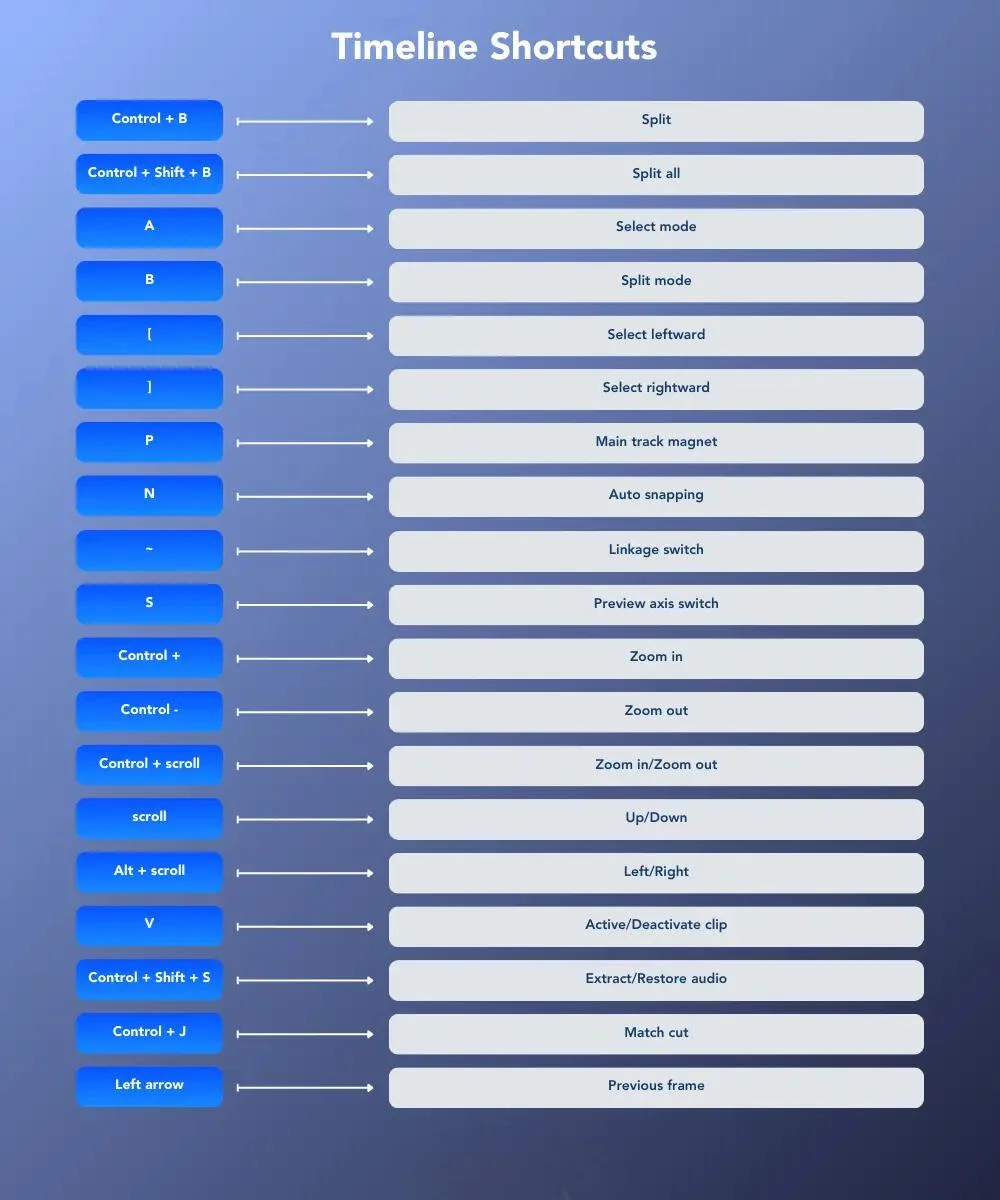
| Action | Windows | Mac |
|---|---|---|
| Split selected clip | Ctrl + B | Command + B |
| Split every track at the playhead | Ctrl + Shift + B | Command + Shift + B |
| Select mode | A | A |
| Split mode | B | B |
| Select all clips to the left / right | [ / ] | [ / ] |
| Delete left / right of playhead | Q / W | Q / W |
| Group / ungroup clips | Ctrl + G / Ctrl + Shift + G | Command + G / Command + Shift + G |
| Create / undo compound clip | Alt + G / Alt + Shift + G | Option + G / Option + Shift + G |
| Match cut | Ctrl + J | Command + J |
| Extract or restore audio | Ctrl + Shift + S | Command + Shift + S |
| Mark in / out point | I / O | I / O |
| Select an area by clip / clear it | Shift + X / Alt + X | Shift + X / Option + X |
| Enable or disable the selected clip | V | V |
| Show or hide the keyframe panel | Alt + K | Option + K |
| Open the speed panel | Ctrl + R | Command + R |
| Switch to curve speed | Shift + B | Shift + B |
| Nudge volume up / down 0.1 dB | Ctrl + . / Ctrl + , | Command + . / Command + , |
| Toggle main track magnet | P | P |
| Toggle auto snapping | N | N |
| Toggle audio and video linkage | ~ | ~ |
| Switch preview axis | S | S |
Watch the difference between B and Ctrl + B. B flips the timeline into split mode so every click cuts. Ctrl + B makes one cut and leaves you in select mode. Beginners hit B, wander off, and shred their timeline.
Moving around the timeline
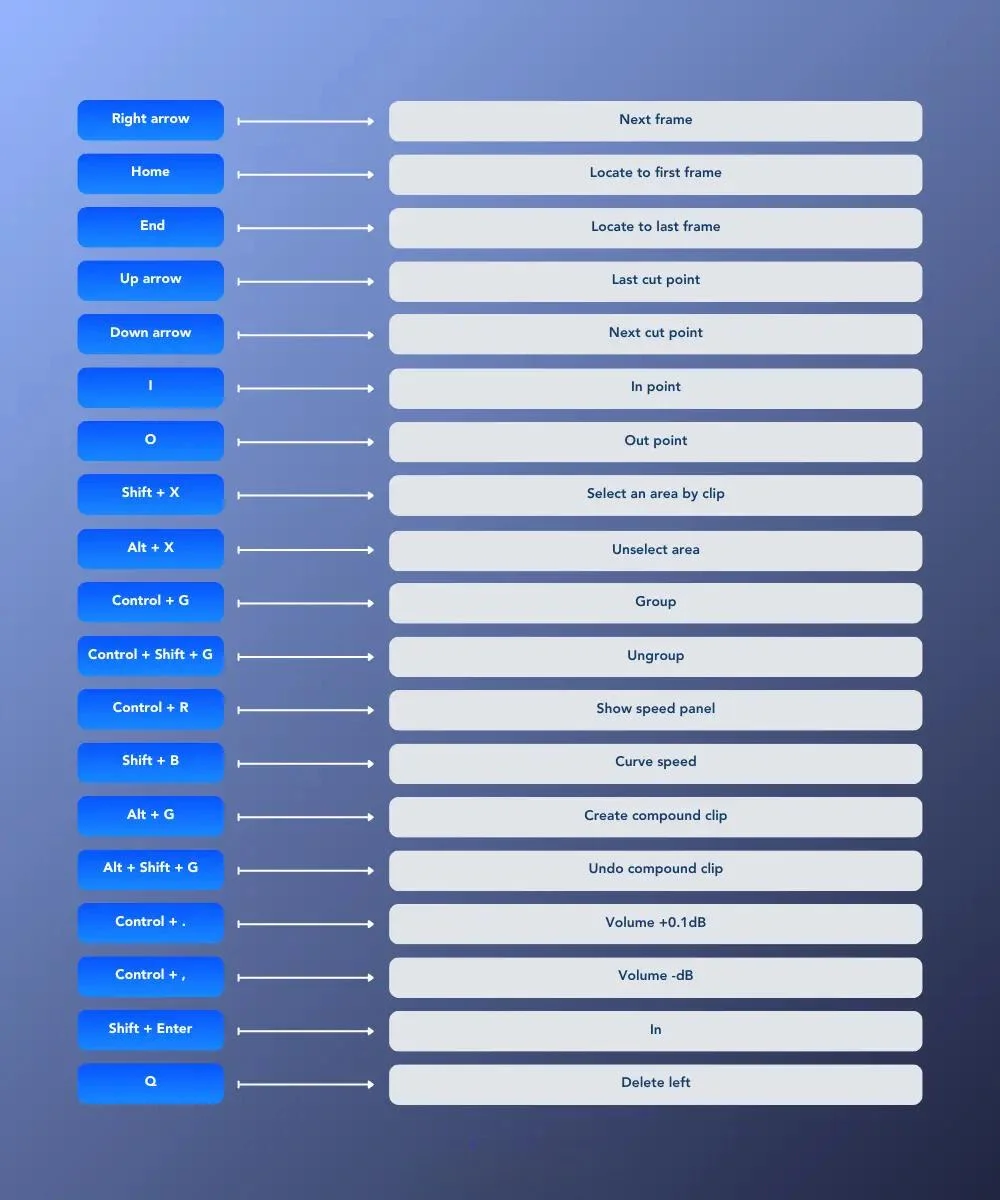
| Action | Windows | Mac |
|---|---|---|
| Previous / next frame | Left / Right arrow | Left / Right arrow |
| Jump several frames back / forward | Shift + Left / Shift + Right | Shift + Left / Shift + Right |
| Previous / next cut point | Up / Down arrow | Up / Down arrow |
| First / last frame of the project | Home / End | Home / End |
| Zoom the timeline in / out | Ctrl + = / Ctrl + – | Command + = / Command + – |
| Zoom with the mouse wheel | Ctrl + scroll | Command + scroll |
| Fit the whole timeline on screen | Shift + Z | Shift + Z |
| Scroll the timeline vertically | scroll | scroll |
| Scroll the timeline horizontally | Alt + scroll | Option + scroll |
Preview player
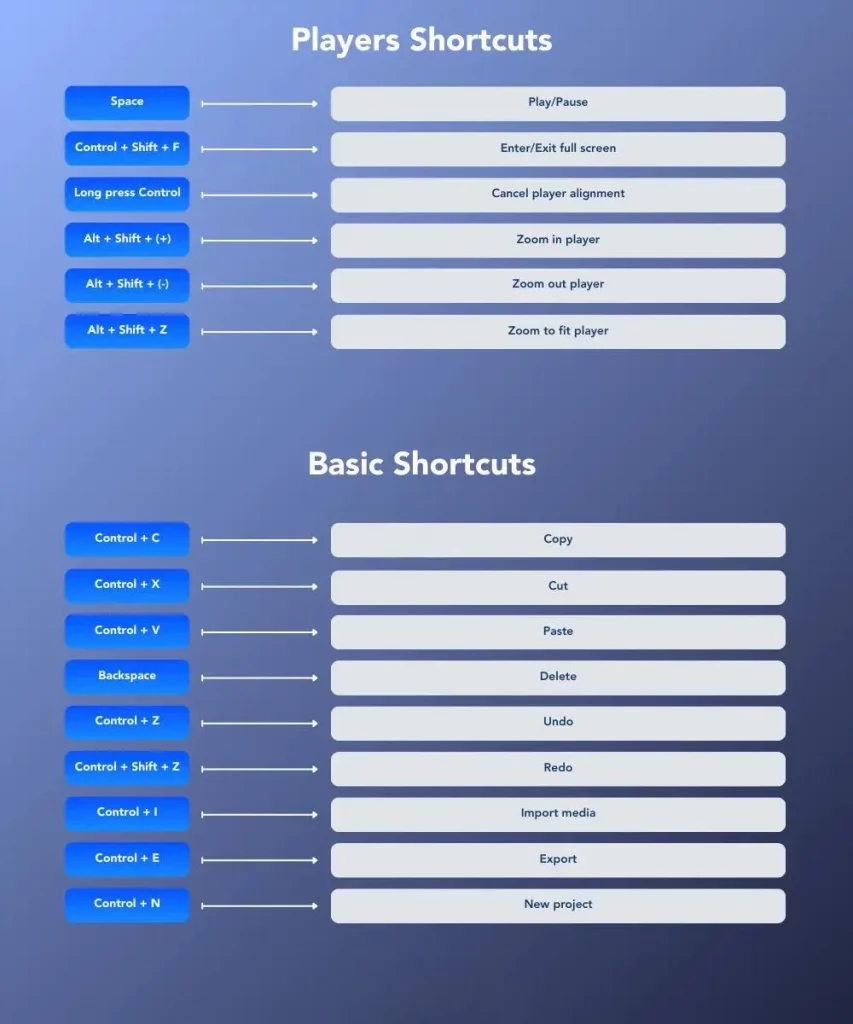
| Action | Windows | Mac |
|---|---|---|
| Play or pause | Space | Space |
| Enter or exit full screen preview | Ctrl + Shift + F | Command + Shift + F |
| Zoom the preview in / out | Alt + Shift + + / Alt + Shift + – | Option + Shift + + / Option + Shift + – |
| Fit the preview to the window | Alt + Shift + Z | Option + Shift + Z |
| Temporarily ignore alignment guides | hold Ctrl | hold Command |
Project, text and captions
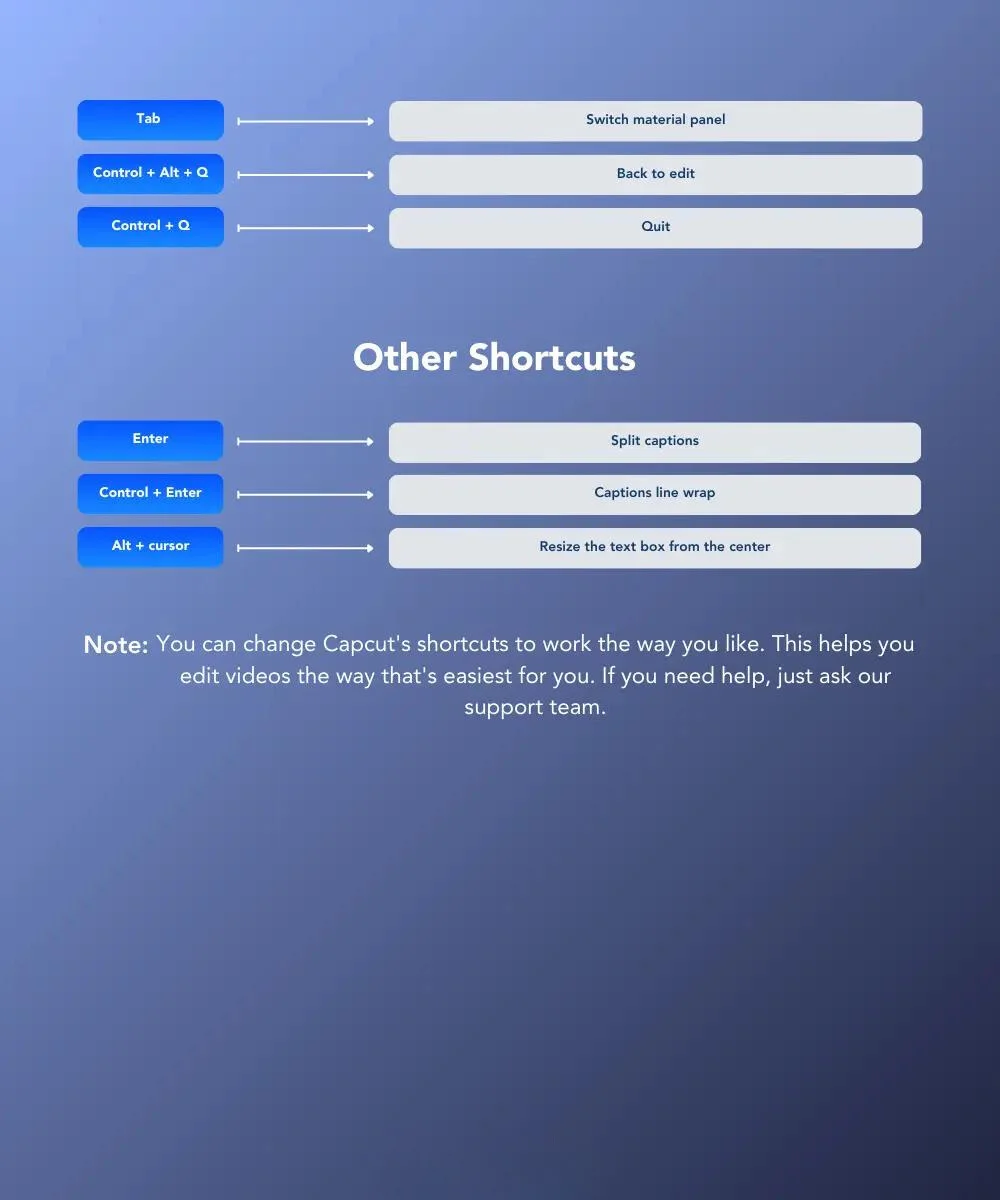
| Action | Windows | Mac |
|---|---|---|
| Copy / cut / paste | Ctrl + C / Ctrl + X / Ctrl + V | Command + C / Command + X / Command + V |
| Undo / redo | Ctrl + Z / Ctrl + Shift + Z | Command + Z / Command + Shift + Z |
| Delete selected clip | Backspace | Delete |
| Import media | Ctrl + I | Command + I |
| Export | Ctrl + E | Command + E |
| New project | Ctrl + N | Command + N |
| Cycle the material panel | Tab | Tab |
| Back to the edit page | Ctrl + Alt + Q | Command + Option + Q |
| Quit CapCut | Ctrl + Q | Command + Q |
| Split a caption into two | Enter | Enter |
| Line break inside a caption | Ctrl + Enter | Command + Enter |
| Resize a text box from its centre | Alt + drag | Option + drag |
How to remap CapCut shortcuts
-
Step 1 of 5
Open the shortcut panel
Inside an open project, click the keyboard icon in the top toolbar of the CapCut desktop editor. If your build hides it, the same panel sits under the main menu next to Settings.
-
Step 2 of 5
Find the command, not the key
The panel lists actions by category: timeline, player, basic. Search for what you want to do rather than scrolling for the key you have in mind.
-
Step 3 of 5
Click the current binding and press your new combination
CapCut records the keys live. Single letters are fair game because CapCut treats the timeline as the default focus.
-
Step 4 of 5
Resolve the conflict it warns you about
If the combination is already taken, CapCut says so and offers to steal it. Take a second to check what you are giving up before confirming.
-
Step 5 of 5
Save, then restore defaults if it goes wrong
The same panel has a reset option that puts every binding back. Worth knowing before you experiment.
Where CapCut shortcuts trip people up
- Mobile has none. CapCut on Android and iOS is touch only. Everything here is the desktop app.
- The browser version is a subset. CapCut on the web supports the common editing keys, not the full desktop map, and your browser grabs some combinations first.
- Q and W do not ask. They delete instantly to the left or right of the playhead. Ctrl + Z is your friend.
- Nothing works while a text box is active. Click away from the caption first, or every letter key types instead of triggering.
- Ctrl + B needs a selected clip. No selection means no split, which reads like a broken shortcut but isn’t.
Our take: CapCut’s default map is closer to a consumer app than a professional NLE, and that’s fine. If you’re editing long-form daily, you’ll outgrow it. Our Camtasia shortcuts guide and the roundup of best video editing software for YouTube cover where to go next. Making thumbnails alongside your edit? Canva shortcuts speed that up too.
Frequently asked questions
Can I customise keyboard shortcuts in CapCut?
Yes, on desktop. CapCut for Windows and Mac includes a shortcut editor where you can rebind almost any command, and it warns you when a combination is already taken. There is also a reset option that restores every default binding. The mobile apps have no shortcuts at all.
Do CapCut shortcuts work in the browser version?
Partly. CapCut on the web supports the common editing keys such as Space, the arrow keys and undo, but not the full desktop map. Your browser also claims some combinations first, so anything using Ctrl plus a letter may never reach CapCut.
Why is Ctrl + B not splitting my clip?
Almost always because no clip is selected. CapCut splits the selected clip at the playhead, so click the clip first. If you want to cut every track at once, use Ctrl + Shift + B instead.
What is the difference between B and Ctrl + B?
B switches the timeline into split mode, where every click you make cuts a clip. Ctrl + B performs one split at the playhead and leaves you in normal select mode. Press A to get back to select mode if B has taken over.
Are CapCut shortcuts the same on Mac and Windows?
The layout matches, with Command replacing Ctrl and Option replacing Alt. Single letter shortcuts like Q, W, B and S are identical on both. Check the in-app shortcut panel if a combination behaves oddly on your build.
Which CapCut shortcuts are worth learning first?
Ctrl + B to split, Q and W to trim everything left or right of the playhead, Space to play, the arrow keys to step frames, and Shift + Z to fit the timeline. Those six cover the bulk of a rough cut.
Why do my keyboard shortcuts stop working while editing text?
Because the caption or text box has focus, so every keystroke is treated as typing. Click on the timeline or press Escape to leave the text box, then the shortcuts respond again.
The bottom line
Don’t try to memorise the whole list. Ctrl + B, Q, W, Space, the arrow keys and Shift + Z carry most of a rough cut, and everything else in this CapCut shortcuts reference can wait until you hit the task it solves.
If a key feels wrong, remap it. The CapCut desktop shortcut editor takes about a minute to use and has a reset button, so there’s no risk in experimenting. Just remember that CapCut mobile ignores all of it.
One warning. Before you rebind single letters, check what they already do. Stealing S or V from the default map breaks habits you didn’t know you’d built.