

Camtasia’s timeline is fine with a mouse. It’s the third hour of a tutorial edit that kills you, when you’ve dragged the playhead four hundred times and every split needs a trip to the toolbar.
The Camtasia keyboard shortcuts below are grouped by the job you’re doing, with Windows and Mac side by side. Several entries floating around online are wrong, so this list has been rechecked against TechSmith’s own reference and the timeline shortcuts corrected where they’d drifted.
New to the software? Start with our Camtasia review, then come back here.
The nine that change your edit speed
Camtasia has well over a hundred bindings. These nine account for most of the saving.
| Action | Windows | Mac |
|---|---|---|
| Split selected media at the playhead | S | Command + T |
| Split every track at the playhead | Ctrl + Shift + S | Command + Shift + T |
| Play, pause or stop | Spacebar | Spacebar |
| Step one frame back or forward | Comma / Period | Comma / Period |
| Shuttle backwards, stop, shuttle forwards | J / K / L | J / K / L |
| Ripple delete the selection | Ctrl + Delete | Command + Delete |
| Silence the selected audio | Shift + S | Option + S |
| Zoom the timeline in or out | Ctrl + Shift + = / Ctrl + Shift + minus | Command + Shift + = / Command + Shift + minus |
| Add a marker | Shift + M | Shift + M |
J, K and L are borrowed from broadcast editing and they’re the fastest way to find a cut point. Tap L repeatedly to run forward at 2x, 4x and 8x, then K to stop dead. Same idea in most professional editors, including Premiere Pro.
Recording
| Action | Windows | Mac |
|---|---|---|
| Launch the recorder | Ctrl + R | Control + R |
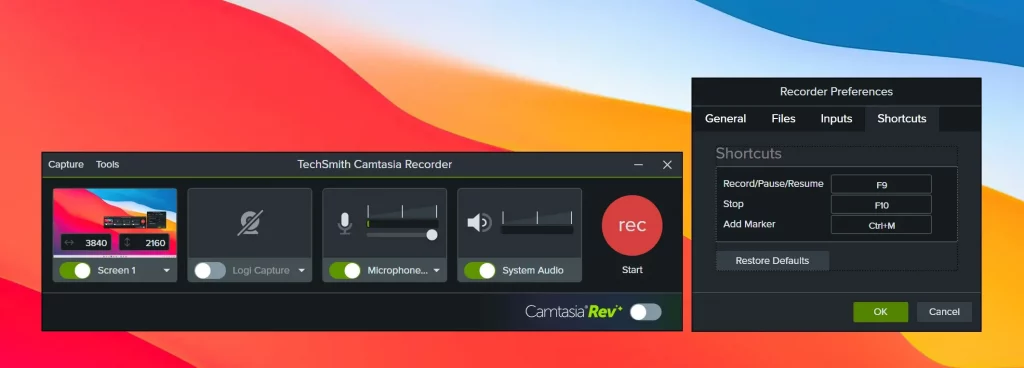
| Start or pause recording | F9 | Command + Shift + 2 |
| Stop recording | F10 | Command + Option + 2 |
| Add a marker while recording | Ctrl + M | Shift + Control + Option + Command + M |
| Start or stop narration recording | Ctrl + Shift + V | not available |
| PowerPoint add-in: record or pause | Ctrl + Shift + F9 | not available |
| PowerPoint add-in: stop | Ctrl + Shift + F10 | not available |
F9 and F10 are global while the recorder runs, so you can start and stop without switching windows. If they clash with something else on your machine, our guide to screen recording shortcuts on Mac and Windows covers the built-in alternatives.
Timeline editing
| Action | Windows | Mac |
|---|---|---|
| Split selected media | S | Command + T |
| Split all tracks | Ctrl + Shift + S | Command + Shift + T |
| Group / ungroup | Ctrl + G / Ctrl + U | Command + G / Command + U |
| Open a group | Ctrl + Shift + G | Control + Shift + G |
| Close a group | Ctrl + Shift + U | Control + Shift + U |
| Stitch selected media | Ctrl + Alt + I | Command + Option + I |
| Remove all stitches | Ctrl + Shift + backslash | Command + Shift + backslash |
| Silence / restore audio | Shift + S / Shift + R | Option + S / Option + R |
| Add an audio point | not available | Control + Shift + A |
| Add an annotation | Shift + N | Shift + N |
| Extend frame | Shift + E, or Alt and drag the clip end | Option and drag the clip end |
| Add a placeholder | P | P |
| Convert to placeholder | Ctrl + Alt + P | not available |
| Select all / deselect all | Ctrl + A / Ctrl + Shift + D | Command + A / Command + Shift + A |
| Ripple delete | Ctrl + Delete or Backspace | Command + Delete or Backspace |
| Delete, leaving the gap | Delete | Delete |
| Cut / copy / paste | Ctrl + X / Ctrl + C / Ctrl + V | Command + X / Command + C / Command + V |
| Duplicate | Ctrl + D | Command + D |
| Undo / redo | Ctrl + Z / Ctrl + Y | Command + Z / Command + Shift + Z |
Ripple delete versus plain delete is the distinction that bites people. Delete leaves a hole in the timeline. Ripple delete closes it and pulls everything to the right back into place.
Timeline navigation
| Action | Windows | Mac |
|---|---|---|
| Play, pause or stop | Spacebar | Spacebar |
| Shuttle backwards at 1x, 2x, 4x, 8x | J | J |
| Stop playback | K | K |
| Shuttle forwards at 1x, 2x, 4x, 8x | L | L |
| Step back / forward one frame | Comma / Period | Comma / Period |
| Return the playhead | Ctrl + Alt + M | Control + Option + Spacebar |
| Playhead to previous / next clip | Ctrl + Alt + comma / Ctrl + Alt + period | Control + comma / Control + period |
| Jump to the start of the timeline | Ctrl + Home | Command + Return |
| Jump to the end of the timeline | Ctrl + End | Command + Shift + Return |
| Zoom in / out | Ctrl + Shift + = / Ctrl + Shift + minus | Command + Shift + = / Command + Shift + minus |
| Zoom to fit | Ctrl + Shift + 7 | Command + Shift + 0 |
| Zoom to maximum | Ctrl + Shift + 9 | Command + Shift + 9 |
| Extend selection to next / previous clip | Ctrl + Shift + Alt + Right / Left | Command + Shift + Option + period / comma |
| Extend the selection range left / right | Shift + comma / Shift + period | Shift + comma / Shift + period |
| Make a timeline selection | hold Ctrl and drag the playhead | hold Command and drag the playhead |
| Increase / decrease track height | Alt + = / Alt + minus | Option + = / Option + minus |
| Temporarily disable snapping | hold Ctrl and drag media | hold Control and drag media |
Canvas, animations and effects
| Action | Windows | Mac |
|---|---|---|
| Zoom the canvas in / out | Ctrl + = / Ctrl + minus, or scroll wheel | Command + = / Command + minus, or scroll wheel |
| Centre the canvas | Alt + C | Option + C |
| Scale to fit | Ctrl + 0 | Shift + F |
| Pan and scale to 100% | Alt + Z | Command + Option + 3 |
| Enable or disable canvas snapping | Ctrl + semicolon | Command + semicolon |
| Move selected media one pixel | arrow keys | arrow keys |
| Move selected media ten pixels | Shift + arrow keys | Shift + arrow keys |
| Keep the aspect ratio while resizing | hold Shift and drag a corner handle | hold Shift and drag a corner handle |
| Leave a group or full screen canvas | Esc | Esc |
| Add the last used transition | Shift + T | Shift + T |
| Add a custom animation | Shift + A | Shift + A |
| Jump to the next animation | Alt + I | Option + I |
| Jump to the previous animation | Shift + I | Shift + I |
Two of these are commonly published wrong. Jumping between animations is Alt or Option with I, not K, and the previous animation is Shift with I. If a cheat sheet tells you Shift + K, it’s out of date.
Panels, tabs and the program itself
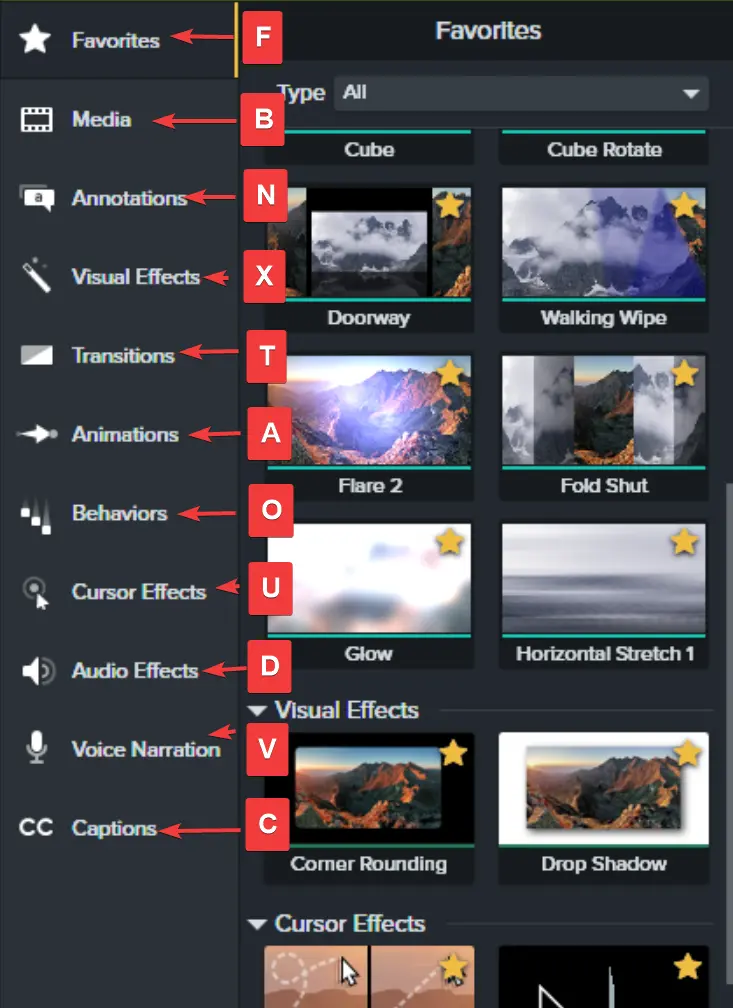
Single letters open the tool tabs. This is the block most people never learn, and it’s where a surprising amount of clicking disappears.
| Action | Windows | Mac |
|---|---|---|
| Show or hide the tools panel | Ctrl + 1 | Command + 1 |
| Show or hide the properties panel | Ctrl + 2 | Command + 2 |
| Attach or detach the timeline | Ctrl + 3 | Command + 3 |
| Media bin | B | B |
| Camtasia assets | E | E |
| Library | R | R |
| Favourites | F | F |
| Annotations | N | N |
| Transitions | T | T |
| Behaviours | O | O |
| Animations | A | A |
| Cursor effects | U | U |
| Voice narration | V | V |
| Audio effects | D | D |
| Visual effects | X | X |
| Gesture effects | not available | G |
| Captions | C | not available |
| Launch the Home dialog | Ctrl + H | Command + period |
| Preferences | Ctrl + comma | Command + comma |
| Launch Audiate | Ctrl + Alt + A | not available |
| Launch Snagit | Ctrl + Alt + S | not available |
| Import package | Ctrl + Shift + P | Control + Shift + P |
| Export package | Ctrl + Shift + E | Control + Shift + E |
| Quit Camtasia | Alt + F4 | Command + Q |
Four of these were published incorrectly for years: R opens the Library rather than full screen, F opens Favourites rather than gesture effects, U is cursor effects and D is audio effects. If you learned them the other way round, relearn them now.
Projects, captions, markers and text
| Action | Windows | Mac |
|---|---|---|
| New project | Ctrl + N | Command + N |
| Open project | Ctrl + O | Command + O |
| Save project | Ctrl + S | Command + S |
| Import media to the bin | Ctrl + I | Command + I |
| Export to a local file | Ctrl + E | Command + E |
| Export the current frame | Ctrl + F | Control + F |
| Export the frame at the playhead | Ctrl + Shift + F | Control + Shift + F |
| Add the selection to the library | Ctrl + Shift + A | Command + Option + A |
| Import to the library | Ctrl + Shift + I | not available |
| Add a caption | Shift + C | Shift + C |
| Lengthen / shorten a caption | Ctrl + Alt + ] / Ctrl + Alt + [ | Command + ] / Command + [ |
| Next / previous caption | Tab / Shift + Tab | Tab / Shift + Tab |
| Replay the current caption segment | Enter | Enter |
| Add a marker / quiz | Shift + M / Shift + Q | Shift + M / Shift + Q |
| Show or hide the marker view | Ctrl + M | Control + M |
| Show or hide the quiz view | Ctrl + Q | Control + Q |
| Show or hide the transcript view | Ctrl + T | Control + T |
| Next / previous marker | Ctrl + ] / Ctrl + [ | Control + ] / Control + [ |
| Next / previous quiz | Ctrl + 0 / Ctrl + 9 | Control + 0 / Control + 9 |
| Annotation text bold / italic / underline | Ctrl + B / Ctrl + I / Ctrl + U | Command + Shift + B / I / U |
| Edit annotation text | double click the annotation | Option + Return |
Can you remap Camtasia’s shortcuts?
Not from inside the app. Camtasia has no shortcut editor, which is a fair complaint against a tool at this price. Bindings are fixed and TechSmith changes them between major versions without much fanfare, which is exactly why so many outdated lists circulate.
Two practical notes. Single letter shortcuts only fire when the timeline or canvas has focus, so click away from a text field first. And the Mac build genuinely differs, using Control where Windows uses Ctrl in some places and Command in others, so don’t assume a straight swap. For a lighter free option with a remappable map, see our CapCut shortcuts guide, and our Camtasia features breakdown covers what the software does beyond the timeline.
Frequently asked questions
Can I customise keyboard shortcuts in Camtasia?
No. Camtasia has no shortcut editor on Windows or Mac, and no way to disable an individual binding. A system level remapper such as PowerToys or Karabiner is the only workaround, and it risks breaking shortcuts in your other apps.
What is the difference between delete and ripple delete?
Delete removes the clip and leaves an empty gap on the timeline. Ripple delete, which is Ctrl + Delete on Windows or Command + Delete on Mac, removes the clip and pulls everything after it back to close the gap.
Why do single letter shortcuts type instead of doing anything?
Because a text field has focus, usually an annotation or a caption you were editing. Camtasia sends every keystroke to whatever is active. Click on the timeline or press Escape first, then the letter keys work as commands again.
Are Camtasia shortcuts the same on Windows and Mac?
Close, but not a straight swap. Mac uses Command for most edit commands, yet keeps Control for the recorder, package import and export, and group open and close. Read the Mac column rather than assuming Command replaces Ctrl everywhere.
What do J, K and L do in Camtasia?
They are shuttle controls borrowed from broadcast editing. L plays the timeline forward and each extra press doubles the speed through 2x, 4x and 8x. J does the same in reverse, and K stops playback. It is the quickest way to hunt for a cut point.
Why has a shortcut from an older guide stopped working?
TechSmith changes bindings between major versions without announcing them, so lists written for an older release go stale. Several widely copied entries for animations and the tool tabs have been wrong for years. Check the official reference after every upgrade.
Which single letter opens each tool tab?
B for the media bin, E for Camtasia assets, R for the library, F for favourites, N for annotations, T for transitions, O for behaviours, A for animations, U for cursor effects, V for voice narration, D for audio effects and X for visual effects.
The bottom line
If you take nothing else from this page, take S, J, K, L and Ctrl + Delete. Those five turn a slow scrub-and-click edit into something that keeps pace with your thinking, and they’re the backbone of the Camtasia keyboard shortcuts set.
After that, learn the single letter tab keys. B, N, T, A and X open the panels you reach for constantly, and the Camtasia timeline stops being a mouse exercise. Mac users should read their column carefully, because Camtasia for Mac is not a straight Command-for-Ctrl translation.
One warning. Bindings shift between major releases and there’s no in-app remapping to fall back on, so check TechSmith’s reference after an upgrade rather than trusting an old cheat sheet. Including this one.