You type a web address, hit Enter, and Chrome shows “This site can’t provide a secure connection” with the code ERR_SSL_PROTOCOL_ERROR underneath. No page, no details, just a dead end.
Most fix lists mix up causes that produce entirely different errors, so we built a test server and broke HTTPS nine different ways to see which mistakes actually trigger this code in Chrome.
Only two did. Below is what we found, the fixes for visitors and for site owners, and how to tell which side the problem is on.
What does ERR_SSL_PROTOCOL_ERROR mean?
ERR_SSL_PROTOCOL_ERROR means your browser started a secure HTTPS connection, but the reply from the server didn’t follow the rules of the TLS protocol, so the browser couldn’t finish the handshake. Chrome stops before loading anything, to protect you.
TLS (the modern name for SSL) is the encryption that puts the padlock in your address bar. Before any page loads, the browser and server agree on a TLS version and swap certificates in a short exchange called the handshake. This error means that exchange broke in a way the browser couldn’t make sense of.
Edge, Brave and Opera use the same engine as Chrome and show the same code. Firefox shows its own wording, such as “Secure Connection Failed” with SSL_ERROR_RX_RECORD_TOO_LONG.
Our test: nine ways to break HTTPS
We set up a local test server with our own certificate authority, trusted it in a clean Chrome profile, and created nine broken setups plus two correct ones. Then we pointed Chrome 156 at each one and recorded the exact error.
| What we broke | Error Chrome showed |
|---|---|
| Plain HTTP on the HTTPS port | ERR_SSL_PROTOCOL_ERROR |
| Server sent a malformed handshake | ERR_SSL_PROTOCOL_ERROR |
| Expired certificate | ERR_CERT_DATE_INVALID |
| Certificate for a different domain | ERR_CERT_COMMON_NAME_INVALID |
| Server only offers TLS 1.0 | ERR_SSL_VERSION_OR_CIPHER_MISMATCH |
| Self-signed certificate | ERR_CERT_AUTHORITY_INVALID |
| Intermediate certificate missing | ERR_CERT_AUTHORITY_INVALID |
| Server demands a client certificate | ERR_SOCKET_NOT_CONNECTED |
| Server closed the connection mid-handshake | ERR_CONNECTION_CLOSED |
| Valid certificate, TLS 1.3 (the fix) | Page loaded, HTTP 200 |
| Same certificate with its full chain (the fix) | Page loaded, HTTP 200 |
The results surprised us. An expired certificate doesn’t cause ERR_SSL_PROTOCOL_ERROR. Neither does a certificate for the wrong domain or an old TLS version. Each of those gets its own, more specific error.
ERR_SSL_PROTOCOL_ERROR appeared only when the server’s reply wasn’t valid TLS at all: once when it answered in plain HTTP on the HTTPS port, and once when it sent a malformed handshake.

That changes how you troubleshoot. If you see this code, the browser isn’t complaining about your certificate’s dates or name. Something between you and the server is speaking the wrong language on the secure port.
What causes ERR_SSL_PROTOCOL_ERROR?
Based on our test and how the error works, the real causes fall into two groups.
On the server side:
- HTTPS port serving plain HTTP. A web server set to listen on port 443 without TLS turned on, which is exactly what our first test reproduced.
- A broken or half-configured TLS setup, such as a missing certificate file after a migration or a server software bug.
- A proxy, CDN or load balancer in front of the site passing traffic incorrectly.
On the visitor’s side:
- Antivirus or firewall HTTPS scanning that intercepts the connection and mangles the handshake.
- A network that tampers with traffic, such as some office firewalls, school networks or public Wi-Fi login pages.
- A VPN, proxy or browser extension that sits in the connection.
- Corrupt cached data in the browser or the operating system’s SSL cache.
How to tell if it’s your side or the site’s side
Before changing any settings, run this check:
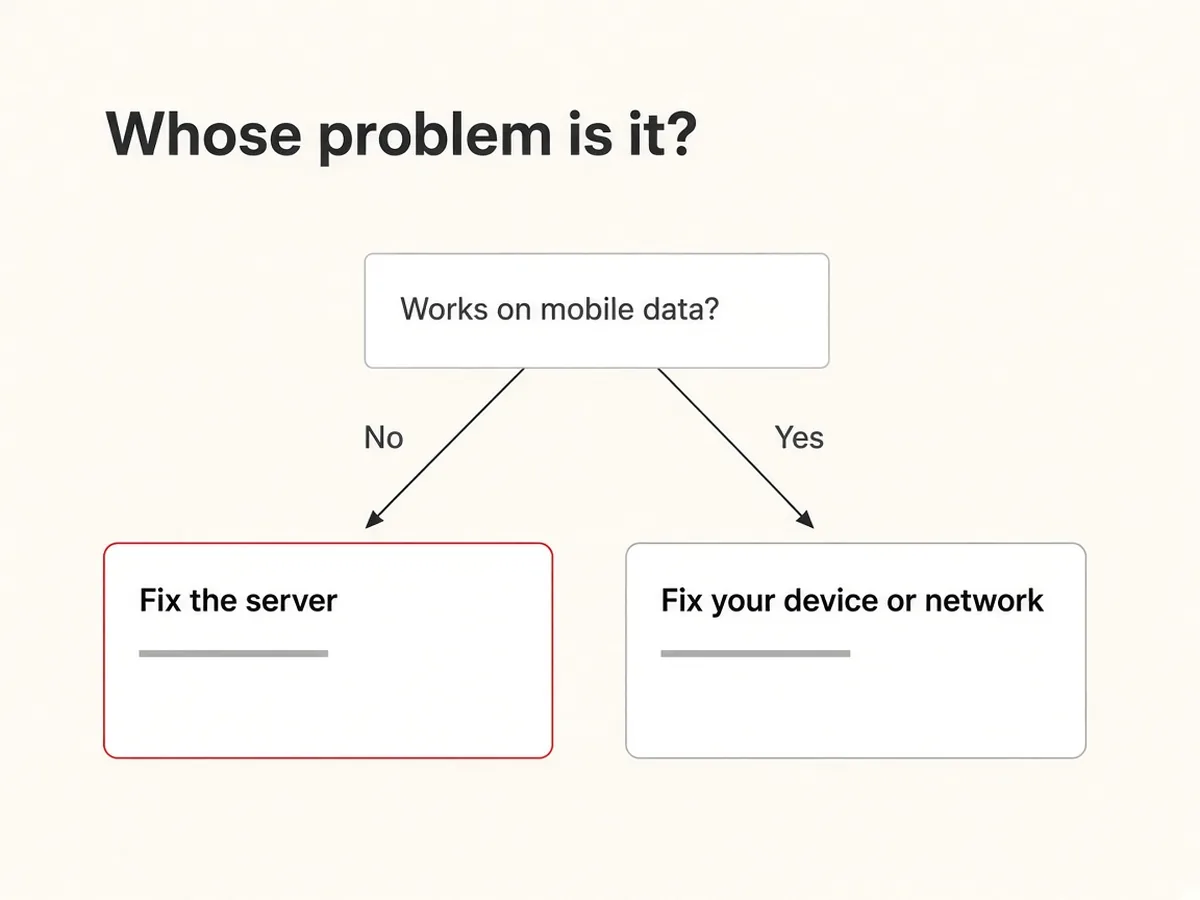
- Open the site on your phone using mobile data, not your Wi-Fi.
- Try a different browser on your computer, such as Firefox.
- Ask an online SSL checker to test the site from outside your network.
If the site fails everywhere, the problem is on the server, and only the site owner can fix it. If it works on your phone but not your computer, the problem is on your device or network.
How to fix ERR_SSL_PROTOCOL_ERROR as a visitor
Work through these in order. Each one rules out a cause.
Fix ERR_SSL_PROTOCOL_ERROR on your device
Test the site again after each step.
-
Step 1 of 6
Reload and try an incognito window
Incognito runs without most extensions and with a fresh cache. If the site loads there, an extension or cached data is the cause.
-
Step 2 of 6
Turn off your VPN or proxy
Disconnect the VPN, then check Settings → System → Proxy in Chrome. A misbehaving proxy can break the handshake.
-
Step 3 of 6
Pause antivirus HTTPS scanning
Many security suites inspect encrypted traffic. Look for a setting named HTTPS scanning, SSL scanning or encrypted connection scanning and turn it off briefly to test.
-
Step 4 of 6
Clear browsing data and the SSL state
In Chrome, clear cached images and files. On Windows, also open Internet Options → Content → Clear SSL state.
-
Step 5 of 6
Try another network
Switch from office or public Wi-Fi to mobile data. If the site works, that network’s firewall is interfering.
-
Step 6 of 6
Update your browser
Open chrome://settings/help to update. Outdated browsers can fail with servers that use newer TLS settings.
Some guides also suggest fixing your computer’s date and time. It’s worth checking, because a wrong clock breaks HTTPS. In our test, though, a date problem produced ERR_CERT_DATE_INVALID, not this error. So if your clock is wrong, you’ll usually see that code instead.
How to fix ERR_SSL_PROTOCOL_ERROR on your own website
If the error shows for everyone, start on the server.
1. Check that port 443 actually speaks TLS
This was the cause in our first test, and it’s a classic after editing server config. On Nginx, a listen 443; line without the word ssl serves plain HTTP on the secure port.
# Broken: port 443 serves plain HTTP
server {
    listen 443;
    server_name example.com;
}

# Fixed: port 443 speaks TLS
server {
    listen 443 ssl;
    server_name example.com;
    ssl_certificate     /etc/ssl/example.com/fullchain.pem;
    ssl_certificate_key /etc/ssl/example.com/privkey.pem;
    ssl_protocols TLSv1.2 TLSv1.3;
}
After the fix, the same test page loaded with HTTP 200 over TLS 1.3. On Apache, check that the 443 virtual host has SSLEngine on and valid certificate paths.
2. Confirm the certificate is installed for this domain
On managed or shared hosting, open your hosting panel’s SSL section and confirm the certificate is active for the exact domain, including the www version if you use it. Many hosts, including Hostinger, issue free Let’s Encrypt certificates, but a new domain can take a short while before its certificate is issued.
3. Check your DNS points to the right server
If you recently moved hosts, the domain may still point to the old server, which may not have your certificate any more. Compare your A record with the IP address your new host gives you. Our guide to how DNS works explains how to check.
4. Check the CDN or proxy settings
If you use Cloudflare or another CDN, its SSL mode must match your server. A server with no certificate behind a CDN set to strict mode will fail, and the visitor may see an error from the CDN rather than from your server. Pause the CDN briefly to test your server on its own.
5. Turn off old TLS versions, not new ones
Modern browsers require TLS 1.2 or 1.3. Our TLS 1.0-only server got ERR_SSL_VERSION_OR_CIPHER_MISMATCH, so if you see that code instead, enable TLS 1.2 and 1.3 in your server or hosting settings.
6. Serve the full certificate chain
Most certificates are signed by an intermediate authority, not directly by a root that browsers trust. Your server has to send both: your certificate and the intermediate. Miss the intermediate and some visitors can’t build the chain back to a trusted root.
We tested this with a leaf certificate signed by a test intermediate. Sent alone, Chrome refused it with ERR_CERT_AUTHORITY_INVALID, and curl said “unable to get local issuer certificate”. Sent with the intermediate, the same certificate loaded with HTTP 200.
Real certificates include a download link for their intermediate, and desktop Chrome can sometimes fetch it on its own. Many apps, scripts and older phones can’t, which is why a site can work in your browser and fail in a payment webhook. With Let’s Encrypt, point your server at fullchain.pem, not cert.pem.
For WordPress sites
On WordPress, the usual sequence is: activate the SSL certificate in your hosting panel first, then switch the WordPress Address and Site Address to https under Settings → General. Doing it in the other order can lock you out with an SSL error. If you’re seeing a different server message, our guides to 502 Bad Gateway and the WordPress critical error cover those.
Diagnose it from the command line
If you run the server, two commands tell you more in five seconds than any browser screen. We ran both against our broken test servers:
# What does the server say on port 443?
curl -sS https://example.com/ -o /dev/null

# Show the TLS version, cipher and certificate check result
openssl s_client -connect example.com:443 -servername example.com </dev/null \
  | grep -E 'Protocol|Cipher is|Verify return code'
Each failure printed a distinct message, so you can match what you see to the cause:
| What curl or OpenSSL said | What it means |
|---|---|
wrong version number | Plain HTTP answering on the TLS port |
unexpected message | Server sent something that isn’t a valid handshake |
unexpected eof while reading | Server hung up during the handshake |
unable to get local issuer certificate (curl), verify code 21 (OpenSSL) | Intermediate certificate missing |
Verify return code: 0 (ok) with TLSv1.3 | Healthy setup |
The first row is the one to remember. “wrong version number” almost always means plain HTTP is answering on the HTTPS port. The server sent back something like HTTP/1.1 400, and the TLS library tried to read those letters as a TLS record header.
Run the same commands from a server outside your network too. If they pass there and fail on your office connection, the problem is the network in between, not your site.
Cloudflare SSL modes and this error
If your site sits behind Cloudflare, two connections are involved: visitor to Cloudflare, and Cloudflare to your server. Cloudflare’s SSL mode decides how the second one works, and the wrong mode produces errors that look like this one.
| Cloudflare mode | Cloudflare to your server | What goes wrong |
|---|---|---|
| Off | No HTTPS at all | Visitors get no padlock |
| Flexible | Plain HTTP | Redirect loops if the server forces HTTPS |
| Full | HTTPS, any certificate | Error 525 if the server has no working TLS |
| Full (strict) | HTTPS, valid certificate | Error 526 if the certificate is expired or wrong |
The safe setup is a valid certificate on your server (a free Let’s Encrypt one or a Cloudflare Origin certificate) with the mode set to Full (strict). If you see a Cloudflare-branded 525 or 526 page instead of Chrome’s error, the problem is on the Cloudflare-to-server leg, so fix the server’s certificate before touching any browser settings.
When antivirus HTTPS scanning is the cause
Security suites that scan encrypted traffic sit in the middle of every HTTPS connection. They decrypt the page, check it, then re-encrypt it with their own certificate. When that layer can’t handle a site’s TLS setup, the browser sees a broken handshake.
To test it, turn off only the HTTPS or encrypted-traffic scanning, reload the page, then turn it back on. The setting goes by different names:
- Bitdefender: Encrypted web scan, under Online Threat Prevention.
- Kaspersky: Scan encrypted connections, in the network settings.
- Avast and AVG: Enable HTTPS scanning, in the Web Shield settings.
- ESET: SSL/TLS protocol filtering, under web access protection.
If the site loads with scanning off, add it to the suite’s exclusion list rather than leaving scanning disabled. If you’re weighing whether a paid suite is worth that trouble, our look at whether Bitdefender is worth it covers what its web protection actually catches.
Related SSL errors and what they mean
Our test showed that each SSL problem has its own code. Here’s how to read them:
- ERR_CERT_DATE_INVALID: the certificate has expired, or your device’s clock is wrong.
- ERR_CERT_COMMON_NAME_INVALID: the certificate was issued for a different domain name.
- ERR_SSL_VERSION_OR_CIPHER_MISMATCH: the server only offers old TLS versions or weak ciphers.
- ERR_CERT_AUTHORITY_INVALID: the certificate isn’t from a trusted authority, often a self-signed one.
- ERR_CONNECTION_CLOSED: the server dropped the connection, which we saw when it closed mid-handshake.
- ERR_SOCKET_NOT_CONNECTED: in our test, this appeared when the server demanded a client certificate that the browser didn’t have. You’ll mostly meet it on company intranets and banking portals that use certificate login.
Quick lookup: symptom to likely cause
| What you see | Most likely cause | Where to look |
|---|---|---|
| Error on one site, every device | Server TLS setup | Port 443 config, certificate, CDN |
| Error on every site, one device | Antivirus, VPN or proxy | HTTPS scanning, VPN app, extensions |
| Error on one network only | Firewall or captive portal | Try mobile data; log in to the Wi-Fi page |
| Works in Chrome, fails in apps or scripts | Missing intermediate certificate | Serve the full chain |
| Started right after a host move | DNS still on the old server | Compare the A record with the new IP |
| Cloudflare 525 or 526 page | Cloudflare-to-server leg | Server certificate and SSL mode |
Heads-up: our Hostinger link is an affiliate link. If you buy through it, DroidCrunch earns a commission at no extra cost to you.
If you’re tired of managing certificates yourself, a host that installs and renews SSL automatically removes most of these errors. Hostinger includes free SSL on its hosting plans, and our Hostinger review covers how well it performs. For the bigger picture, see how web hosting works.
Frequently asked questions
Is ERR_SSL_PROTOCOL_ERROR dangerous?
Not in itself. It means Chrome refused to load a page because the secure connection couldn’t be set up correctly. That protects you. Don’t try to bypass it on sites where you log in or pay, and never enter passwords on a page that shows SSL errors.
Can a wrong date on my computer cause ERR_SSL_PROTOCOL_ERROR?
Usually not. In our test, a certificate outside its valid dates produced ERR_CERT_DATE_INVALID instead. A wrong clock causes the same date error, because the browser compares the certificate’s dates with your system time. Fix the clock anyway if it’s off.
Why do I get ERR_SSL_PROTOCOL_ERROR on only one website?
When only one site fails, the problem is usually that site’s server, such as a misconfigured HTTPS port or a broken certificate setup. Check whether it loads on mobile data. If it fails there too, only the site owner can fix it.
Why do I get ERR_SSL_PROTOCOL_ERROR on every website?
If every HTTPS site fails, something on your device or network is interfering. The usual suspects are antivirus HTTPS scanning, a VPN or proxy, a corporate or school firewall, or a browser extension. Test in incognito and on another network to narrow it down.
Does clearing cookies fix ERR_SSL_PROTOCOL_ERROR?
Sometimes. Clearing cookies and cached files removes stale data that can confuse a connection, and it’s harmless to try. It won’t help when the server itself is misconfigured, which is the most common cause when the error appears for every visitor.
Can a browser extension cause ERR_SSL_PROTOCOL_ERROR?
Yes, especially ad blockers, privacy tools and security extensions that inspect or reroute traffic. Open the site in an incognito window, where most extensions are off. If it loads there, turn extensions back on one at a time to find the culprit.
What is the difference between SSL and TLS?
TLS is the newer, more secure version of SSL. Every old SSL version is now retired, and browsers use TLS 1.2 or 1.3. People still say SSL out of habit, which is why error codes, certificates and hosting menus keep the old name.
The bottom line
In our tests, this error showed up only for replies that weren’t valid TLS. Expired certificates, wrong names and old TLS versions all produced different codes.
As a visitor, test from another network first. If the site works there, look at your antivirus, VPN, extensions and network. If it fails everywhere, tell the site owner.
As a site owner, check that port 443 is really serving TLS, the certificate covers your exact domain, and DNS and CDN settings point where you think they do.